Custom style sheets
Instead of or in addition to using the default style sheet that specifies the default symbol styles, you can create your own custom model-based symbol styles by creating style sheets with your own sets of rules.
Custom style sheet types
Custom model-based symbol styles are specified in a style sheet. You can create style sheets in the following ways:
- Extract a style sheet
In a view displaying elements with applied metadata, you can automatically extract a style sheet based on the applied metadata, applied metadata feature value, specialized library element, or library element feature value. The extracted style sheet is automatically applied to the view and the displayed symbols. - Create a style sheet from scratch
This option allows you to create a style sheet with your own custom rules. - Create a style sheet by reusing an existing style sheet
This way, you can create custom rules and customize the rules inherited from the reused style sheet.
Style sheet composition
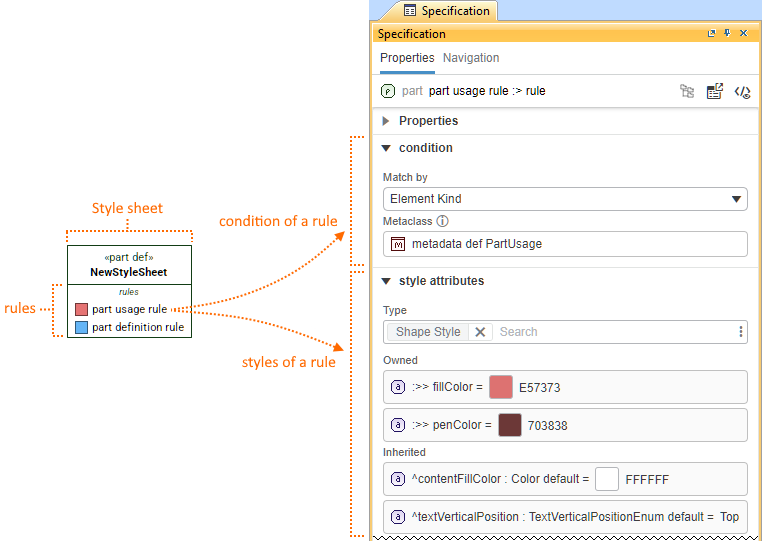
A style sheet is comprised of the following components:
- (Optional) Style sheet condition - specify a condition that applies to the entire style sheet. All individual rules declared in the style sheet apply only to the symbols that comply with the style sheet condition. See the (2026x Refresh1) Creating a style sheet condition page.
- Rules - specify conditions and styles for symbols.
- Condition - specifies to which symbols the rule applies. See the (2026x Refresh1) Specifying a condition for a rule page.
- Style - specifies the style that will be applied to the symbols that comply with the specified condition. You must specify the style definition (e.g., Shape Style) that comes with predefined attributes (e.g., fill color, font, etc.) available for specification. See the (2026x Refresh1) Specifying styles for a rule page.

Style definitions
There are several types of style definitions:
- Primary style definitions - high-level style definitions that specify style attributes that can be used for a rule. They are contained in the DS_Styles::CoreStylesComponents::KerMLStyles of the 3DS SysML Customization library.
- For a list of primary style definitions, see the 'Primary style definitions' column in the Symbol styles table.
- Auxiliary style definitions - lower-level style definitions that reuse (subclassify) primary style definitions, specifying selected attributes and their values of the primary style definition. Auxiliary style definitions allow you to specify concrete styles which can then be reused in multiple rules instead of specifying the style for each rule locally. There are two types of auxiliary style definitions:
- Predefined style definitions - style definitions specified in the DS_Styles::StyleSheets::ColorDefinitions package of the 3DS SysML Customization library (e.g., AbstractGreenStyle, AbstractRedStyle, etc.). These styles are only used in predefined style sheets.
- For a list of predefined style definitions, see the Symbol styles table.
- Custom style definitions - style definitions you create yourself. See the (2026x Refresh1) Creating reusable styles page.
- Predefined style definitions - style definitions specified in the DS_Styles::StyleSheets::ColorDefinitions package of the 3DS SysML Customization library (e.g., AbstractGreenStyle, AbstractRedStyle, etc.). These styles are only used in predefined style sheets.

Example
Say you prefer to use the DefaultStyleSheet, but you want to modify it so that part usage element symbols display all inherited elements at all times, which is disabled by default in the DefaultStyleSheet.
- Create a new style sheet and a rule for it.
- Open the Specification panel for the rule.
- Specify the condition for the rule in the condition compartment by doing the following:
- In the Match By dropdown menu, select Element Kind.
- Specify the Metaclass field:
- In the Containment tab, click Quick Find, and input 'partusage'. In the results section, locate the Part Usage element with the metaclass symbol
 . If the element is not displayed, deselect the Apply Filter check box. The element is selected in the Containment tree.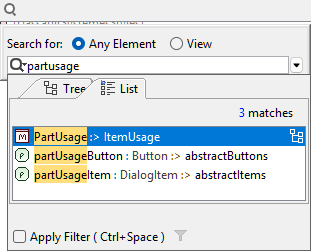
- Drag and drop the element from the Containment tree onto the Metaclass field in the Specification panel.
The metaclass has been specified as part usage.
- In the Containment tab, click Quick Find, and input 'partusage'. In the results section, locate the Part Usage element with the metaclass symbol
- Specify the style for the rule in the style attributes compartment by doing the following:
- In the Type dropdown menu, select Feature Compartment Style.

If you take a look at the Symbol styles table, you can see that the showInherited attribute is available via the Feature Compartment Style style definition. You need to specify it for the rule's condition to inherit the showInherited attribute.
For a list of all style definitions, their attributes, value types, and symbols to which they apply, see the Symbol styles table.
- In the Owned attributes section, hover over the redefined attributes and click the Delete
 button. Note: a newly created rule has the Shape Style style definition, which includes redefinitions for fillColor (with a randomly assigned color value) and penColor (with a comparatively darker color value) attributes. Delete the redefining attributes to retain the default style sheet's values for these attributes.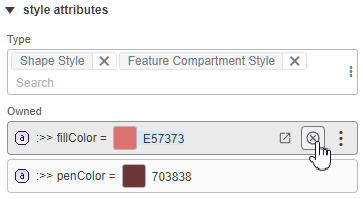
- In the Inherited attributes section, locate the showInherited attribute and click to edit it. Select the check box to set the attribute's value to true.
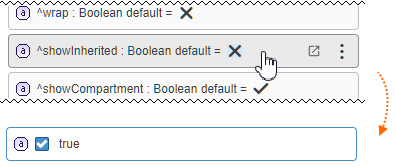
The style attributes compartment looks like this:
- In the Type dropdown menu, select Feature Compartment Style.
- Specify the condition for the rule in the condition compartment by doing the following:
- Implement the changes:
- (Optional) Now, the new style sheet is applied to the view it was created for. If you prefer to apply it to the entire project, see the (2026x Refresh1) Applying style sheets page.
- Refresh the project to implement the changes by doing one of the following:
- Press the F5 key on the keyboard.
- In the main toolbar, click View > Refresh.
- Assess layout-sensitive changes. The showInherited attribute is one of the layout-affecting attributes, so you need to approve the style changes for affected symbols. See the procedure on the (2026x Refresh1) Assessing layout-sensitive changes page.
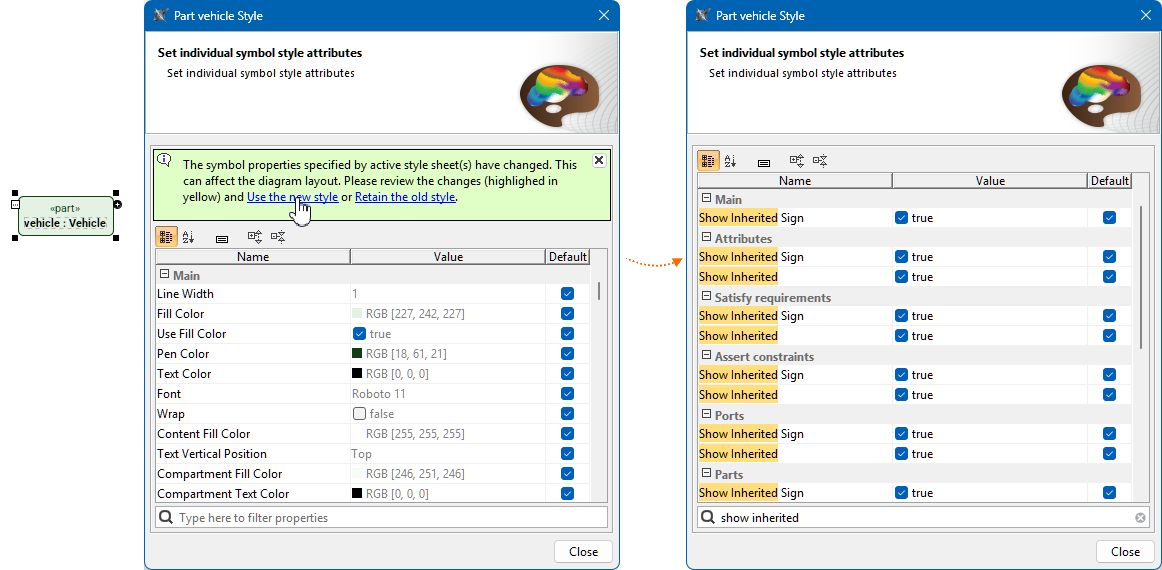
- The inherited elements can only be displayed in their appropriate compartments. If the compartment is suppressed, display it to see the inherited elements. See the Compartments page.
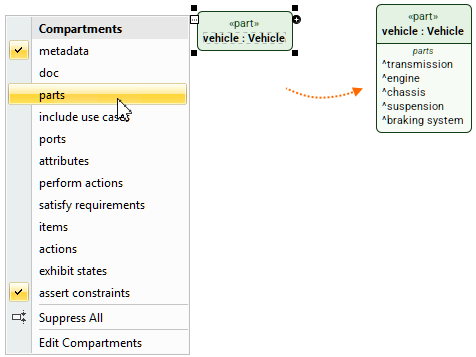
The DefaultStyleSheet remains applied to the entire project, while the specific view now additionally uses the new style sheet, affecting only part usage symbols; i.e., all of the styles defined in the DefaultStyleSheet remain, the only change is that now inherited elements are displayed in part usage symbols.