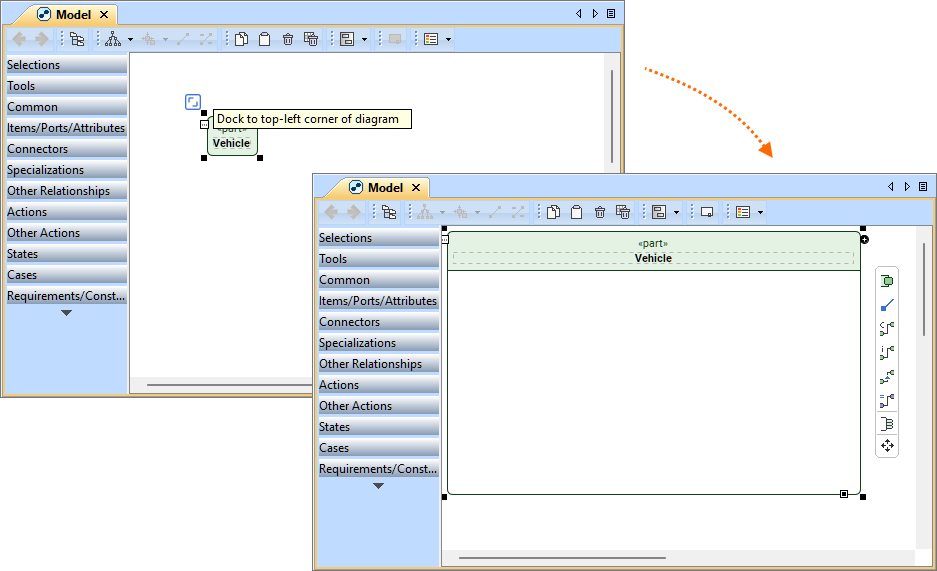
In SysML v2, an element symbol can be docked to a view, acting as a context and a kind of frame for a view.
Docked symbol details:
The element represented as the docked symbol is the owner of elements whose symbols are contained by the docked symbol.
Element symbols cannot be created outside the docked symbols' shape in the view pane. Creating element symbols outside the docked symbol's frame expands the frame to contain the new symbols.
A view can have only one docked symbol.
The docked element symbol can be undocked and vice versa. See the procedures below.
Executing the 'Select in Containment tree' command:
on the docked symbol's body - selects the corresponding view.
on the docked symbol's header - selects the corresponding element.
Docking a symbol to a view
To dock a symbol to a view
To create a view with a docked symbol:
In the Containment tree, right-click a usage or a definition element and in the shortcut menu, click Create view.
To dock a symbol displayed in a view:
Select the element symbol in the view and click the Dock button on the corner of the element frame.
The Dock button is available only if the view displays one element symbol (e.g., the docking option is not available if there are two part usage symbols displayed in the view).
Docking a symbol to a view
Undocking a symbol from a view
To undock a symbol from a view
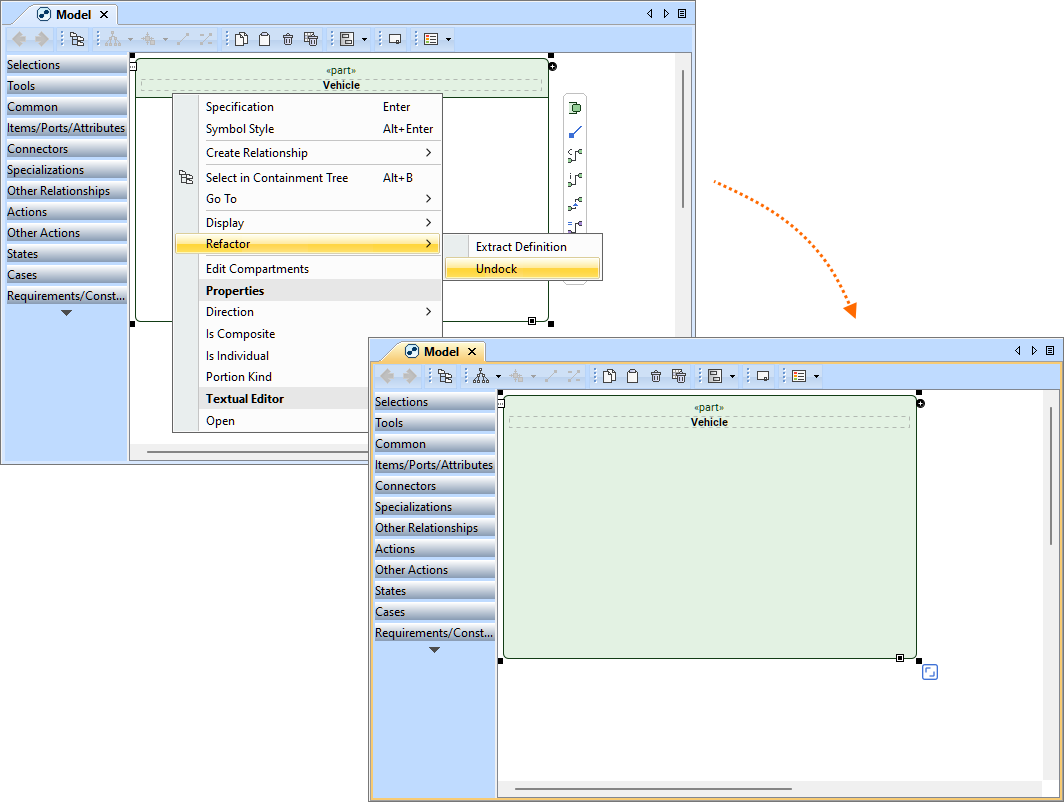
Right-click the header of the docked symbol and in the shortcut menu, select Refactor, then Undock.
Right-clicking anywhere but the header of the docked symbol will not display the Undock command in the shortcut menu.
Once you undock a symbol, it remains the same size, taking up the entire view pane. Click the Make Preferred Size button to shrink the symbol, allowing for more space in the view pane.