Symbolic views
Symbolic views allow you to model via symbolic model representation. In a symbolic view, elements are represented as shapes, and relationships and connectors as paths, both shapes and paths are referred to as symbols. You can use symbolic views for modeling and representing parts interconnection, action flow, requirements, etc.
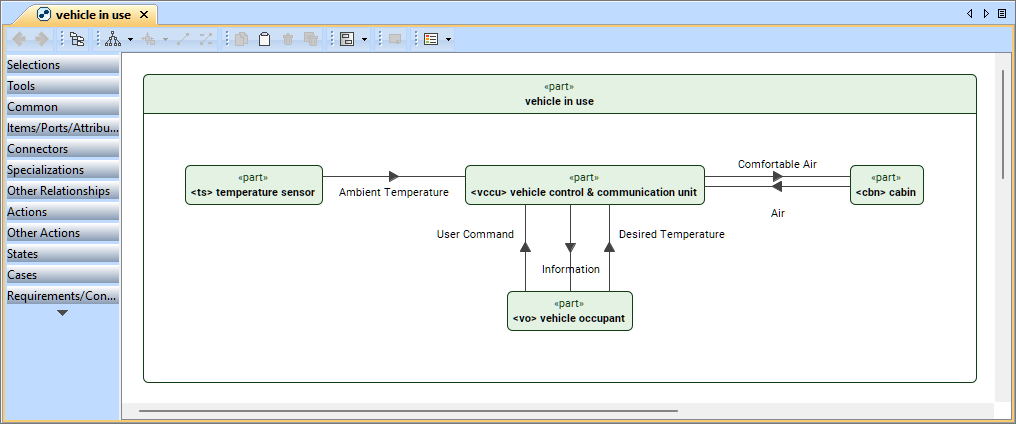
The image displays a standard predefined symbolic view in the View Editor tab with the toolbar, pane, and palette. Elements and connectors are displayed as shapes and paths on the pane.
Symbolic views
Specific symbolic views you create in the modeling tool are predefined symbolic view usages defined by appropriate predefined symbolic view definitions. These predefined symbolic view definitions can differ in the palettes they provide, renderings and/or element filters they specify.

- For symbolic view creation procedures, see the Creating symbolic views page.
- Additionally, you can create custom symbolic view definitions with customized palettes.
Available symbolic view definitions are differentiated as follows:
- Standard predefined symbolic view definitions
- Do not have any specified filters, meaning, any elements can be exposed by these views. Once you have created such a view, you may want to specify filters to limit the displayed elements.
- Can be created via the Textual Editor or the Create View command in the Containment tree.
- Predefined symbolic view definitions that use expressions
- Contain element filters specified in the DS_Views::SymbolicViewsByExpression::NonStandardLibraryElementFilter and DS_Views::SymbolicViewsByExpression::EssentialElementsFilter view definitions, narrowing down what elements can be exposed by the view by discarding various standard library elements and other non-essential elements that are unlikely to be relevant for display in views.
- Additionally, most of the predefined symbolic view definitions that use expressions contain additional filters to narrow down the exposed elements, e.g., PartsTreeView view definition contains filters specifying that only part usage elements can be exposed.
- Can be created only via the Textual Editor.
See the table below listing all predefined symbolic view definitions.
| View definitions | Description | Palette | Availability |
| Standard predefined symbolic view definitions | |||
General View | Standard predefined multi-purpose general symbolic view for element representation and modeling. |
|
|
Interconnection View | Standard predefined symbolic view for element interconnection representation and modeling. |
| |
Action Flow View | Standard predefined symbolic view for action flow representation and modeling. |
| |
State Transition View | Standard predefined symbolic view for state transition representation and modeling. |
| |
| Predefined symbolic view definitions that use expressions | |||
| TreeView | Predefined symbolic view definition that uses expressions to display common elements in tree-view rendering style. It subclassifies the NonStandardLibraryElementFilter and EssentialElementsFilter view definitions, which include filters to exclude various standard library elements and other non-essential elements that are unlikely to be relevant for display in views. |
|
|
| NestedView | Predefined symbolic view definition that uses expressions to display common elements in nested-view rendering style. It subclassifies the NonStandardLibraryElementFilter and EssentialElementsFilter view definitions, which include filters to exclude various standard library elements and other non-essential elements that are unlikely to be relevant for display in views. |
| |
UsagesNestedView | Predefined symbolic view definition that uses expressions to display usage elements in nested-view rendering style. It subclassifies the NestedView view definition. |
| |
| PartsNestedView | Predefined symbolic view definition that uses expressions to display parts as nested shapes, with the connections between them represented as paths. It subclassifies the UsagesNestedView view definition. |
| |
| Parts&PortsNestedView | Predefined symbolic view definition that uses expressions to display parts and ports as nested shapes, with the connections between them represented as paths. It subclassifies the UsagesNestedView view definition. |
| |
| PartsTreeView | Predefined symbolic view definition that uses expressions to display parts in a decomposition tree style. It subclassifies the TreeView view definition. |
| |
| ActionsNestedView | Predefined symbolic view definition that uses expressions to display actions as nested shapes, parameters as shapes on border, and in-between connections represented as paths. It subclassifies the UsagesNestedView view definition. |
| |
| ActionsTreeView | Predefined symbolic view definition that uses expressions to display actions in a decomposition tree style. It subclassifies the TreeView view definition. |
| |
| RequirementTreeView | Predefined symbolic view definition that uses expressions to display the exposed requirements in a decomposition tree style. It subclassifies the TreeView view definition. |
| |
| StatesNestedView | Predefined symbolic view definition that uses expressions to display states as nested shapes, with transitions between them represented as paths. It subclassifies the UsagesNestedView view definition. |
| |
Symbolic view areas
Views are displayed in the View Editor tab.
- Toolbar allows you to quickly access the options for managing element symbols in the view. See the Symbolic view toolbar buttons subsection.
- Pane allows you to model and represent elements as symbols. For more information, see the Displaying elements in symbolic views page.
- Palette allows you to model elements. See the Symbolic view palette subsection.
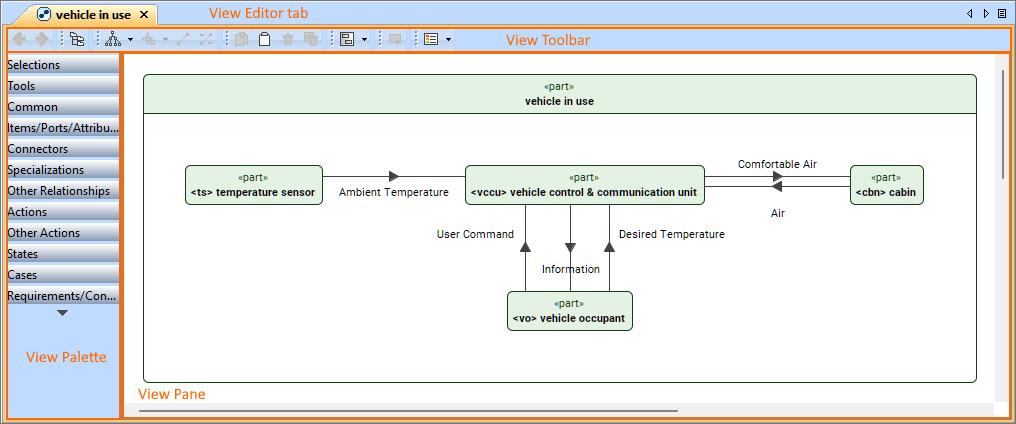
Symbolic view palette
The palette contains buttons for the majority of the elements you can create in the view pane, as well as additional buttons for working with symbols in the view pane.
- The buttons are ordered into categories: Common, Items/Ports/Attributes, Connectors, Specializations, Other Relationships, Actions, Other Actions, States, Cases, Requirements/Constraints. Click the category title to expand the contained element buttons.
- Some element buttons have a down-facing arrow button allowing you to view the button's submenu of other element kinds (e.g., part and part def or in ref, in item, and in attribute).
- The available buttons and their categories depend on the symbolic view definition.
- You can create custom symbolic view definitions with customized palettes.
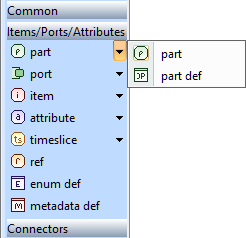 View palette's Items/Ports/Attributes category with the part button's submenu.
Symbolic view toolbar buttons
The table below shows the buttons available in the symbolic view toolbar.
| Button | Shortcut keys | Description |
|---|---|---|
| Navigation toolbar | ||
| Alt+B | Click the button to highlight the element of the selected symbol in the Containment tab of the Model Browser. |
Layout toolbar | ||
| Ctrl+Q | Click the arrow button to display the dropdown menu. In it, select the Layout SysML v2 Style option. |
| - | Click the button to display the dropdown menu with the symbol alignment options. |
| - | Click the button to reset the labels' position to default. Make sure the labels are selected first. |
| Edit toolbar | ||
| Ctrl+C | Click to copy the selected symbol. |
| Ctrl+V | Click to paste the copied symbol. |
| Ctrl+D | Click to remove selected elements both from the view and the model. |
| Delete | Click to remove the selected element from the view. |
Shape Editing toolbar | ||
| - | Click to resize the selected symbol(s) to the most compact size. |
| Display toolbar | ||
| - | Click the arrow button to display the dropdown menu. In that menu, select the kind of symbols you want to display in the view for the selected symbol. You can also choose the style in which the symbols can be displayed, i.e., tree-view or nested. |
Style Sheets toolbar | ||
| - | Click to activate style sheets for the view or the entire project. Learn more >> |
| Other buttons | ||
| Alt+Left Arrow | Click to navigate to the previously opened view. |
| Alt+Right Arrow | Click to navigate to the previously opened view. |


