Indirectly used projects
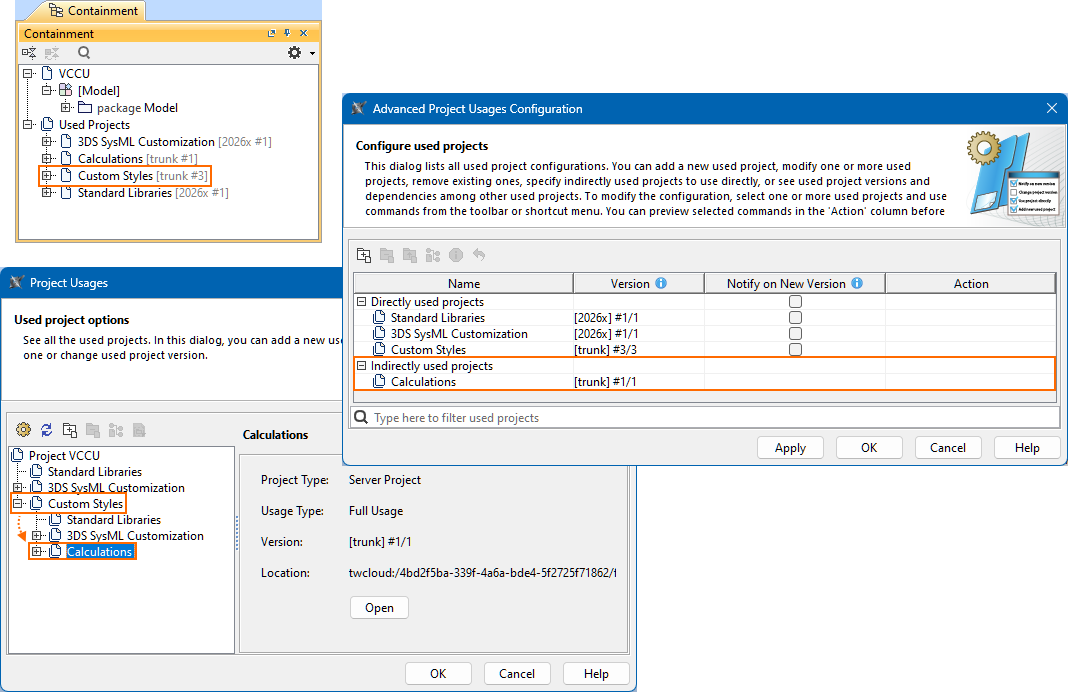
The projects used in the main project may also use other projects, called indirectly used projects. When you use a project directly that may have other used projects, these indirectly used projects are loaded in the main project. Once loaded, the indirectly used projects use the same project version that is used in the directly used project. However, if the indirectly used project is later modified and you want this change to be reflected in the main project, you must update the project version in the directly used project, then update the version of the directly used project in the main project.
In the main project, you can see the indirectly used projects:
- Under the Containment tree's Used Projects node, displayed at the same node level as the project that uses it directly.
- The Advanced Project Usages Configuration dialog's Indirectly used projects category.
- The Project Usages dialog, nested under the project that uses it directly.
Using indirectly used projects directly
To use indirectly used projects directly
- Managing local used projects.
- In the Advanced Project Usages Configuration dialog, do one of the following:
- Select a used project and in the dialog's toolbar, click the Use Project Directly
 button.
 - Right-click a used project and in the shortcut menu, click the Use Project Directly command.
The cell in the Action column for the removed used project states 'Use Project Directly'.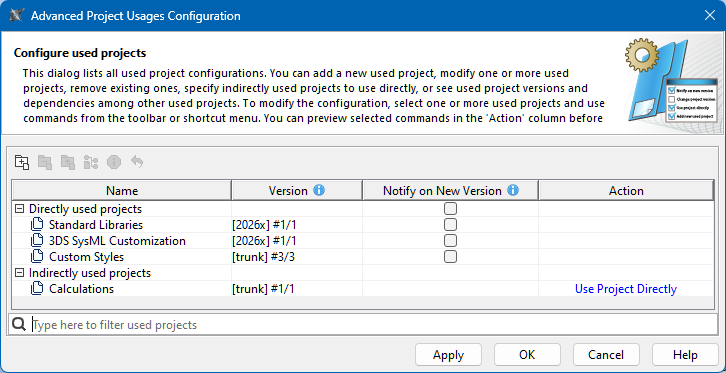
- Select a used project and in the dialog's toolbar, click the Use Project Directly
- (Optional) To undo the action, do one of the following:
- In the dialog's toolbar, click the Reset Changes for Selection
 button.
 - Right-click the used project and in the shortcut menu, click the Reset Changes for Selection command.
- In the dialog's toolbar, click the Reset Changes for Selection
- Do one of the following:
- To save changes and keep the dialog open, click the Apply button.
- To save changes and close the dialog, click the OK button.
- To discard changes and close the dialog, click the Cancel button.
- Click the OK button to close the Project Usages dialog.
Opening indirectly used projects
To open indirectly used projects
See the procedures:
- Opening a used project via the Containment tree.
- Opening a used project via the Project Usages dialog.
Removing indirectly used projects
Indirectly used projects can only be removed from the main project in the following cases:

2026x HotFix1 version
This documentation page is for the 2026x HotFix1 version of the SysML v2 Plugin. If you are working with the 2026x version, expand the section above. However, we highly advise upgrading to the 2026x HotFix1 version.
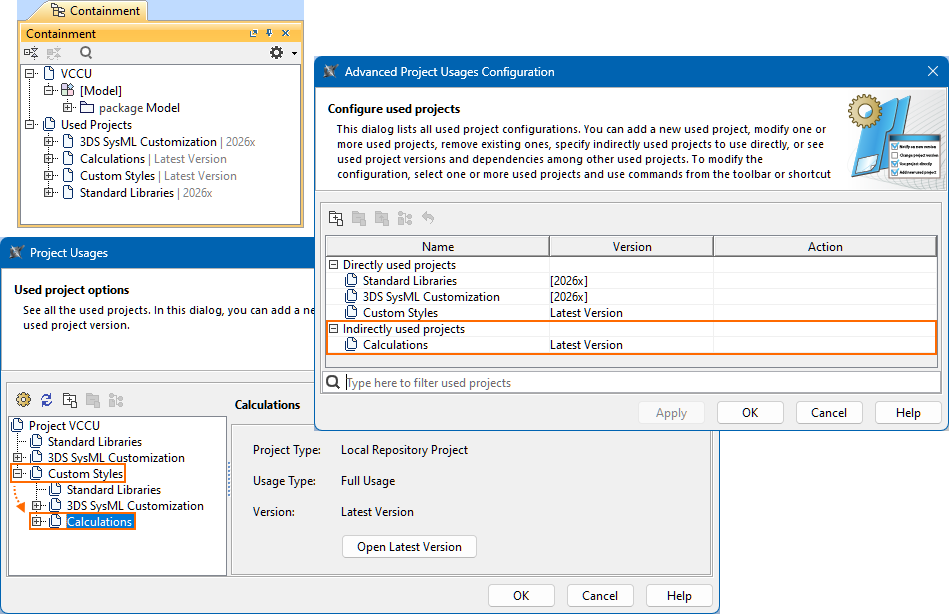
The projects used in the main project may also use other projects, called indirectly used projects. When you use a project directly that may have other used projects, these indirectly used projects are loaded in the main project. Once loaded, the indirectly used projects use the same project version that is used in the directly used project. However, if the indirectly used project is later modified and you want this change to be reflected in the main project, you must update the project version in the directly used project, then update the version of the directly used project in the main project.
In the main project, you can see the indirectly used projects:
- Under the Containment tree's Used Projects node, displayed at the same node level as the project that uses it directly.
- The Advanced Project Usages Configuration dialog's Indirectly used projects category.
- The Project Usages dialog, nested under the project that uses it directly.
Using indirectly used projects directly
To use indirectly used projects directly
- Open the Advanced Project Usages Configuration dialog.
- In the Advanced Project Usages Configuration dialog, do one of the following:
- Select a used project and in the dialog's toolbar, click the Use Project Directly button.
- Right-click a used project and in the shortcut menu, click the Use Project Directly command.
The cell in the Action column for the removed used project states 'Use Project Directly'.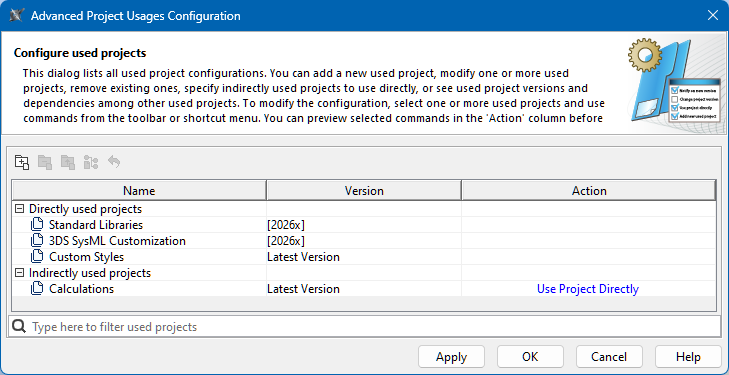
- Select a used project and in the dialog's toolbar, click the Use Project Directly
- (Optional) To undo the action, do one of the following:
- In the dialog's toolbar, click the Reset Changes for Selection button.
- Right-click the used project and in the shortcut menu, click the Reset Changes for Selection command.
- In the dialog's toolbar, click the Reset Changes for Selection
- Do one of the following:
- To save changes and keep the dialog open, click the Apply button.
- To save changes and close the dialog, click the OK button.
- To discard changes and close the dialog, click the Cancel button.
- Click the OK button to close the Project Usages dialog.
Opening indirectly used projects
To open indirectly used projects
See the procedures:
- Opening a used project via the Containment tree.
- Opening a used project via the Project Usages dialog.
Removing indirectly used projects
Indirectly used projects can only be removed from the main project in the following cases:
- If you remove the directly used project that uses the project.
- If you use the indirectly used project directly first, then remove it as a directly used project.