Managing project categories in the local repository
Project categories in the local repository help you organize and structure your local projects, providing a more efficient project management experience. You can create, delete, rename, and move projects between them. Category management commands are available in the toolbar of the Manage Projects dialog and the shortcut menus of categories and projects.

The Standard Libraries category is pre-populated with the SysML v2 standard libraries required for modeling. It is created automatically when the SysML v2 Plugin is first launched and cannot be edited or deleted.
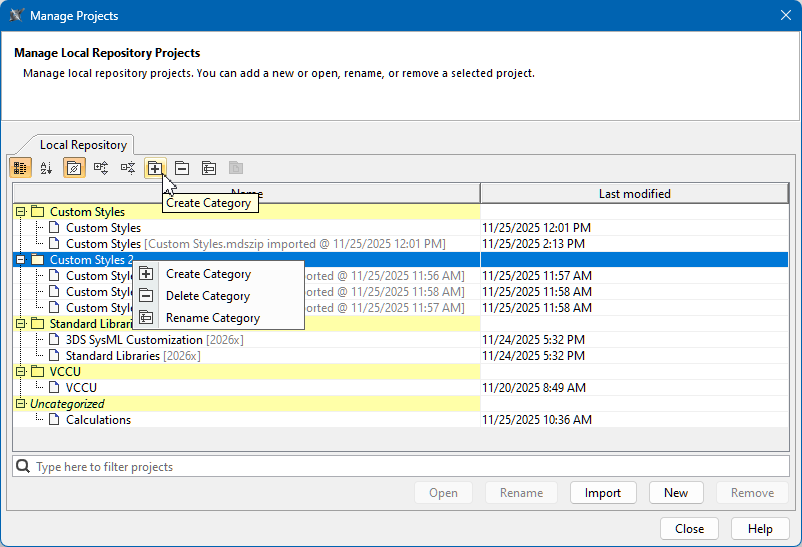
The project categories are highlighted in the image.
Creating new project categories in the local repository
To create new project categories in the local repository
- Open the Manage Projects dialog and do one of the following:
- In the dialog's toolbar, click the Create Category
 button. The Create Category dialog opens.
 - Right-click a category and in the shortcut menu, click the Create Category command. The Create Category dialog opens.
- In the dialog's toolbar, click the Create Category
- In the dialog, specify the parent category and the name for the new category, then click OK.
Deleting project categories in the local repository
To delete project categories in the local repository
- Open the Manage Projects dialog and do one of the following:
- Select the needed category and in the dialog's toolbar, click the Delete Category
 button. The Delete Category question dialog opens.
 - Right-click a category and in the shortcut menu, click the Delete Category command. The Delete Category question dialog opens.
- Select the needed category and in the dialog's toolbar, click the Delete Category
- In the Delete Category dialog, click Yes to confirm the deletion.
Renaming project categories in the local repository
To rename project categories in the local repository
- Open the Manage Projects dialog and do one of the following:
- Select the needed category and in the dialog's toolbar, click the Rename Category
 button. The Rename Category dialog opens.
 - Right-click a category and in the shortcut menu, click the Rename Category command. The Rename Category dialog opens.
- Select the needed category and in the dialog's toolbar, click the Rename Category
- In the Rename Category dialog, specify the new name and click OK.
Moving projects to other project categories in the local repository

Moving the original project to another project category in the local repository moves all of its subsequent imports, and vice versa. See the Managing project imports in the local repository page.
To move projects to other project categories in the local repository
- Open the Manage Projects dialog and do one of the following:
- Select the needed project and in the dialog's toolbar, click the Move To Category
 button. The Move To Category dialog opens.
 - Right-click the project and in the shortcut menu, click the Move To Category command. The Move To Category dialog opens.
- Select the needed project and in the dialog's toolbar, click the Move To Category
- In the Move To Category dialog, select the needed category and click OK.
Managing empty project categories in the local repository
To manage empty project categories in the local repository
- Open the Manage Projects dialog.
- In the dialog's toolbar, click the Show empty categories
 button to enable or disable the display of empty categories.