Part decomposition
Part definitions and part usages can be decomposed allowing you to build elaborate model structures composed of related parts. You can create a parts tree representing a composition of a part from other parts.
Decomposing part definitions
You can represent the next level of decomposition of a part definition using the feature typing (defined by) relationship.
Decomposing part definitions via the Textual Editor
To decompose part definitions via the Textual Editor
- In the Textual Editor, identify the part usage that you want to define, nested within a part definition.
- Define the part by the part definition.
part def Vehicle {
part engine : Engine;
part transmission : Transmission;
part driveshaft : Driveshaft;
part rearAxleAssembly : RearAxleAssembly; // part usage, owned by a part definition, defined by another part definition
part fuelTank : FuelTank;
}
part def RearAxleAssembly {
part differential : Differential;
part rearAxle : Axle;
part rearWheel1 : Wheel;
part rearWheel2 : Wheel;
}
Displaying decompositions of part definitions in a view
To display decompositions of part definitions in a view
- In a view, select the part definition symbol and the part usage symbol it defines, then use the Display Specializations command under the In-Between Relationships category.
The feature typing relationship is displayed.

Decomposing part usages
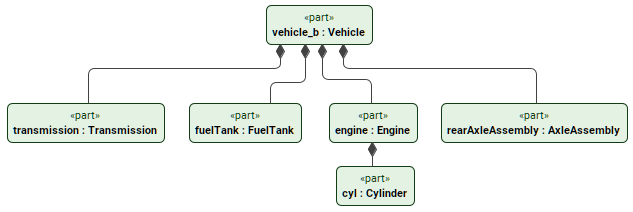
You can display a parts tree representing a composition of a part from other parts.
Decomposing part usages via the Textual Editor
To decompose part usages via the Textual Editor
- In the Textual Editor, within the body of the part you want to decompose, create the new part usages.
- Click the Synchronize button.
part vehicle_b : Vehicle { // the owning part usage with nested part usages
part engine : Engine {
part cyl : Cylinder;
}
part transmission : Transmission;
part fuelTank : FuelTank;
part rearAxleAssembly : AxleAssembly;
}
Decomposing part usages via a view by creating a composite part
To decompose part usages via a view by creating a composite part
- In a view, create or display the part for which you want to create a composite part.
- Create a composite part in one of the following ways:
- Via the view palette (part symbol option):
- In the view palette, under the parts group, click the part button to create a part usage element.
- Click on the part symbol displayed in the view pane to create a part owned by another.
- Via the view palette (feature membership option):
- In the view palette, under the Other Relationships group, click the feature membership button.
- First, click on the part symbol displayed in the view pane and then click elsewhere in the view pane to create a part owned by another.
- Via the smart manipulator (feature membership option):
- Click the part symbol for which you want to create a composite part.
- In its smart manipulator, click the feature membership icon, then click elsewhere in the view pane to create a part owned by another.
- Via the view palette (part symbol option):
Decomposing part usages via a view by designating an existing part as a composite one
To decompose part usages via a view by designating an existing part as a composite one
- In a view, create or display the parts you want to designate as the owner and the owned.
- Designate an existing part as owned by another in one of the following ways:
- Via the view palette (feature membership option):
- In the view palette, under the Other Relationships group, click the feature membership button.
- First, click on the part symbol you want to designate as the owner, then the one you want to designate as the owned one.
- Via the smart manipulator (feature membership option):
- Click the part symbol you want to designate as the owner.
- In its smart manipulator, click the feature membership icon, then click on the part you want to designate as the owned one.
- Via the view palette (feature membership option):
Displaying decompositions of part usages in a view
To display decompositions of part usages in a view
- In a view, select the owning part usage symbol and use the Display Features command under the Tree-View Style category.
The feature membership and the owned features (part usages) are displayed.
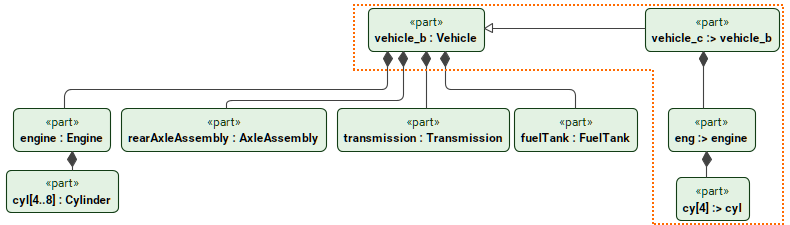
Reusing and modifying the parts tree
A part can subset another part, facilitating parts tree reuse and modification. The subsetting part inherits the part decomposition and other features. You can then modify the inherited parts and features through redefinition and subsetting in addition to adding new parts.
Reusing and modifying the parts tree via the Textual Editor
To reuse and modify the parts tree via the Textual Editor
- In the Textual Editor, declare the part usage you want to reuse, then subset it.
- (Optional) Redefine or subset the part features in the element body.
- Click the Synchronize button.
part vehicle_b : Vehicle { // subsetted part
part engine : Engine {
part cyl [4..8] : Cylinder;
}
part transmission : Transmission;
part fuelTank : FuelTank;
part rearAxleAssembly : AxleAssembly;
}
part vehicle_c :> vehicle_b { // a part reuses the parts tree by subsetting another part
part eng :> engine {
part cy :> cyl [4];
}
}
Reusing the parts tree via the view palette
To reuse the parts tree via the view palette
- In a view, create or display the part whose decomposition you want to reuse.
- In the view palette, under the Specializations group, click the subsetting button.
- Click on the part you want to denote as the subsetting one and then click on the part you want to denote as the subsetted (reused) one.
Displaying the parts tree reuse in a view
To display the parts tree reuse in a view
- In a view, select the subsetting and the subsetted part usage symbols, then use the Display Specializations command under the In-Between Relationships category. The subsetting relationship is displayed.
- (Optional) To display owned features of the subsetting or subsetted parts, use the Display Features command. The owned features (part usages) are displayed.