Saving as image
You can save an image as an active diagram, selected symbols, or selected diagrams.
Diagrams and symbols that were created in the model can be saved as images in the following formats:
- Enhanced Metafile Format (*.emf)
- Encapsulated PostScript (*.eps)
- Joint Photographic Experts Group (*.jpg, *.jpeg)
- Portable Network Graphics (*.png)
- Scalable Vector Graphics (*.svg)
- Tagged Image File Format (*.tif, *.tiff)
- Windows Metafile Format (*.wmf)
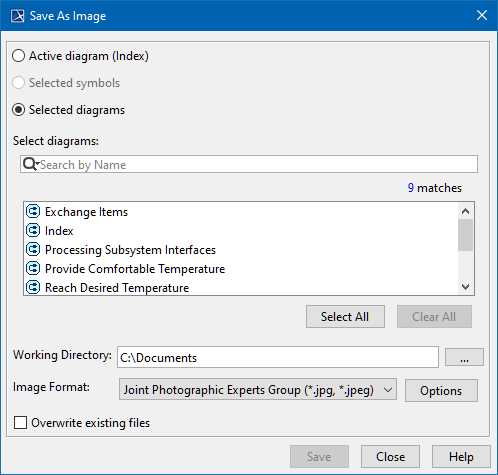
The Save As Image dialog when the Selected diagrams option button is selected.
Saving an image
To save an image
- Open the diagram you want to save as an image. If you want to save only particular symbols, select them on the diagram.
- On the main menu, select File > Save as Image. The Save As Image dialog opens.
- In the dialog:
Select whether to save an Active diagram, Selected symbols, or Selected diagrams.

Selected diagrams
Selected diagrams allow you to search for a particular diagram in your model.
- Specify the directory you want to save the image to.
- Select the image format. Click Options to specify image options according to the selected format.
- Click Save. The image is saved in the directory you have specified.
Save As Image dialog elements
| Dialog element | Element type | Description |
|---|---|---|
| Active diagram | Option button | Select to save the currently active diagram as an image. The active diagram name is displayed in parentheses next to the option button name. |
| Selected symbols | Option button | Select to save specific symbols that are selected in the diagram as an image. The option is active only if one or multiple symbols are selected in the diagram. |
Selected diagrams | Option button | Select the option to save the diagrams selected in the diagram list as images. To select multiple diagrams, hold Shift and then select the needed diagrams with the click of the mouse. |
| Select diagrams | Text box | The text box is available only if the Selected diagrams option button is selected. In the Select diagrams box, type the name of the diagram you want to find. Search results are displayed as a list right under the text box. Select the diagram(s) you want to save as image(s). To optimize your search, use the search filters. |
Image File / Working Directory | Text box | Select the working directory in which the image will be saved. |
| Image Format | Drop-down list | Select the image format. |
| Options | Button | Click to open the Properties dialog where you can specify image export properties, such as image resolution and exported image size. The properties provided in the Properties dialog depend on the selected image format. |
Overwrite existing files | Check box | Select to overwrite already saved image files. |