Switching between the original used project and its subsequent imports
In addition to versions, used projects may also have multiple imports of the same project. For example, you might export a project that is used in the main project from the local repository to your file system, share it with a colleague who makes changes while you continue working on the main project, and then later import your colleague’s modified copy back into your local repository. In this case, the local repository will display both projects: the originally used project and the subsequent import of the same project. For more information, see the Managing project imports in the local repository page.
Although the main project continues to use the specific project (and its version) that was originally used, you can switch the used project to its different import if needed. Both the original and the import can be modified and saved as a new version, allowing you to update the used project to its latest version (as described in the Updating used projects to their latest versions page).
You can view details about the used project (original or its imports) in the Project Usages and the Advanced Project Usages Configuration dialogs:
- If the used project was created in the local repository, it is displayed as trunk.
- If the used project was imported into the local repository, it is displayed as <imported_file_name>.
- If there already is an import with the same name, a number is added: <imported_file_name<number>>.

To ensure the used project import and/or version information displayed in the Containment tree and the rest of the tool is up to date, press F5 or click View > Refresh in the main menu.
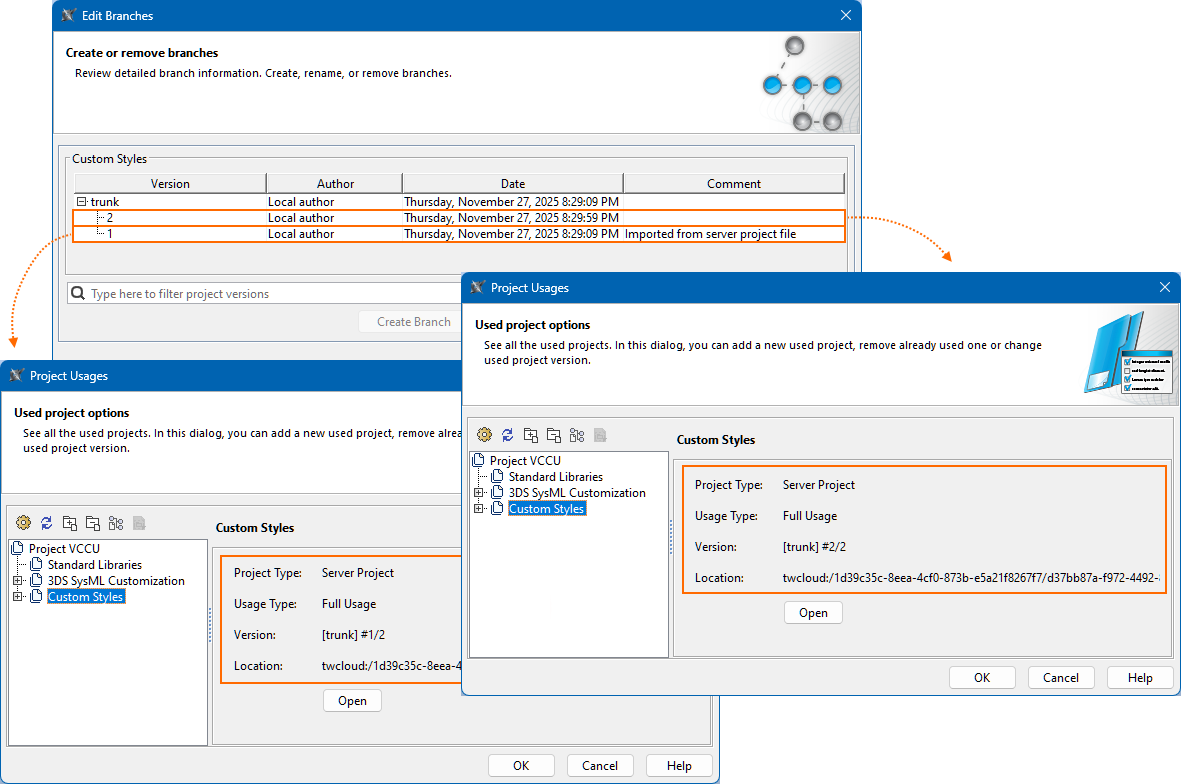
Switching between the original used project and its subsequent imports
To switch between the original used project and its subsequent imports
See the following procedures:
2026x HotFix1 version
This documentation page is for the 2026x HotFix1 version of the SysML v2 Plugin. If you are working with the 2026x version, expand the section above. However, we highly advise upgrading to the 2026x HotFix1 version.
In addition to versions, used projects may also have multiple imports of the same project. For example, you might export a project that is used in the main project from the local repository to your file system, share it with a colleague who makes changes while you continue working on the main project, and then later import your colleague’s modified copy back into your local repository. In this case, the local repository will display both projects: the originally used project and the subsequent import of the same project. For more information, see the Managing project imports in the local repository page.
Although the main project continues to use the specific project (and its version) that was originally used, you can switch the used project to its different import if needed. Both the original and the import can be modified and saved as a new version, allowing you to update the used project to its latest version (as described in the Updating used projects to their latest versions subsection).
You can view details about the used project (original or its imports) in the Project Usages and the Advanced Project Usages Configuration dialogs:
- If the used project was created in the local repository, it is displayed only by indicating the project name and version (Latest/Oldest Version).
- If the used project was imported into the local repository, it is displayed using the following structure: <[<file_name>.mdszip imported @<date and time of the import>] <version (Latest/Oldest Version)>>.
To ensure the used project import and/or version information displayed in the Containment tree and the rest of the tool is up to date, press F5 or click View > Refresh in the main menu.
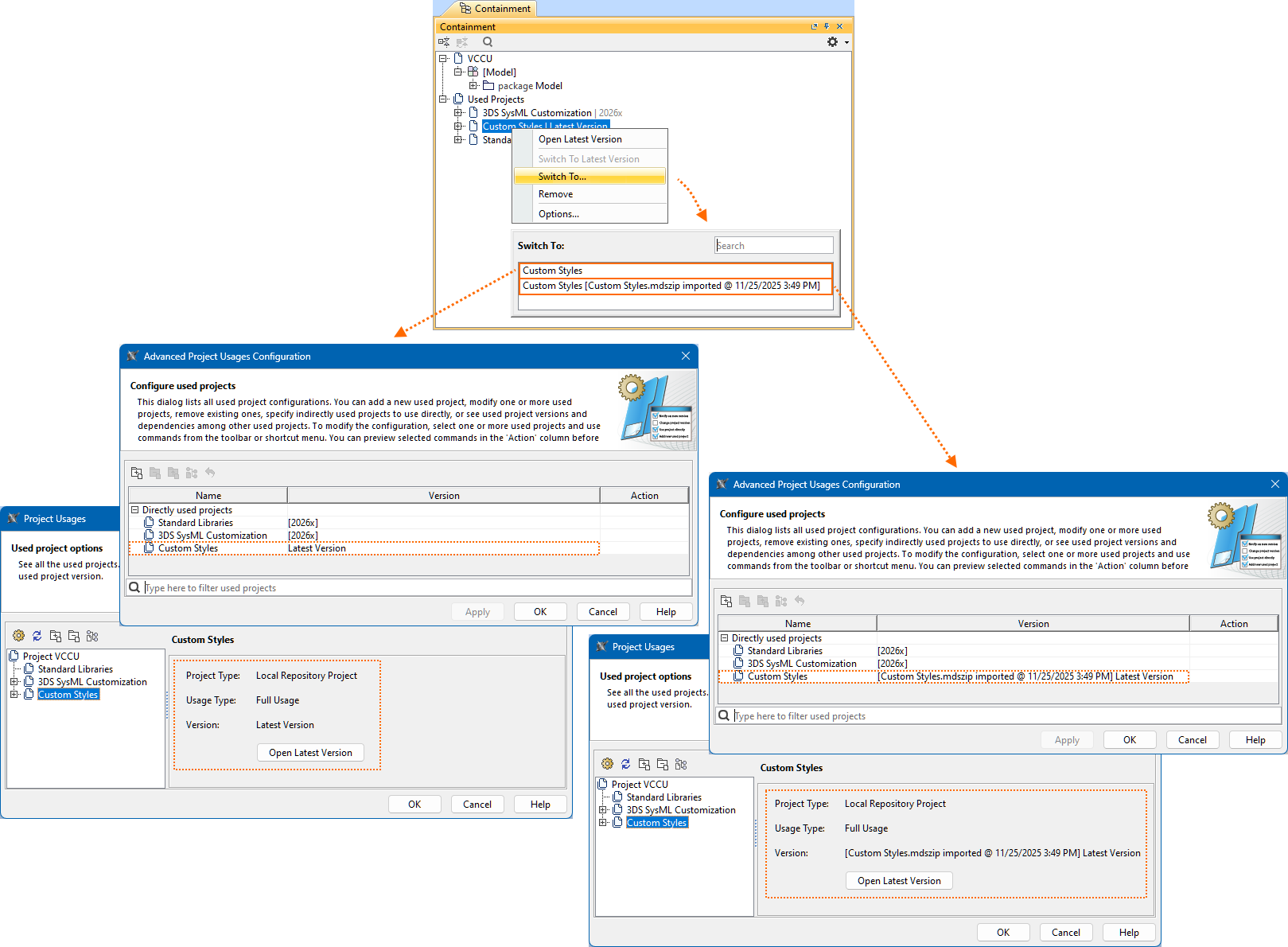
Switching between the original used project and its subsequent imports via the Containment tree
The Containment tree only displays the project version information (Latest/Oldest). You can view more details about the import in the Project Usages and the Advanced Project Usages Configuration dialogs.
To switch between the original used project and its subsequent imports via the Containment tree
- In the Containment tree, expand the Used Projects node, then right-click a used project. In the shortcut menu, click Switch To... The Switch To menu opens.
- In the Switch To menu, select the project you want to use.
The used project is updated.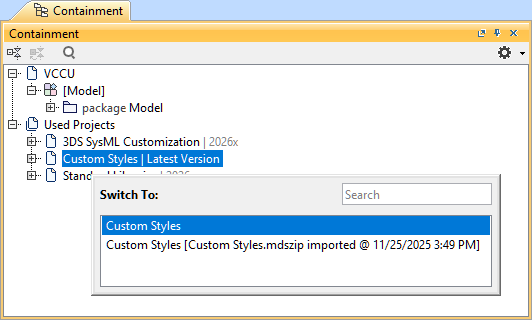
Switching between the original used project and its subsequent imports via the Project Usages dialog
To switch between the original used project and its subsequent imports via the Project Usages dialog
- Open the Project Usages dialog and do one of the following:
- In the dialog's toolbar, click the Change Version
 button, and in its dropdown menu, click Switch To.... The Switch To menu opens.
 - In the dialog's project usages tree, right-click a used project and in the shortcut menu, click the Change Version > Switch To... command. The Switch To menu opens.
- In the dialog's toolbar, click the Change Version
- In the Switch To menu, select the project you want to use.
- Click the OK button to close the Project Usages dialog.
The used project is updated.
Switching between the original used project and its subsequent imports via the Advanced Project Usages Configuration dialog
To switch between the original used project and its subsequent imports via the Advanced Project Usages Configuration dialog
- Open the Advanced Project Usages Configuration dialog.
- In the Advanced Project Usages Configuration dialog, do one of the following:
- Select a used project and in the dialog's toolbar, click the Change Version button, then in its submenu, click Switch To.... The Switch To menu opens.
- Right-click a used project and in the shortcut menu, click the Change Version command, then in its submenu, click Switch To.... The Switch To menu opens.
- Select a used project and in the dialog's toolbar, click the Change Version
- In the Switch To menu, select the project you want to use.
The cell in the Action column for the removed used project states 'Switch to <project version> <project import>'.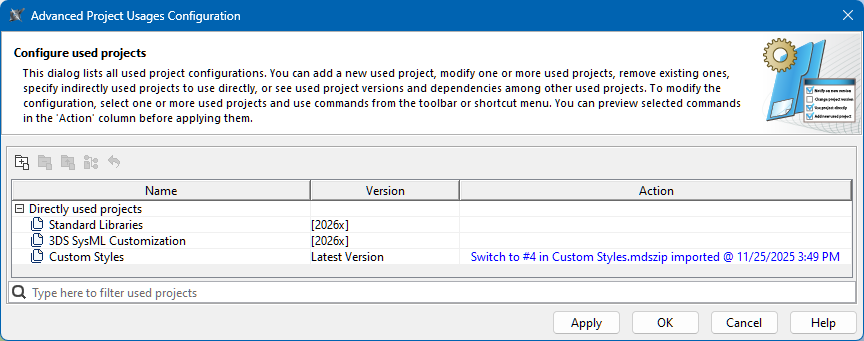
- (Optional) To undo the action, do one of the following:
- In the dialog's toolbar, click the Reset Changes for Selection
 button.
 - Right-click the used project and in the shortcut menu, click the Reset Changes for Selection command.
- In the dialog's toolbar, click the Reset Changes for Selection
- Do one of the following:
- To save changes and keep the dialog open, click the Apply button.
- To save changes and close the dialog, click the OK button.
- To discard changes and close the dialog, click the Cancel button.
- Click the OK button to close the Project Usages dialog.