Working with Textual Editor
The SysML v2 Textual Editor is akin to a code editor allowing you to view and create your model using textual notation in a code-like format. Any model changes made in a view or the Containment tree are reflected in the textual notation and vice versa. You can simply develop your model using textual notation and then easily display the created elements in a view using the Displaying elements in symbolic views. The Textual Editor tab is comprised of the Textual Editor pane, editor toolbar, and minimap.

For SysML v2 Textual Editor-related environment options, see the Environment options page.
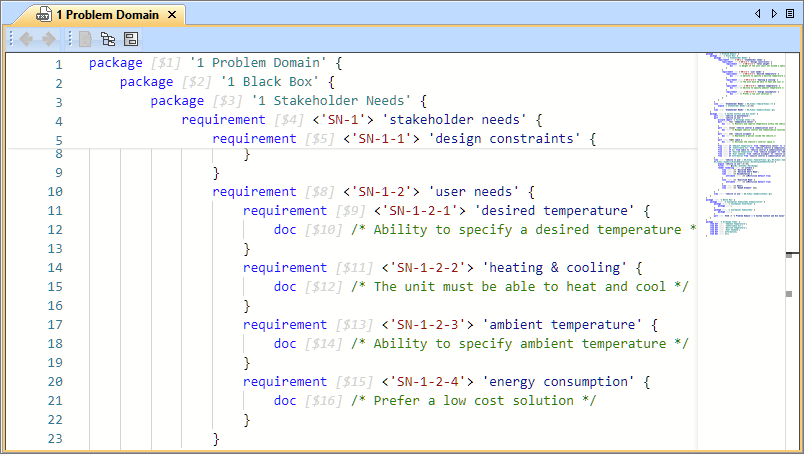
The Textual Editor tab is comprised of the Textual Editor pane, sticky header, minimap, and Textual Editor toolbar.
Textual Editor areas
The Textual Editor pane
The Textual Editor pane is where you write the textual notation.
The Textual Editor pane details:
- The Textual Editor pane displays the model of a specific root namespace as textual notation.
- Selecting an element in the Containment tree highlights its associated textual notation in the Textual Editor.
- The left side of the pane displays line numbers for easier navigation.
- Each element has a display ID next to the element keyword once the textual notation is saved. Unsaved elements do not have IDs.
- The Textual Editor provides syntax highlighting.
Minimap
The minimap allows you to scroll the textual notation more quickly. It is located on the right side of the Textual Editor as the vertical section displaying the entirety of the textual notation.
To use the minimap
- Hover over the minimap, then click the grey rectangle representing the visible part of the text.
- Move it up or down to quickly navigate the textual notation.
Sticky header
The sticky header is displayed at the top of the Textual Editor pane, which displays the owner of the currently visible notation at the top of the editor. You can control the sticky header with the following environment options:
- Enable Sticky Header. The option allows you to enable or disable the sticky header.
- Sticky Header Line Count. The option allows you to specify the maximum number of lines to display in the sticky header.
For more information, see the Environment options page.
Textual Editor toolbar
| Button | Shortcut keys | Description |
|---|---|---|
| Alt+Left Arrow | Click to navigate to the previously opened view. Permanently disabled. |
| Alt+Right Arrow | Click to navigate to the previously opened view. Permanently disabled. |
| Alt+S | Click to synchronize the model with the changes made in the Textual Editor. |
| Alt+B | Click to select the element associated with the cursor position in the Containment tree. The button is disabled if the model is not synchronized. |
| - | Click to disable or enable editing in the Textual Editor. The button is disabled if the model is not synchronized. |


