
...
| id | 762721493 |
|---|
...
| id | 762721495 |
|---|
| Content block | ||
|---|---|---|
| ||
On this page
|
...
| id | 762721494 |
|---|
...
When a new used project iteration becomes available on the server, you may want to update the used project
...
to the latest
...
Setting notifications about version changes
By default, when you open your server project you will get a notification if there are used project versions later than the used one in your project that meet the notification criteria. When the notification appears, click the Update used projects link and select the projects you want to update in the open Update Used Projects dialog.
You can change the default notification settings to receive notifications when a server project is opened and when updates are done, as well as disable them if they are not necessary.
To set when to show notifications about newer used project versions
- On the main menu, click Options > Environment to open the Environment Options dialog.
- In the options group list, select Collaboration. Then select the Notify About Newer Project Usages option, and specify the commands to be notified:
- on project opening;
- on project opening and updating; or
- never.
Notifications for any new version
If you do not need to specify a used project version with tags, you can choose to get notifications for any new version.
To get notifications for any new version
- From the main menu, select Collaborate > Project Usages > Project Usages.
- Select a used project and click to select the check box next to Notify on .
- From the drop down list select Notify for Any New Version.
- Click OK to close the dialog.
Updating versions of used projects
To update the used project version
iteration. In addition, you can set up notifications about new used project iterations committed to the server.
Changing used project iterations
To change the used project iteration
...
- Lock the used project.
- From the main menu, select Collaborate > Project Usages > Project Usages.
- In the Project Usages dialog, do one of the following:
- Select a used project and click
 .
. - Right-click a used project and select Change Iteration.
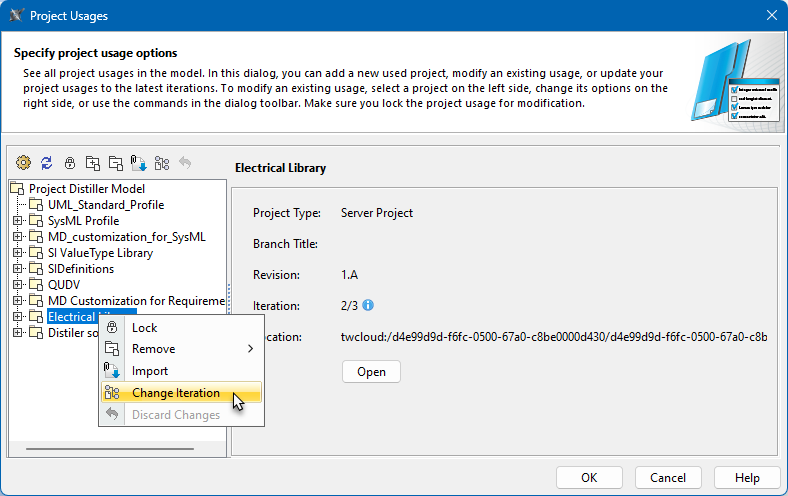
- Select a used project and click
- In the Edit Branches dialog, select the project iteration you want to use and click OK.
- When the iteration is changed, click OK to close the Project Usages dialog.
In the Project Usages dialog, used project iterations are shown in this format <used iteration>/<latest iteration>. For example, 2/3 means that project iteration 2is used in your project, but the latest usage iteration on the server is 3.
Updating used projects to the latest iteration
To update used projects to the latest iteration
...
- In the main menu, select
- Collaborate > Project Usages > Project Usages.
...
- In the Project Usages dialog, click
 .
. - In
...
- the Update column of the open dialog, select the check boxes for the
...
- projects you want to update and click OK.
...
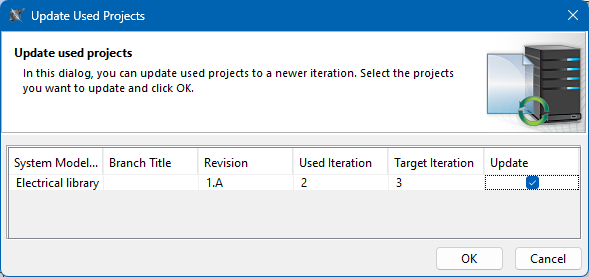
- Click OK to close the Project Usages dialog.
...
Setting notifications about new used project iterations
By default, you will get a notification about new used project iterations every time you open the main project. You can change the setting for these notifications in the Environment Options dialog.
To change the notification settings for used projects
...
- In the main menu, select Options > Environment.
- In the Environment Options dialog, select the Collaboration option group.
- Change the value of the Notify About Newer Project Usages option, to one of the following:
- Open - to show notifications about new used project versions every time you open the main project.
- Open, Update - to show notifications about new used project versions every time you open or update the main project.
- Never - to disable notifications about new used project versions.
- Click OK to close the Environment Options dialog
Changing versions of used projects
To change the used project version
- Lock the used project.
- From the main menu, select Collaborate > Project Usages > Project Usages.
- Select a used project.
Click the
button to change the version of a used project.
Tip title Shortcut menu This step can be done via a shortcut menu. Right-click the project and then select Change version.
- In the open dialog, select the used project version to switch to and click OK.
- Wait while the version changes to the selected one and click OK to close the dialog.
Versions are displayed in the following format: [Branch] Revision.UsedIteration/[Branch] Revision.LatestIteration.
...
- .