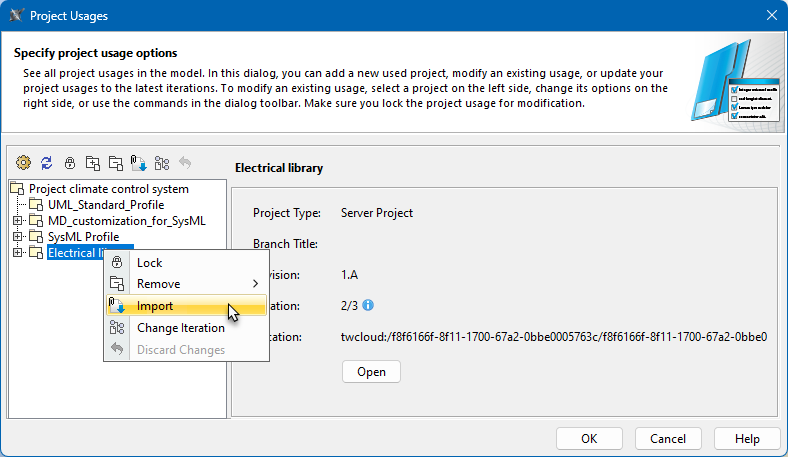
If you no longer need to keep a part of the model in the used project, you can import the content of that used project into your project. After the import, all the elements of the used project are copied to the main project. The inner structure of the used project is included in the project as a package.
| Note |
|---|
Standard/system profiles, such as UML_Standard_Profile.mdzip, cannot be imported. |
...
To import the contents of a used project into your project
...
- Lock the used project.
- On In the main menu, click click Collaborate > Project > Project Usages > Project Usages.
In the Project Usages dialog, do one of the following:
Select a
used project and click
buttonThis step can be done via the shortcut menu.
 .
.
Tip title Shortcut menu - Right-click
- a used project and
- select Import.
- In the Import dialog, choose how to import the elements do one of the used project: with new IDs or with old ones.Selecting Import following:
Click the Import with New IDs
button to create new IDs for the imported elements in the main project. This way, element IDs are not duplicated, ensuring the main project remains intact. However, if the elements of the used project are used in other projects, choosing Import with New IDs may break those references.
Tip Importing elements with new IDs is highly recommended as it is the safest option regarding project consistency.
Click the Import with Old IDs
button to import the elements with their existing IDs, which can be useful if the elements are used in multiple other projects. However, this may cause duplicate element IDs, resulting in the main project being corrupted. To proceed with the import using the old IDs, click Yes in
the question dialog, acknowledging that the procedure might corrupt the data of the main project.
If you receive a message asking to commit changes made in your project before the import, click Yes and wait while the import completes. This may take some time.
Note title Note .
- Click OK to close the dialog.