Use the simple navigation operation type, if you need to specify a direct relation between the elements through model relationships, properties, or tags. | Note |
|---|
| Please note that the Simple Navigation operation returns a set. |
To specify a simple navigation as criteria
- Click Click Simple Navigation on on the left side of the dialog.
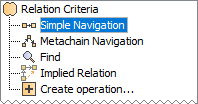 - Select a relationship, property, or tag and specify .
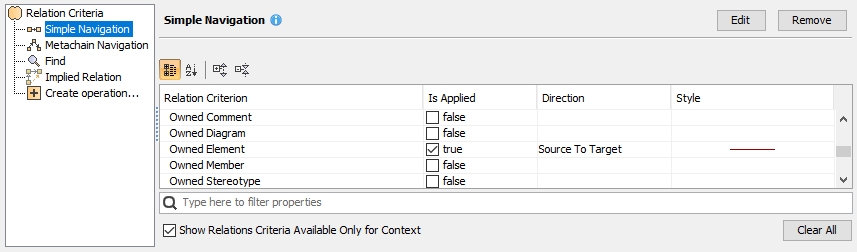 Image Added Image Added - Specify other options described in the following table .below:
| Column | Mode | Description |
|---|
Relation |
Expert | Name of a relationship, property, or tag. |
The whole list is by default filtered and |
shows only these relationships, properties, |
and tags that are available for the |
click to clear the check box below the list. | | Is |
Expert | Select the check box to define the appropriate |
relationship, property, or tag as criteria for the |
calculation. To clear all the selected criteria, |
click the Clear All button. | | Direction | Standard/ |
Expert | Select from the drop-down list the direction |
of the appropriate relationship, property, or tag.
A source is the Contextual element.
A target is the result of the calculation.
If the direction is defined for relationships, then • The Source To Target direction means that |
only the outgoing relations, which are pointing from |
the source element to the target element, will be |
treated as a result of this criterion.
• The Target To Source direction means that only |
the incoming relations, which are pointing from the |
target element to the source element, will be treated |
as a result of this criterion.
• If the Both direction is chosen, |
the -described cases will be treated as a valid result.
If the direction is defined for properties or tags, then • The Source To Target direction means that only |
the properties, which exist in the source element, |
will be treated as a result of this criterion.
• The Target To Source direction means that only |
the properties, which exist in the target element, |
will be treated as a result of this criterion.
• If the Both direction is chosen, |
the -described cases will be treated as a valid result. |
| Note |
|---|
Please note that the Simple Navigation operation returns a set. |
Manipulations in Expert mode
The Expert mode allows for changing the Contextual element of a simple navigation criterion as well as creating a new operation, where the result of the simple navigation operation is used as an argument. 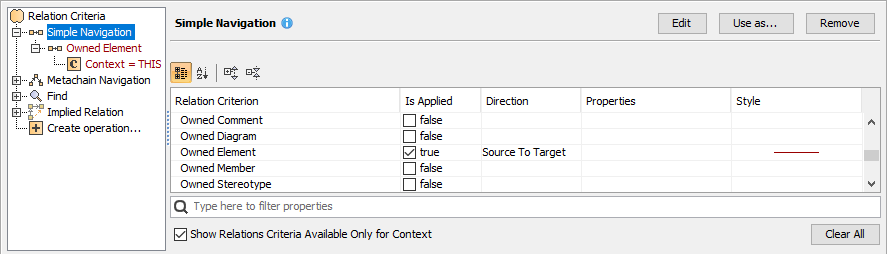 Image Added Image Added
| Column | Mode | Description |
|---|
| Properties |
| Click the  Image Added button and in the open dialog specify the properties of the selected relationship. Image Added button and in the open dialog specify the properties of the selected relationship. | Include Relationship |
Include Subtypes | Expert | Select the check box to include the subtypes of the selected relationship types. | | Include Relationship Custom Types | Expert | Select the check box to include the custom relationship types that extend the selected relationship types. | Filter by |
the the Image Modified |
button button and in the open dialog select |
one or more properties of the selected relationship |
and specify their values for a more specific filter. | | Result |
the the Image Modified |
button open dialog select open Select Element Type dialog select one or more result element types. The Result Type column is |
the dialog and the Expression dialog for dependency matrix Dependency Matrix and Generic table. Moreover, you can define |
the for relation mapColorExpert | Click the button and in the open dialog select the color |
and style to represent the appropriate relationship, property, or tag. |
The column is available only in |
the Relation Criterion dialog.Manipulations in Expert modeThe Expert mode allows for changing the Contextual element of a simple navigation criterion as well as creating a new operation, where the result of the simple navigation operation is used as an argumentthe Relation Criterion dialog. |
To change the the Contextual element of of a simple navigation criterion
- On the left side of the dialog, expand the simple navigation criterion and select the Context parameter.
- On the Context specification panel, click the Reset button.
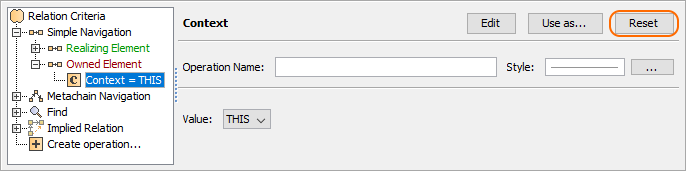
The value of the Context parameter becomes null. Select a new context from the list of operations and element types. | Info |
|---|
To restore the original context, expand the Other group and click Contextual Variable. 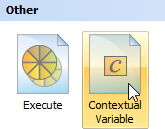
|
To use the expression of a simple navigation operation as a parameter of another operation
- On the left side of the dialog, click Simple Navigation.
On the criteria specification panel, click the Use as button and select the appropriate command.
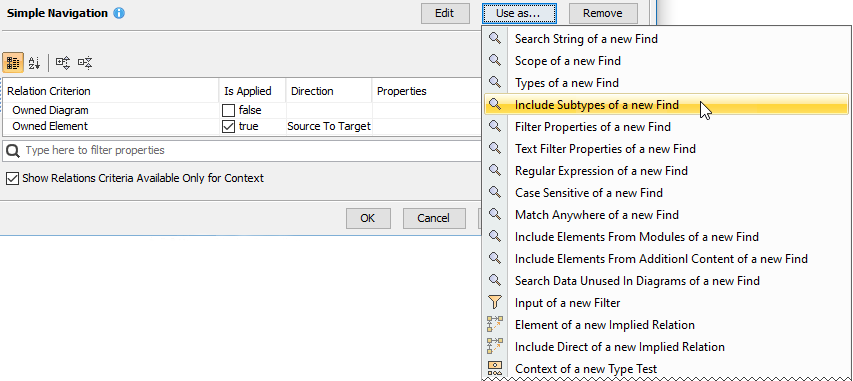 - Specify other parameters of the new operation.
|
