
...
| id | 1931418890 |
|---|
...
| id | 1931418911 |
|---|
...
| id | 1931426348 |
|---|
| Table of Contents | ||
|---|---|---|
|
...
Damage Scenario
Adverse consequence involving a vehicle or vehicle function and affecting a road user.
Effect
Allows you to define and manage system and vehicle level effects that can result in harm.
Failure
Termination of an intended behavior of an element or an item due to a fault manifestation.
Operational Situation
A scenario that can occur during a vehicle's life.
Impact category
Impact rating is done for four categories: Safety, Financial, Operational, and Privacy. The assessment should be done according to the definition given in ISO/SAE 21434:2021(annex F).
Impact scale
By default, the plugin adopts the scale provided in the ISO/SAE 21434:2021 standard.
...
Creating a Damage Scenario
To create a Damage Scenario
- In the Containment tree, right-click Damage Scenario and Impact Ratings and select Create Element.
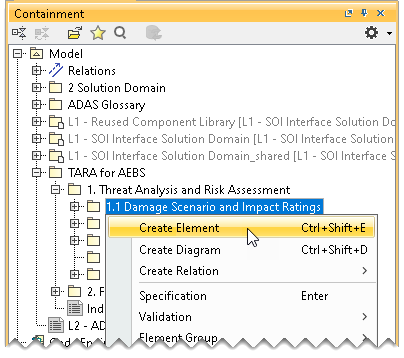
- Do one of the following:
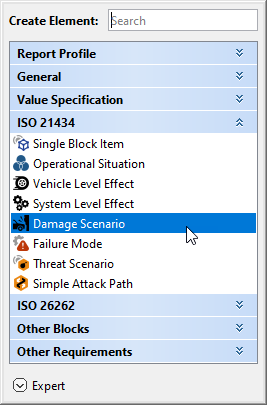
- In the dialog, expand ISO 21434 and select Damage Scenario.
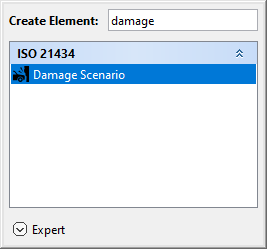
- In the search tab, type the keyword damage and then select Damage Scenario.
- In the dialog, expand ISO 21434 and select Damage Scenario.
- Name the created Damage Scenario in the Containment tree and press Enter. The Damage Scenario has the suffix DS which denotes the created element is a Damage Scenario; the number 1 indicates that it is the first Damage Scenario created.
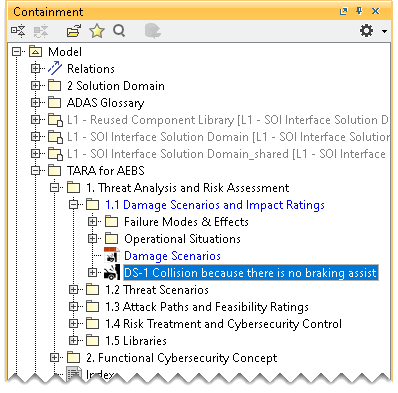
Creating a Damage Scenarios Table
To create a Damage Scenario Table
- In the Containment tree, right-click Damage Scenario and Impact Ratings and select Create Diagram.
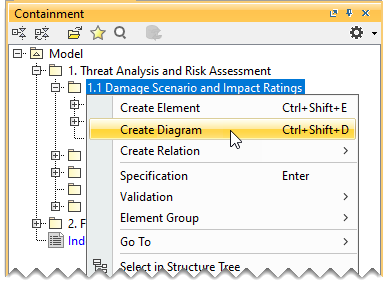
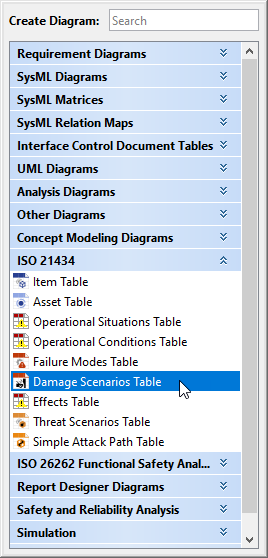
- Do one of the following:
- In the dialog, expand ISO 21434 and select Damage Scenario Table.
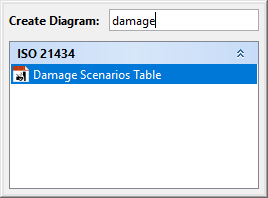
- In the search tab, type the keyword damage and then select Damage Scenarios Table.
The Damage Scenarios Table is displayed in the diagram pane of the modeling tool.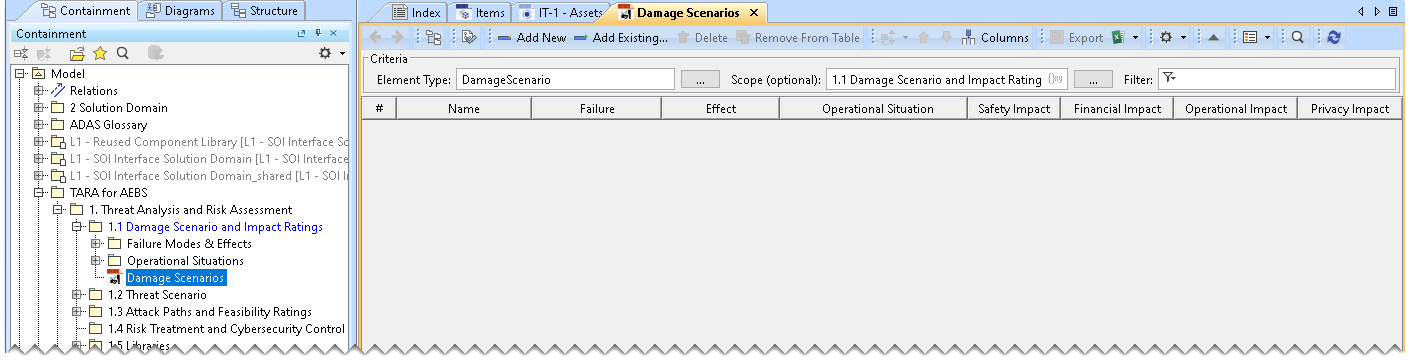
- In the dialog, expand ISO 21434 and select Damage Scenario Table.
Adding a Damage Scenario to the Damage Scenarios Table
To add a new Damage Scenario to the Damage Scenarios Table
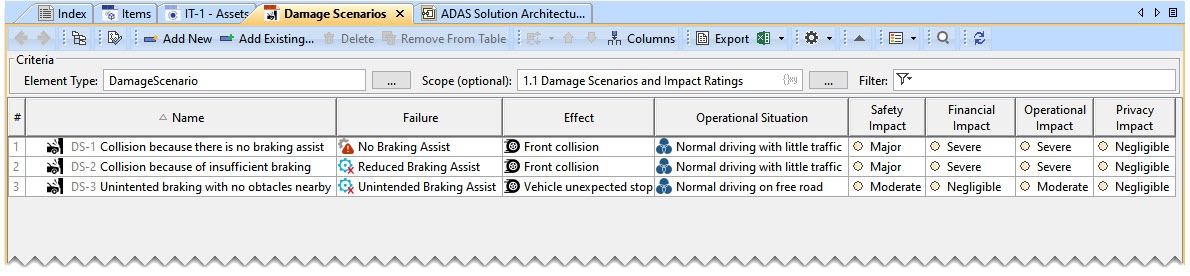
- In the Damage Scenario Table, click Add New. A row is added in the Damage Scenarios Table, which shows the new Damage Scenario.

- In the newly created Damage Scenario's row and the Name column, double-click the designated cell to name the Damage Scenario.

To add an existing Damage Scenario to the Damage Scenarios Table
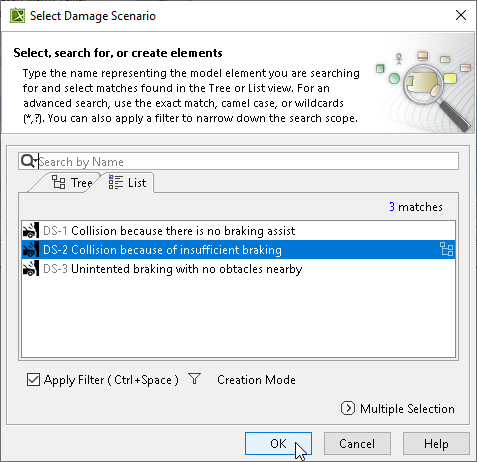
- In the Damage Scenarios Table, click Add Existing.

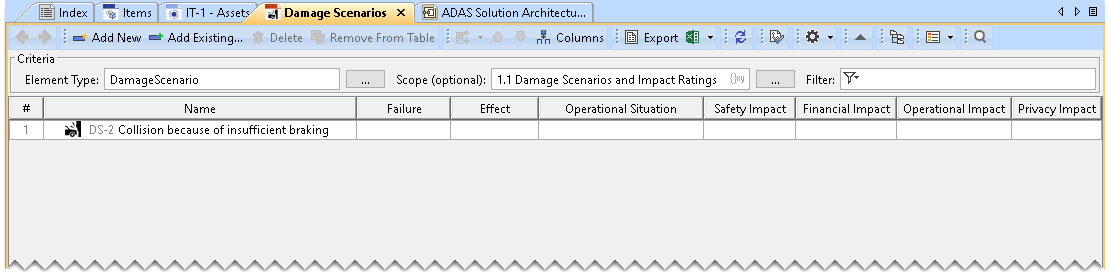
- From the Select Damage Scenario dialog, select the required Damage Scenario. A row is added to the Damage Scenarios Table, which shows the existing Damage Scenario.
- In the existing Damage Scenario's row and the Name column, double-click the designated cell to rename the Damage Scenario.
Adding a Failure
To add a Failure to the Damage Scenarios Table
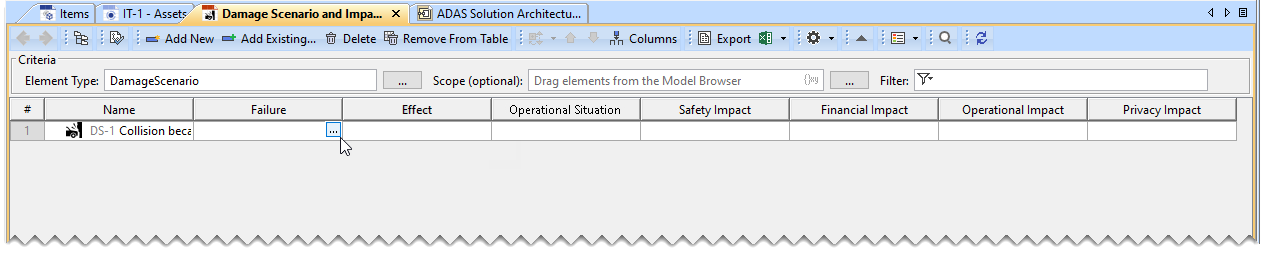
- Double-click the designated cell in the Failure column and the required Damage Scenario's row and click
 .
.
- From the Select Classdialog, select Failure.
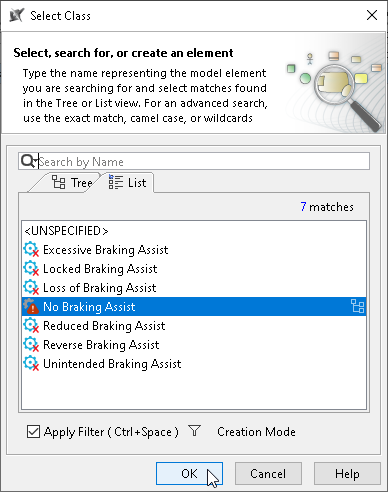
The Failure is shown in the Damage Scenarios Table.
| Note |
|---|
You can also drag and drop the Failure modes from the Containment tree to the Damage Scenarios Table. |
Adding an Effect
To add an Effect in the Damage Scenarios Table
- Double-click the designated cell in the Effect column and the required Damage Scenario's row and click .

- From the Select Classdialog, select Effect.
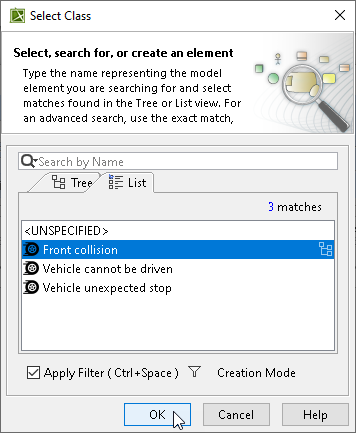
The Effect is shown in the Damage Scenarios Table.
| Note |
|---|
You can also drag and drop the Effects such as Vehicle Level Effects and System Level Effects from the Containment tree to the Damage Scenarios Table. |
Adding an Operational Situation
To add an Operational Situation in the Damage Scenarios Table
- Double-click the designated cell in the Operational Situation column and the required Damage Scenario's row and click .

- From the Select Class dialog, select Operational Situation.
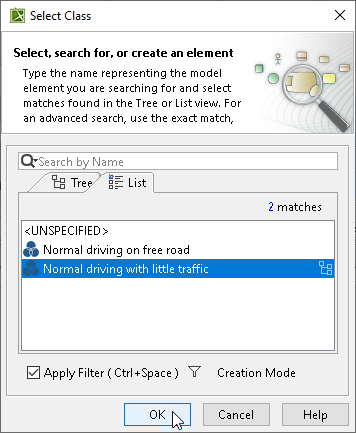
The Operational Situation is added in the Damage Scenarios Table.
| Note |
|---|
You can also drag and drop the Operation Situations from the Containment tree to the Damage Scenarios Table. |
Rating SFOP Impact
To rate the SFOP Impact
- Double-click each cell, namely Safety Impact, Financial Impact, Operational Impact, and Privacy Impact in the Damage Scenario row. From the drop-down list, select the impact rating.
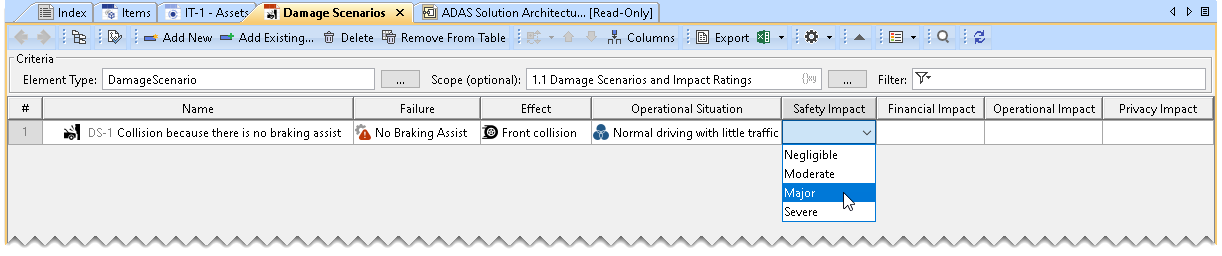
The Impact rating is done in the Damage Scenarios Table.
| Note |
|---|
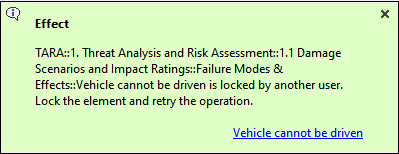
The plugin behavior when you use the Effect element from the used project in your local project:
The plugin behavior when you use the Effect element from the used project in the TWC server project:
The plugin behavior when you use the Effect element from your own TWC server project:
|
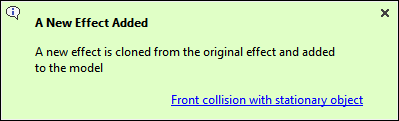
Damage Scenarios Table Example
| Info | ||
|---|---|---|
| ||