
...
| id | 1990338080 |
|---|
...
| width | 100.00002% |
|---|---|
| id | 1990338091 |
...
| id | 1990338079 |
|---|
| Table of Contents | ||
|---|---|---|
|
...
...
| id | 1990345116 |
|---|
Threat Scenario
Potential cause of compromise of cybersecurity properties of one or more assets in order to realize a damage scenario.
Attack Path
Set of deliberate actions to realize a threat scenario.
Failure
Termination of an intended behavior of an element or an item due to a fault manifestation.
...
Creating a Threat Scenario
To create a Threat Scenario
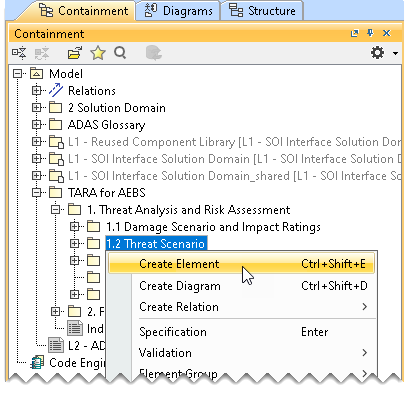
- In the Containment tree, right-click Threat Scenario and select Create Element.
- Do one of the following:
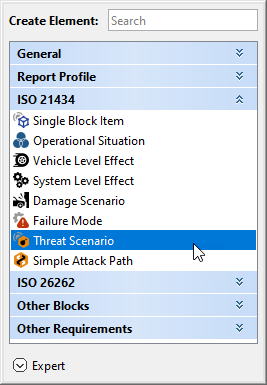
- In the dialog, expand ISO 21434 and select Threat Scenario.
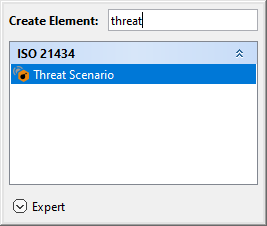
- In the search tab, type the keyword threat and then select Threat Scenario.
- In the dialog, expand ISO 21434 and select Threat Scenario.
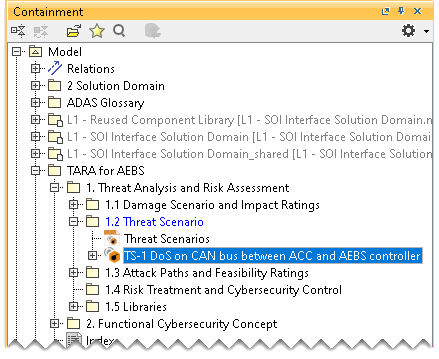
- Name the created Threat Scenario in the Containment tree and press Enter. The Threat Scenario has the suffix DS which denotes that the created element is a Threat Scenario; the number 1 indicates that it is the first Threat Scenario created.
Creating a Threat Scenario Table
To create a Threat Scenario Table
- In the Containment tree, right-click Threat Scenario and select Create Diagram.
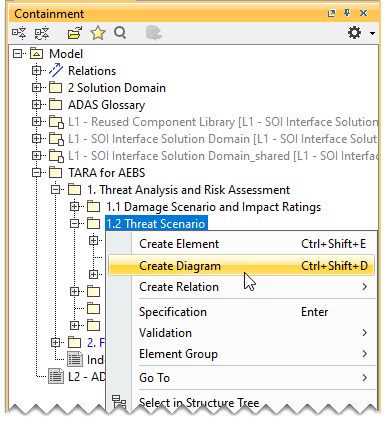
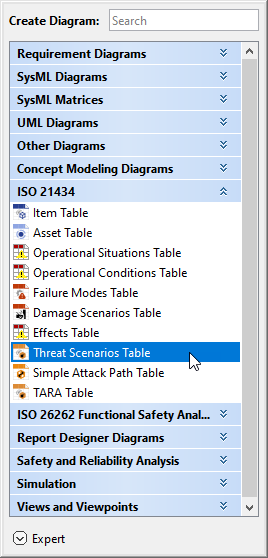
- Do one of the following:
- In the dialog, expand ISO 21434 and select Threat Scenario Table.
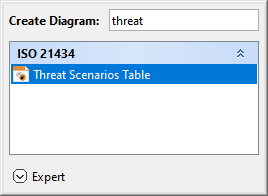
- In the search tab, type the keyword threat and then select Threat Scenario Table.
The Threat Scenario Table is now displayed in the diagram pane of the modeling tool.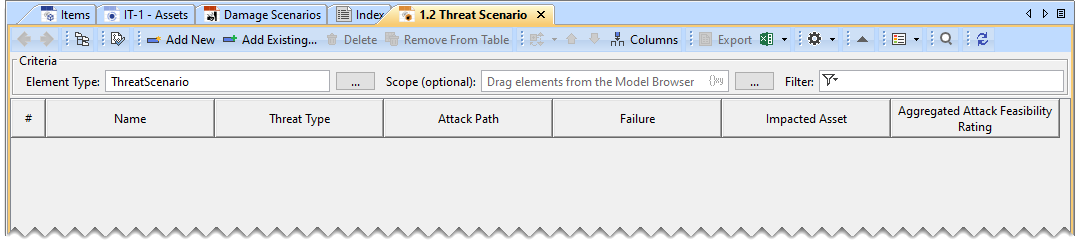
- In the dialog, expand ISO 21434 and select Threat Scenario Table.
Adding a Threat Scenario to the Threat Scenario Table
To add a new Threat Scenario to the Threat Scenario Table
- In the Threat Scenario Table, click Add New. A row is added in the Threat Scenario Table, which shows the new Threat Scenario.

- In the newly created Threat Scenario's row and the Name column, double-click the designated cell to name the Threat Scenario.
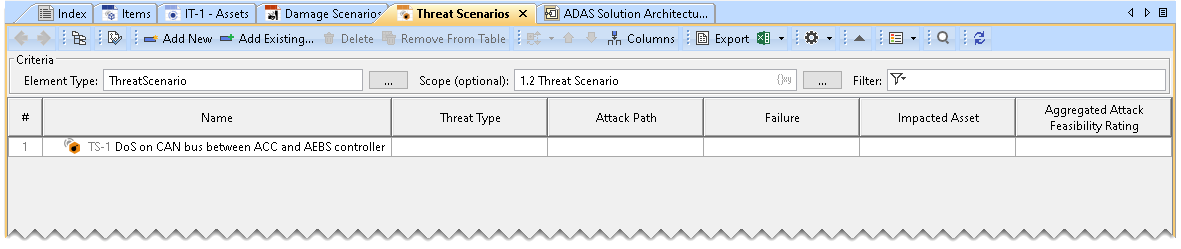
To add an existing Threat Scenario to the Threat Scenario Table
- In the Threat Scenario Table, click Add Existing.

- From the Select Threat Scenario dialog, select the required Threat Scenario. A row is added to the Threat Scenario Table, which shows the existing Threat Scenario.
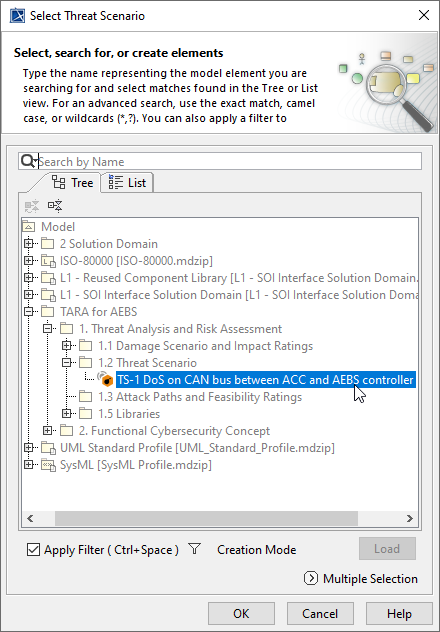
- In the existing Threat Scenario's row and the Name column, double-click the designated cell to rename the Threat Scenario.
Adding a Threat Type
To add a Threat Type
- Double-click the designated cell in the Threat Scenario's row and the Threat Type column. From the drop-down list, select Threat Type.
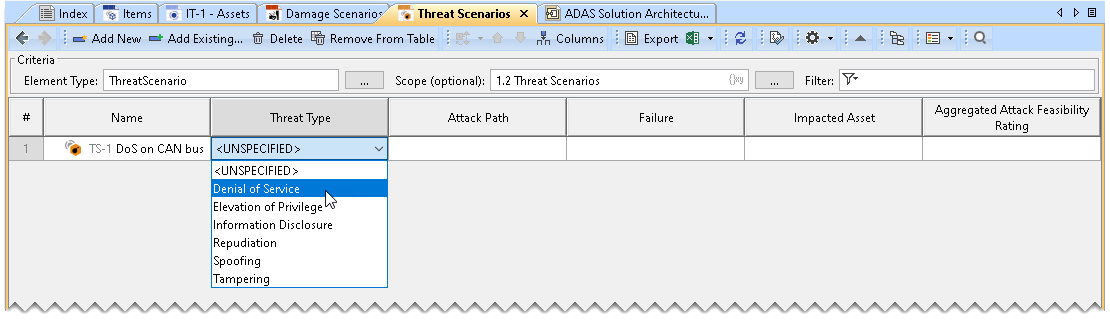
The Threat Type will be added to the Threat Scenarios Table.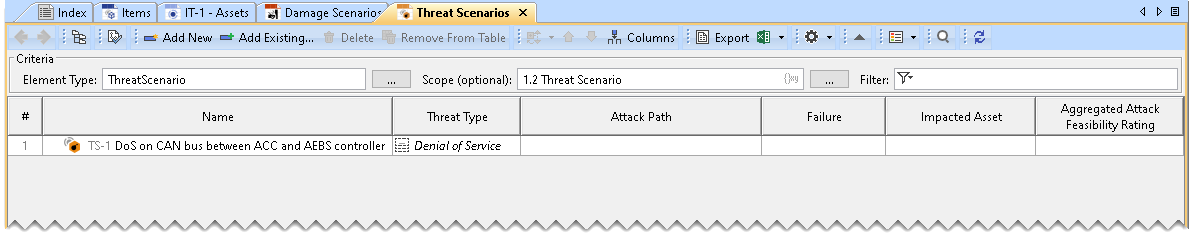
Adding an Attack Path
| Note |
|---|
You can add multiple attack paths for a given Threat Scenario. |
To add an Attack Path
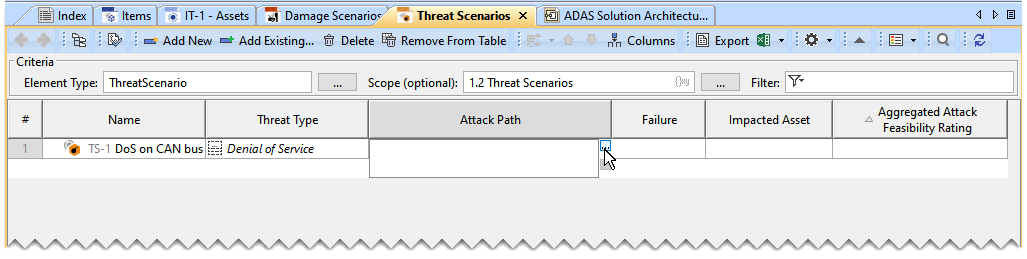
- Double-click the designated cell in the Attack Path column and the required Threat Scenario's row and click
 .
.
- From the Select Elementsdialog, select Attack Path.
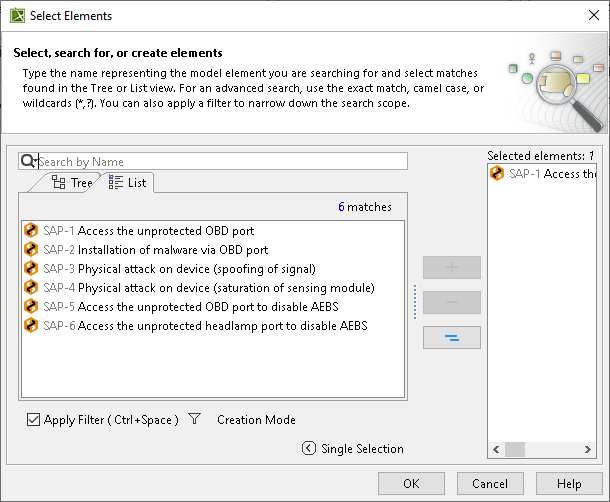
The Attack Path is added to the Threat Scenario Table.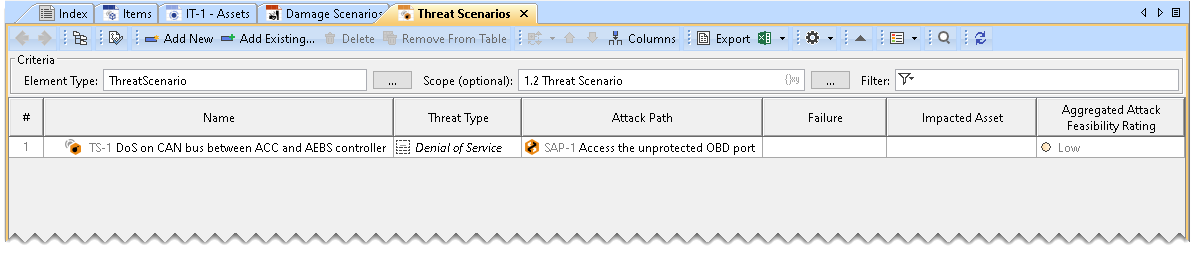
| Note |
|---|
|
Adding a Failure
To add a Failure
- Double-click the designated cell in the Failure column and the required Threat Scenario's row and click .
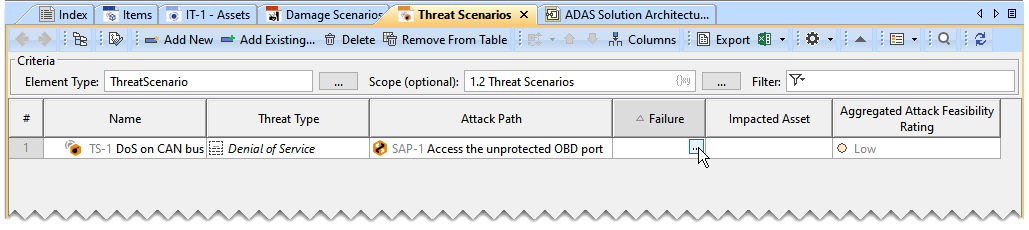
- From the Select Classdialog, select Failure.
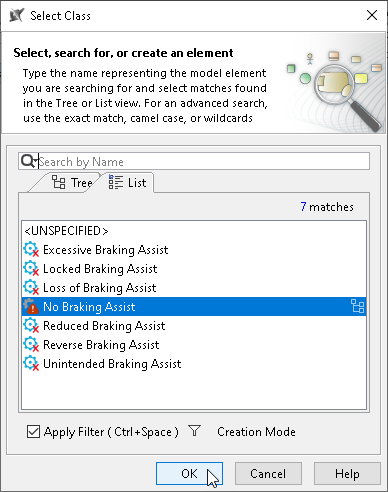
The Failure is now shown in the Threat Scenario Table.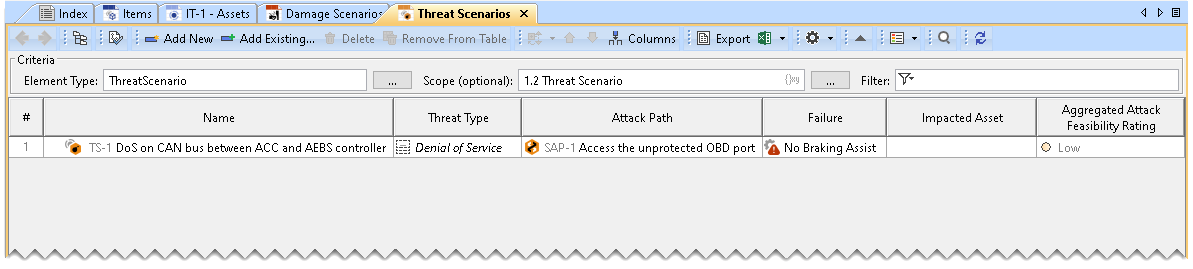
| Note |
|---|
You can also drag and drop the Failure modes from the Containment tree to the Threat Scenario Table. |
Adding and Impacted Asset
| Note |
|---|
You can add multiple Impacted Assets for a given Threat Scenario. |
To add an Impacted Asset
- Double-click the designated cell in the Impacted Asset column and the required Threat Scenario's row and click .

- From the Select Elementdialog, select Impacted Asset.
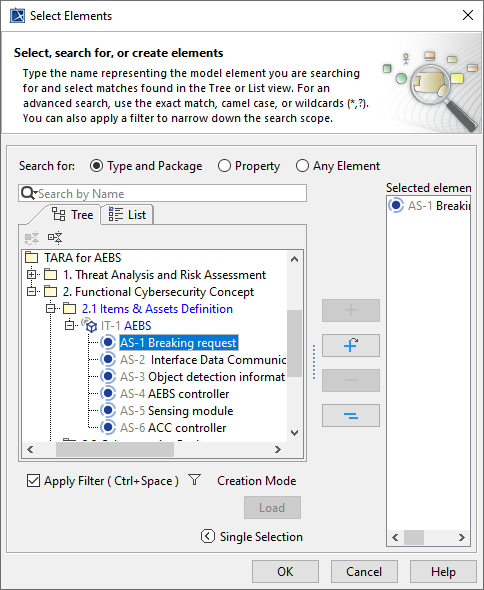
The Impacted Asset is added to the Threat Scenario Table.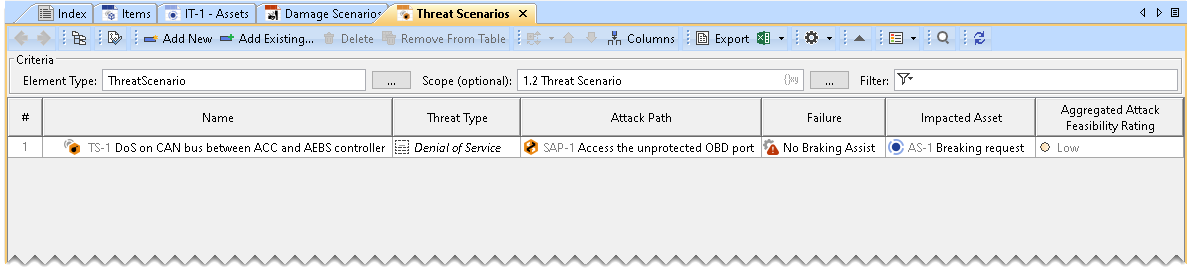
| Note |
|---|
You can also drag and drop the Impacted Assets from the Containment tree to the Threat Scenario Table. |
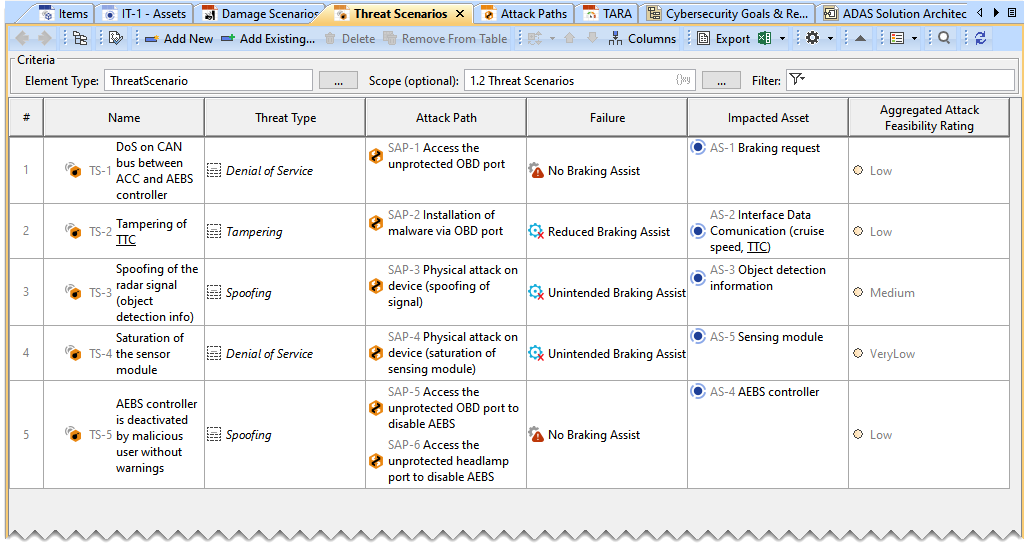
Threat Scenario Table Example
| Info | ||
|---|---|---|
| ||