
Page History
...
- Export the ConnectedTanks Block to Modelica file. How to >>
- Make sure the Dymola tool is installed. How to >>
- Start the Dymola.
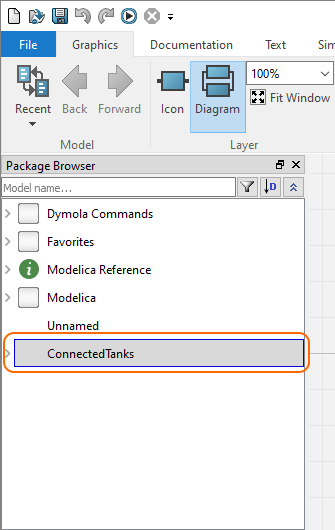
- Click File > Open > Load... and select saved ConnectedTanks.mo file from your file directory. A ConnectedTanks model is displayed in the Package Browser.
- In the Graphics tab toolbar, click
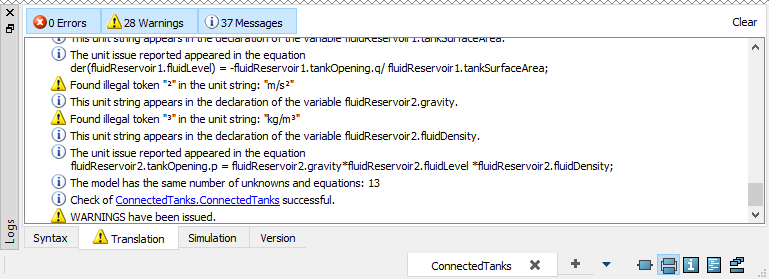
to check model for syntax and semantic errors. The result panel displays whether the model is ready for simulation.
- Setup the simulation run for the model:
a. Select the Simulation tab and in its toolbar click
b. In the Simulation Setup dialog, specify the Start time value to 0 and the Stop time value to 120 seconds (or any other reasonable amount of time; for this model, 120 seconds should be enough) .
c. Click OK.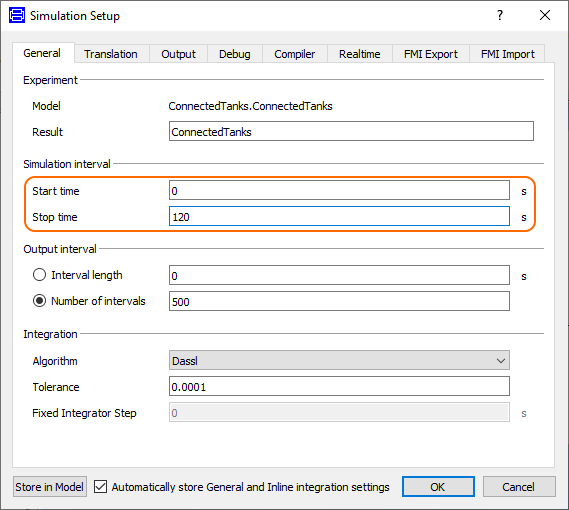
In the Simulation tab toolbar, click
Info When the simulation is completed, the output is displayed in the panel at the bottom and the ConnectedTanks variables are displayed in the Variable Browser.
- To see the input and output of the ConntectedTanks model, select variables in the Variable Browser as follows:
- ConnectedTanks > _ConnectedTanks > fluidReservoir1 > fluidLevel. The changing fluid level of the first tank is displayed on the Plot window. See the following figure.
- ConnectedTanks > _ConnectedTanks > fluidReservoir2 > fluidLevel. The changing fluid level of the second tank is displayed on the Plot window. See the following figure.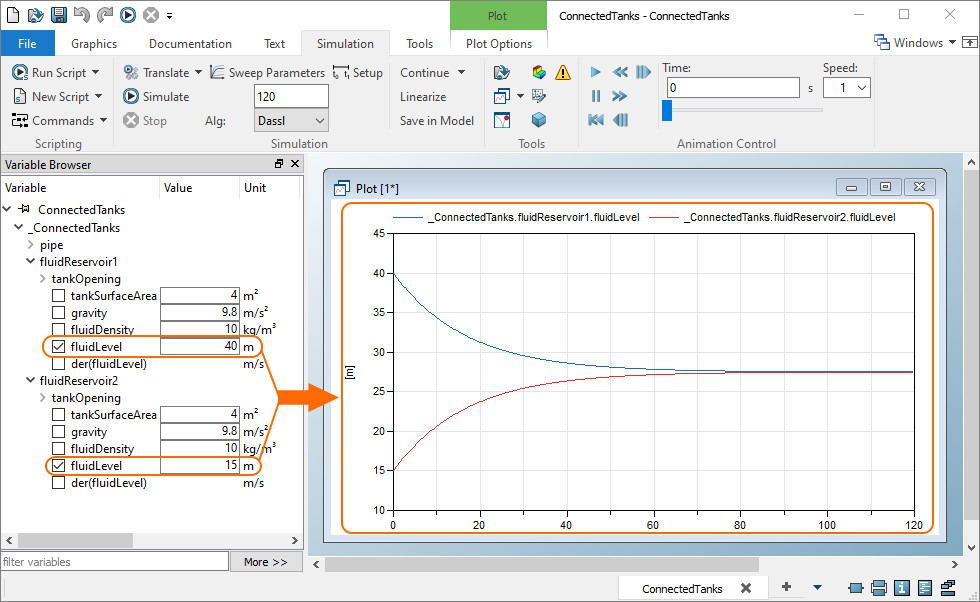
...
Overview
Content Tools