Representation of locked elements
In the Containment tree, element names are represented in two colors:
- Unlocked elements are represented in black, meaning they are editable.
- Locked elements are represented in gray, meaning they are not editable.
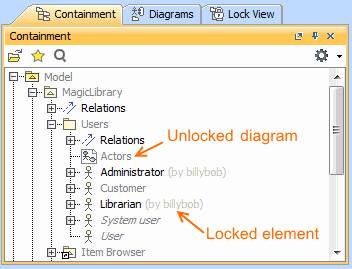 Locked and unlocked elements in the Containment tree
Locking elements and diagrams
Elements and diagrams can be locked by using the commands from their shortcut menu.
 Locking commands on the shortcut menu of the Package
Elements can also be locked by clicking the Lock element for the Edit button  on their Specification window.
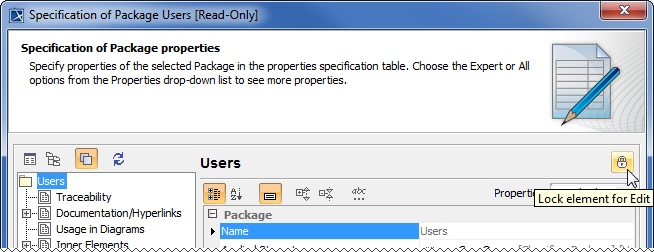 Locking command in the element's Specification window
The following table provides suggestions on which locking commands to use for different purposes.
| If you need to edit... | Do the following |
|---|
Specification properties of a single element | - Right-click either:
- The element in the Model Browser.
- A symbol of the element on a diagram pane.
- From the shortcut menu, select Lock > Lock Element for Edit.
OR - Double-click either:
- The element in the Model Browser.
- A symbol of the element on a diagram pane.
- In the Specification window, click Lock Element for Edit.
|
Specification properties of both an element and the elements it contains (owns) | Tip |
|---|
For example, a project has a Package Analysis, containing two inner Packages
- Design and Implementation. Each inner Package also contains elements. Lock the Package Analysis recursively to edit all the elements in this Package. |
| - Right-click either:
- This element in the Model Browser.
- A symbol of this element on a diagram pane.
- From the shortcut menu, select Lock > Lock Elements for Edit Recursively
|
At least one of the following: - Diagram representation properties (including diagram layout)
- Symbol properties of elements represented on that diagram pane
| - Right-click this diagram in the Model Browser.
- From the shortcut menu, select Lock > Lock Diagram for Edit.
OR - Right-click a free space on this diagram pane.
- From the shortcut menu, select Lock Diagram > Lock Diagram for Edit.
|
At least one of the following: - Diagram specification properties
- Diagram representation properties (including diagram layout)
- Properties of elements represented on that diagram pane
- Symbol properties of elements represented on that diagram pane
| - Right-click this diagram in the Model Browser.
- From the shortcut menu, select Lock > Lock Diagram Content for Edit.
OR - Right-click a free space on this diagram pane.
- From the shortcut menu, select Lock Diagram > Lock Diagram Content for Edit.
|
At least one of the following: | - Right-click the symbol of that element on a diagram pane.
- From the shortcut menu, select Lock > Lock Element for Edit in Diagram.
|
Locking symbol styles
You can lock symbol styles via the Lock View tab or the Project Options dialog.
To lock symbol styles via the Lock View tab
In the Lock View tab on the Model Browser, expand Project Options.
| Expand |
|---|
| title | Where is the Lock View tab? |
|---|
|
| It is the last tab on the Model Browser. If the tab is closed, you can simply open it by selecting Collaborate > View Locked Elements. |
- Right-click Symbol Styles and from the shortcut menu select Lock Symbol Styles for Edit.
To lock symbol styles via the Project Options dialog
- Do either:
- In the Project Options dialog, click Lock Symbol Styles for Edit.
 Locking symbol styles via the Project Options dialog
As a result, symbol styles become editable. Additionally, the Make Default button (1) in all Symbol Properties dialogs and the Set Selected Symbol Style as Default button (2) on all the diagram toolbars become available, as shown below.
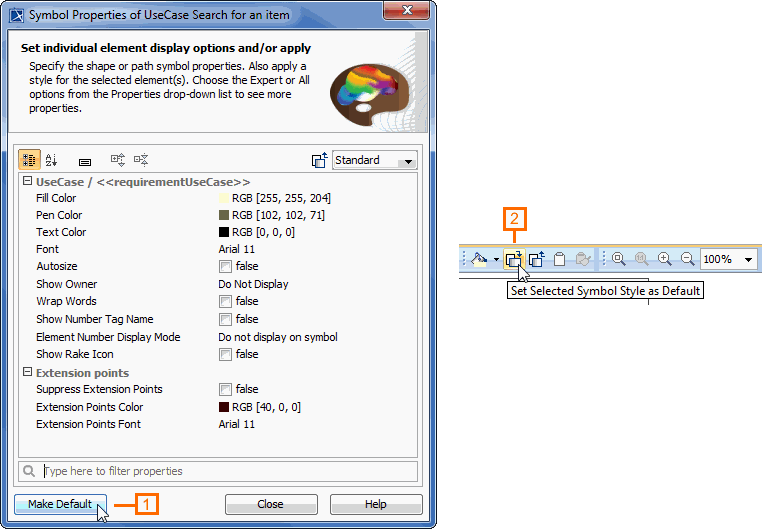 Symbol style manipulation buttons
Locking project usages
To lock a used project
- From the Options menu, select Project Usages. The Project Usages dialog opens.
Select a used project on the left side of the dialog.
- Click the button to lock the used project.
| Tip |
|---|
|
You can use a shortcut menu for this step. Right-click the project and then select Lock. |
You can then import the used project as a package to the main project, stop using it, or change its version.
