You are viewing an old version of this page. View the current version.
Compare with Current
View Page History
Version 1
Current »
Error rendering macro 'excerpt-include'
User 'null' does not have permission to view the page.
The Structure tab toolbar contains the following buttons:
Button | Tooltip text | Description |
| Collapse All | Collapses all of the currently expanded elements in the Containment tree. |
| Collapse Selected Recursively | Collapses only selected node and all subnodes in that node. |
| Open in New Tree | Opens the contents of the selected element in a new tab of the Model Browser. The selected element becomes the root node of the new tree. You can choose to open elements in: - New Containment Tree
- New Structure Tree
- New Inheritance Tree
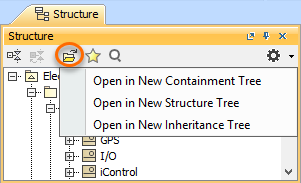
|
| Favorites | Opens the Favorites menu for choosing to do one of the following: - Add a selected element to favorites
- Open the dialog for managing favorites
- Navigate to a desired favorite in the Containment tree
|
| Quick Find | Opens the Quick Find dialog. |
| Options | Click to open the Options menu and then select: - Filter - opens the Select Element Type dialog wherein you can select element types to be visible in the Containment tree. Learn more on the Filtering page.
- Show Auxiliary Resources - shows or hides modules and profiles that are used in your project.
- Show Applied Stereotypes - shows or hides the applied stereotypes next to the element name in the Containment tree.
- Nest Satisfied Requirements - shows requirements nested within elements that satisfy them.
- Show Inherited Structure - shows properties that are inherited from the generalization classifier.
- Show Full Types - shows or hides the full types of typed elements (for example, operations, attributes, relationships, and other) in the Containment tree.
- Show Code Engineering Sets - shows or hides the code engineering sets.
|


