On this page
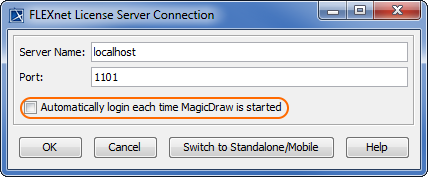
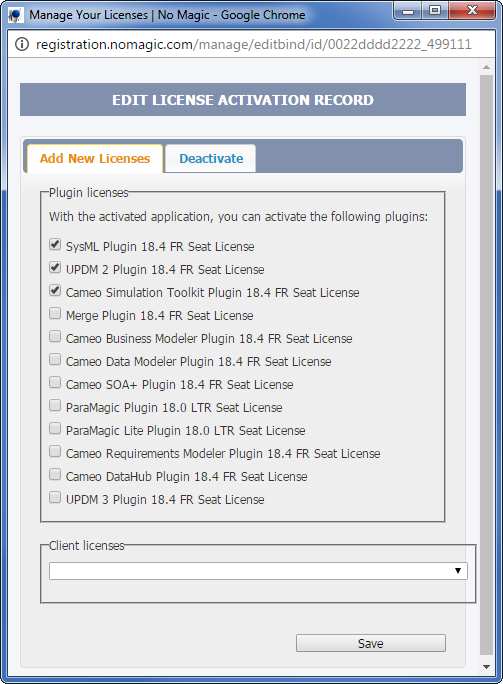
Before starting the plugin license activation, make sure plugins are Installing plugins. In the License Activation Management page, click the Click to Edit button to edit the record of the modeling tool for which you want to activate plugins. In the Edit license activation record dialog, select the plugins you want to activate. Click Save when finished. The activation record is updated. In the FLEXnet License Server Connection dialog, enter server name and port and click OK. Your system administrator provides the server name and port. In the Select Edition/Plugin dialog, select edition and plugins and click OK. If the Automatically login each time <modeling tool> is started check box is selected, the FLEXnet License Server Connection dialog will not be displayed and the licenses will be obtained automatically. If you need to reset the licenses or select additional ones, do the following:Adding the license key file
Activating at nomagic.com
 Send button to receive the license key by email or click the
  Download button to save the key locally.
Obtaining the floating license