

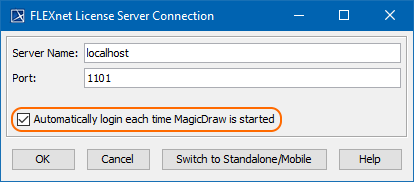
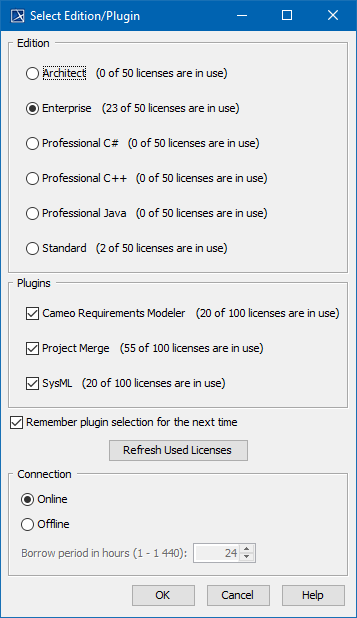
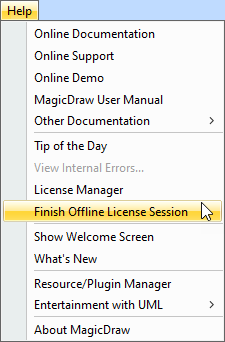
When the License Manager dialog opens, click the Use Floating License button. To open this dialog manually, select Help > License Manager. In the FlexNet License Server Connection dialog, enter the floating license server name and port (provided by your system or license server administrator). Click OK. If you want to use the Three-Server Redundancy (Triad License Server), follow this format: If you want to use different Cameo vendor daemon ports for different triad servers, use this format: If the Automatically login each time <modeling tool> is started checkbox is selected, the FlexNet License Server Connection dialog will not be displayed and the licenses will be obtained automatically. To reset the licenses or select additional ones, do the following: In the Select Edition/Plugin dialog, select the modeling tool edition, plugins you want to use, and the floating license connection type: online or offline (borrowing). Click OK. To obtain a floating license for your plugin, you must install it in your modeling tool first. Once the plugin is installed, you will find it listed under Plugins in the Select Edition/Plugin window. Click here to learn how to install a plugin. To check the license information, select Help > About and click the Licensing tab. To finish an offline floating license session earlierPrerequisites
Procedure
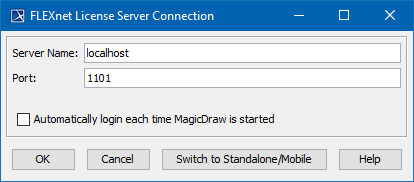
Server Name: hostname1,hostname2,hostname3 (where hostname1 is the master of the triad)
Port: 1101 (default port embedded in the floating license key file)
Server Name: hostname1,port2@hostname2,port3@hostname3
Port: port1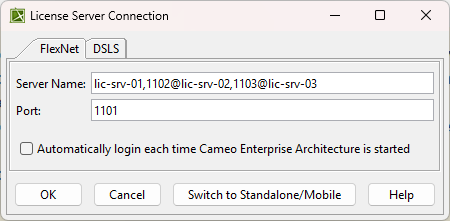
Finishing offline floating license session
Installation and licensing 2022x Refresh2 Documentation
Overview
Content Tools