To create an empty Instance Table
- In the Containment tree, select an element to be the owner of the Instance Table.
- Do one of the following:
- From the main menu, select Diagrams > Create Diagram. Type “ins” and press Enter.
- On the main toolbars, click the Create Diagram button. Type “ins” and press Enter.
- Press Ctrl+N. Type “ins” and press Enter.
- Right-click the element and from the shortcut menu select Create Diagram > Other Diagrams > Instance Table.
- If the default name of the Instance Table is not appropriate, type a new one directly in the Containment tree.
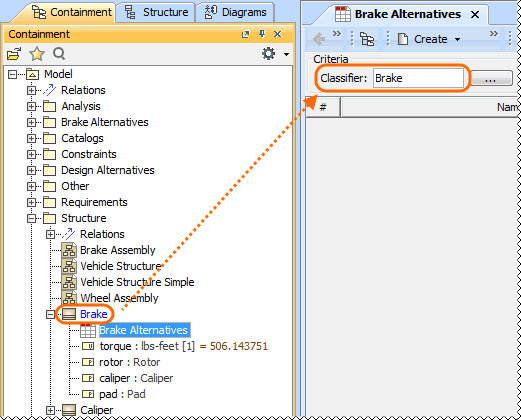
- If the owner of the Instance Table is also a classifier, it becomes the default value of the Classifier box in this Instance Table.