

To display Parameter Direction and Parameter Type in a single table cell
- Create a Creating Generic Table.
- Set the Element Type to Parameter and Activity.
- Set the Scope to the Activity element which contains the Parameters.
- Click the Columns button and select New Custom Column. Expression dialog opens.
- Set the Type as String.
- Select the Single Value check box.

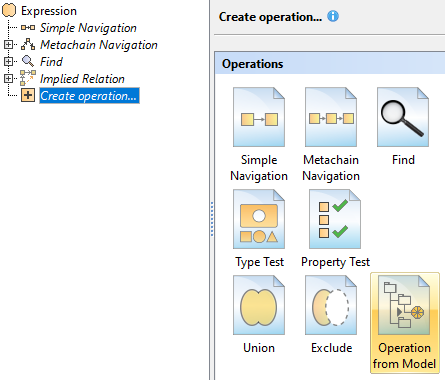
Select Create operation → Operation from Model → Case 7.1. Sum of Default Values of PropertyfThenElse.
If you cannot see the Operation from Model operation under Operations, make sure the Expert mode is enabled.
If you cannot see the Case 7.1. Sum of Default Values of PropertyfThenElse operation, make sure the Apply Filter box is not checked.
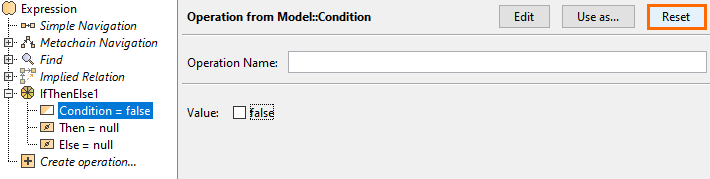
- Select Condition > Reset.
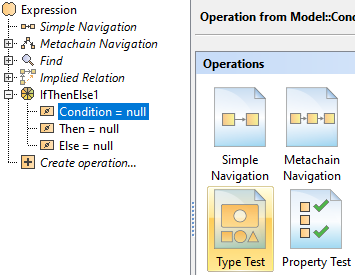
- Select Condition > Type Test.
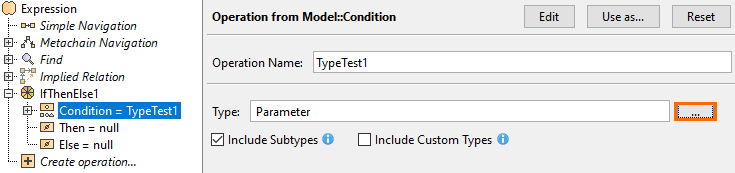
- Select Condition and set the Type to Parameter.
- Select Then > Operation from Model > StringConcat.
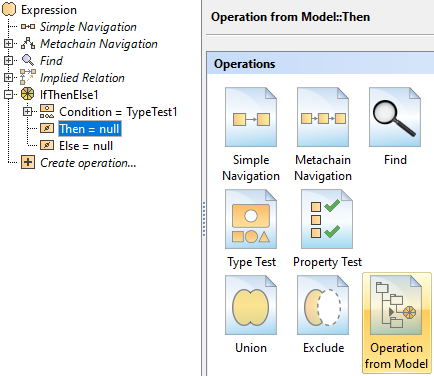
- Select A > Reset.
- Select A > Script.
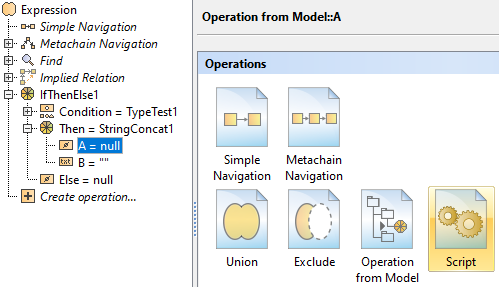
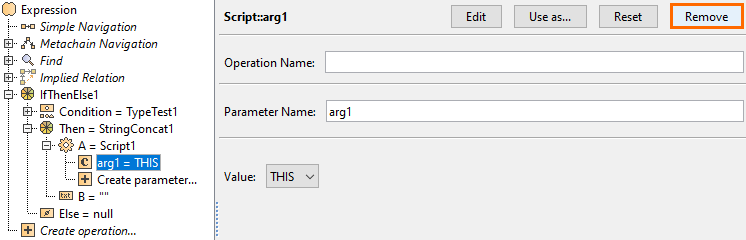
- Select A > arg1 > Remove.
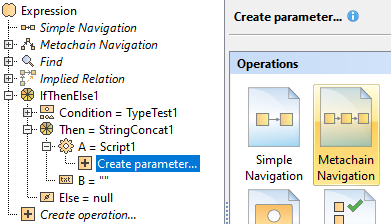
- Select A > Create parameter > Metachain Navigation.
- Set the Parameter Name to direction.
- Click Insert.
- Under Metaclass or Stereotype, select Parameter, and under Property, select Direction.
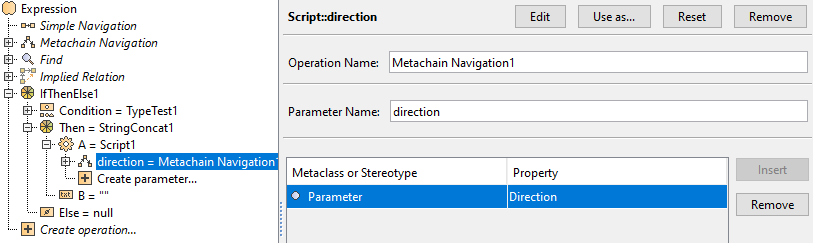
- Select A > Script. From the Language drop-down list, select Javascript Rhino.
Insert the following script as the Body:
Javascript Rhino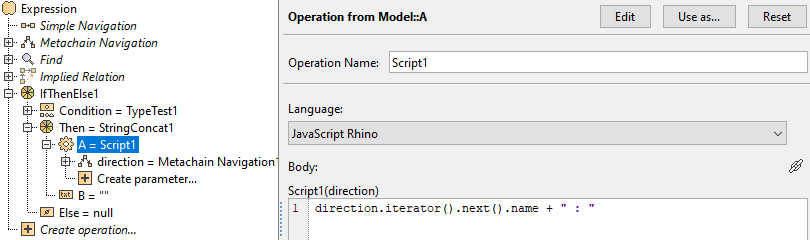
- Select B > Reset.
- Select B > Metachain Navigation.
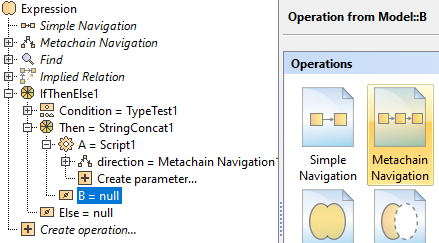
- Click Insert.
- Under Metaclass or Stereotype, select Parameter, and under Property, select Type.
- Click Insert again.
- Under Metaclass or Stereotype, select Type, and under Property, select Name.
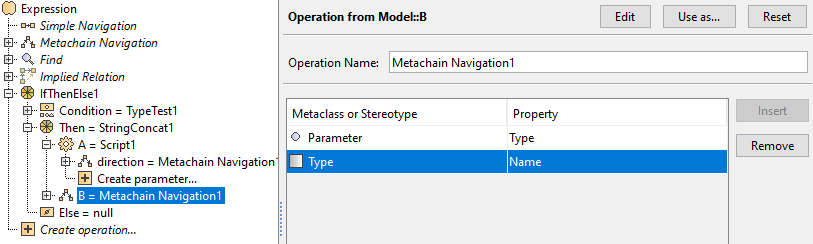
- Click OK.
Sample model
The model used in these examples is the Case Studies for Querying the Model sample model. To open this model, you need to download case studies for querying the model.mdzip.