On this page:
Sample model
The sample model is available in <modeling tool instalation directory>\samples\CATIA Software Producer\Flashlight_tempo.mdzip
The CATIA Software Producer allows you to generate and build code from a UML or SysML model. You can generate code, for example, from the UML Class structure, UML State Machine, or SysML Blocks. The code generation and building are executed via the 3DEXPERIENCE platform.
Key concepts and capabilities
CATIA Software Producer offers the following generation capabilities:
- Generating C code from UML and SysML models.
- Generating C++ code from UML and SysML models.
- Generation Java code from UML classes.
- Generating target dependent middleware code for AUTOSAR classic and adaptive.
- Generating and compiling code for FMU.
- Generating and compiling code to produce an executable for Windows, for Linux, or for a custom target.
- Generating code from a model persisted as a file, or in TeamWorkCloud or in the 3DEXPERIENCE Platform.
- Generating code with traceability information establishing the relation from the model items to the code.
For more information about the Software Production Engineering application, see Software Production Engineering.
Prerequisites
- The CATIA Software Producer Client plugin is installed in your modeling tool. Learn more about how to download the installation files.
The 3DEXPERIENCE platform is on the cloud.
You have the Software Production Engineer Role. It will give you permission to use the service.
Before starting to work on code generation, first, you have to connect to 3DEXPERIENCE by entering the URL of the Software Producer cloud server. After that, you will be able to log in with your regular identifiers.
For information about how to authenticate with the 3DEXPERIENCE platform, see Authentication with 3DEXPERIENCE platform.
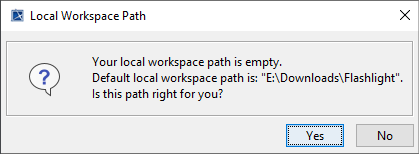
If you start working with CATIA Software Producer for the first time in your project, a dialog will open to configure the local workspace path, which will host generated resources.
Configuring the code generator
The principle
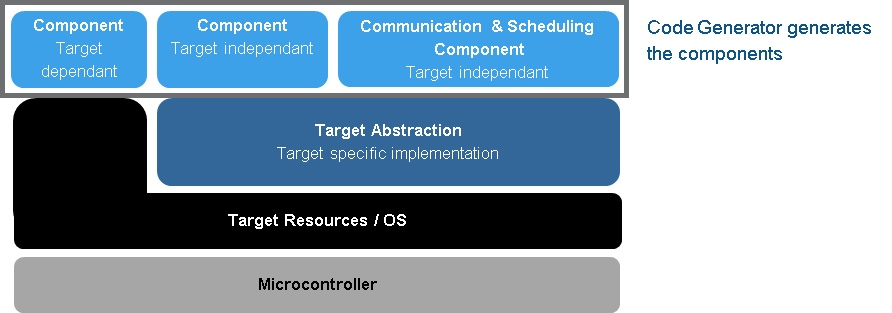
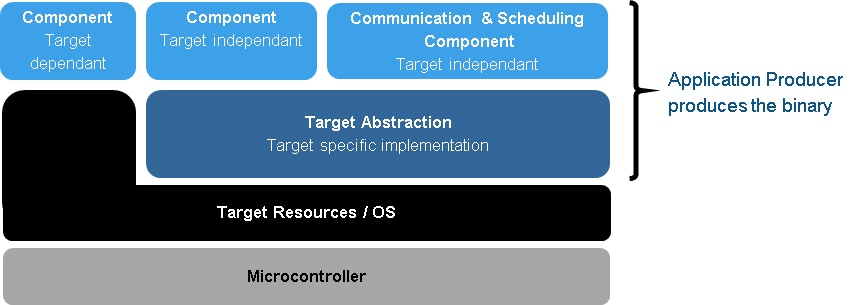
The generated code is composed of multiple layers as shown on the schemas below.
When the user configures code generators, the generated files will contain the following part:
When the user configures application generators, the generated files will contain the following part:
To configure the code generator, you have to create a Code Generation Configuration Diagram.


Click the image to enlarge.
Code generation supported so far is C, C++, and Java. You can select them in the diagram palette.

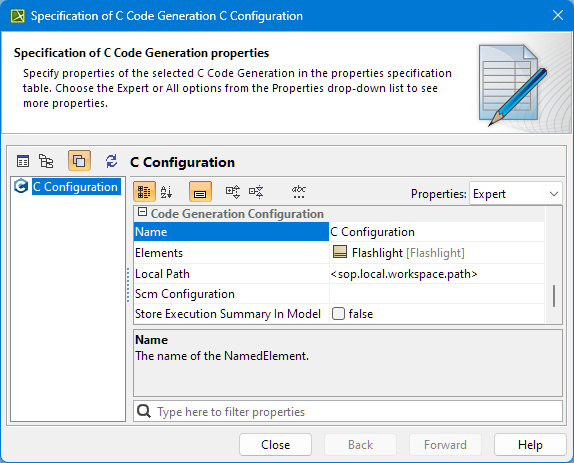
A code generation configuration is composed of:
- Elements
- Local Path. A patch to your workspace.
- SCM Configuration (optional)
- Store Execution Summary in Model: set to false by default. Set to true, if you want an execution object to be created in your project (under the configuration element), so that you can view the execution summary of your configuration in the Code Generation Result Table.
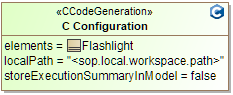
Application production supported so far is FMU, AUTOSAR, Linux, Windows, and Custom Target.

An application production is composed of:
- code generation configurations: their generated files are used to produce the application
- top level element: only for FMU Production and AUTOSAR Generation configurations
- local workspace path
store execution summary in model: by default set to false ; if set to true, an execution object will be created in your project (under the configuration element), so that you can view the execution summary of your configuration in the Code Generation Result Table.
generate code: by default set to true.
- If set to true, the associated code generation configuration(s) will be launched and their results will be taken as inputs of the final operation.
- If set to false, the inputs of the final operation are the current files stored under the folders referenced by the configurations.
- parameters specifics to the selected operation:
- in the example below: platform, include_souce, C_standard, Cpp_standar, debug
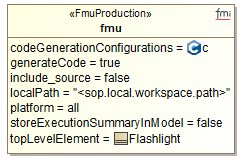
- in the example below: platform, include_souce, C_standard, Cpp_standar, debug
- SCM Configuration (optional)
Specifying elements and configurations
You can specify “elements” or “topLevelElement” in two ways:
- Drag and drop the element from the Containment tree to the desired configuration in the diagram
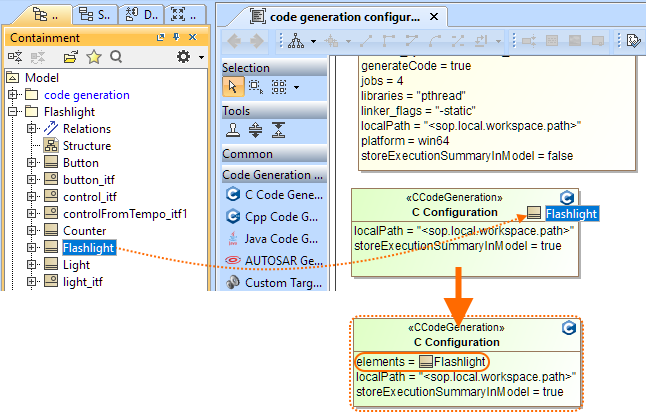
- Open the Specification window of the configuration and edit the Element property.
You can specify “codeGenerationConfigurations” in two ways:
- On the diagram, drag and drop the Code Generation Configuration to the application Production configuration.

- Open the Specification window of the configuration and edit the Code Generation Configuration property.
Validating
You can check if your model is compatible with the code generation via the standard validation menu.
To run the validation
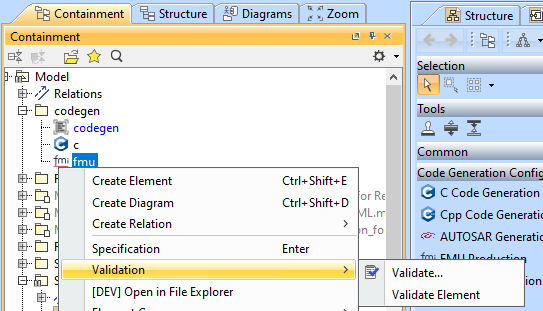
- In the Containment tree, right-click the code configuration.
- In the shortcut menu, select one of the following:
- Click Validate and in the open Validation dialog choose either all possible constraints, or only Code Generation Constraints.
- Click Validate Element to run validation for a selected element only.
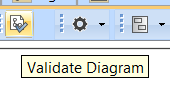
You can also use the Validate Diagram command, which you can find in the configuration diagram toolbar:
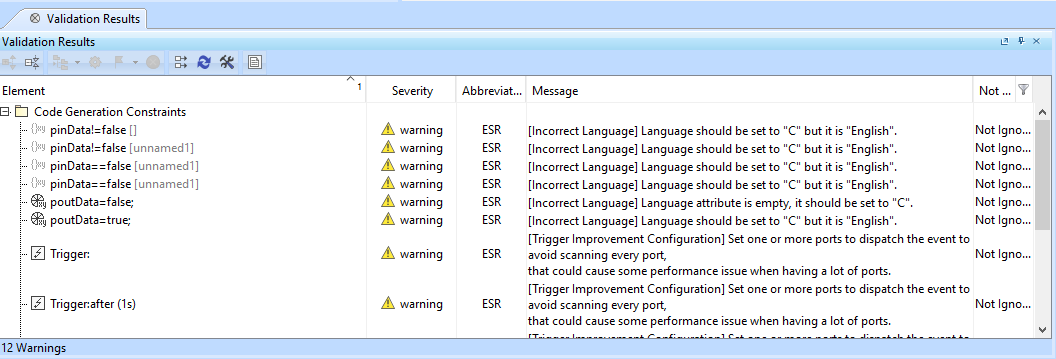
The results are displayed in the Validation Results window if there are any errors or warnings.
The operation logs are displayed in the usual Software Producer logs window.
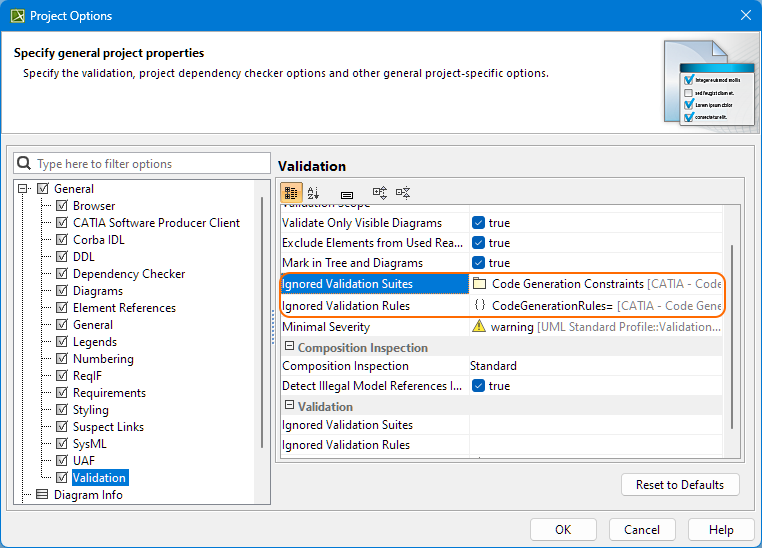
If you do not want to run the validation for code generation when calling the validation menu, you can choose to ignore a selected validation suite and/or validation rule.
To ignore a validation suite or validation rule
- In the modeling tool's main menu, click Options > Project.
- In the open Project Options dialog > Validation, specify the Ignored Validation Suites and/or Ignored Validation Rules.
Validation is actually a SPO (Software Production Operation) launched in dry-run mode (no file generation, no credit consumption).
Executing the code generator
To execute the code generator, you can run the generation from the following locations:
- Main menu
- Code generation diagram
- Containment tree
Execution from the main menu
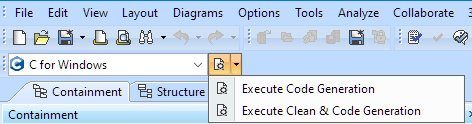
You can do one of the following:
- launch the default action Execute Code Generation that will launch the operations
- if Activate Smart Launch Mode is set to true in the environment options (Environment options dialog > CATIA Software Producer Client General Properties), operations will be launched only if a change was done in the model. By default, the property is set to false.
- launch the Execute Clean & Code Generation that will delete your previously generated local files and cloud assets then launch all the operations.
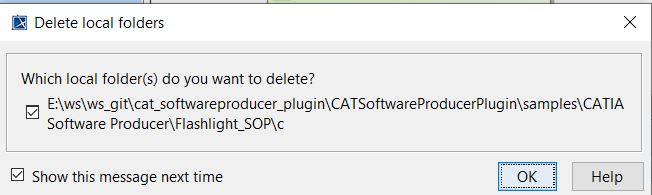
- for the deletion of the local files: if files previously generated by this configuration are found, a dialog will be prompted to the user to confirm the deletion of local files.
If you do not want to see this message again, cancel the selection of the Show this message next time check box. If you want to see this message again, there is a dedicated Environment option to turn the message showing on (see Additional Information).
- for the deletion of cloud assets: it will be done without asking for the confirmation of the user.
- for the deletion of the local files: if files previously generated by this configuration are found, a dialog will be prompted to the user to confirm the deletion of local files.
Exercution from a code generation diagram
Do one of the following:
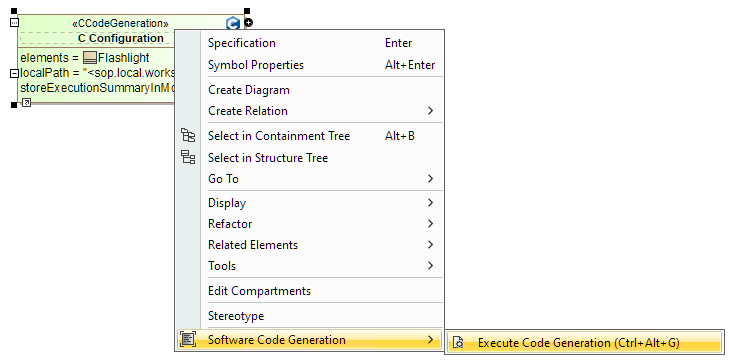
- On the diagram pane, right-click a configuration element, and from the shortcut menu, choose Software Code Generation > Execute Code Generation:
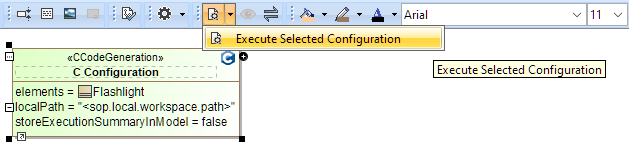
- On the diagram pane, select a configuration element, and in the diagram toolbar, click Execute Selected Configuration:
Execution from Containment tree
- In the Containment tree, right-click a configuration element, and from the shortcut menu, select Software Code Generation > Execute Code Generation:
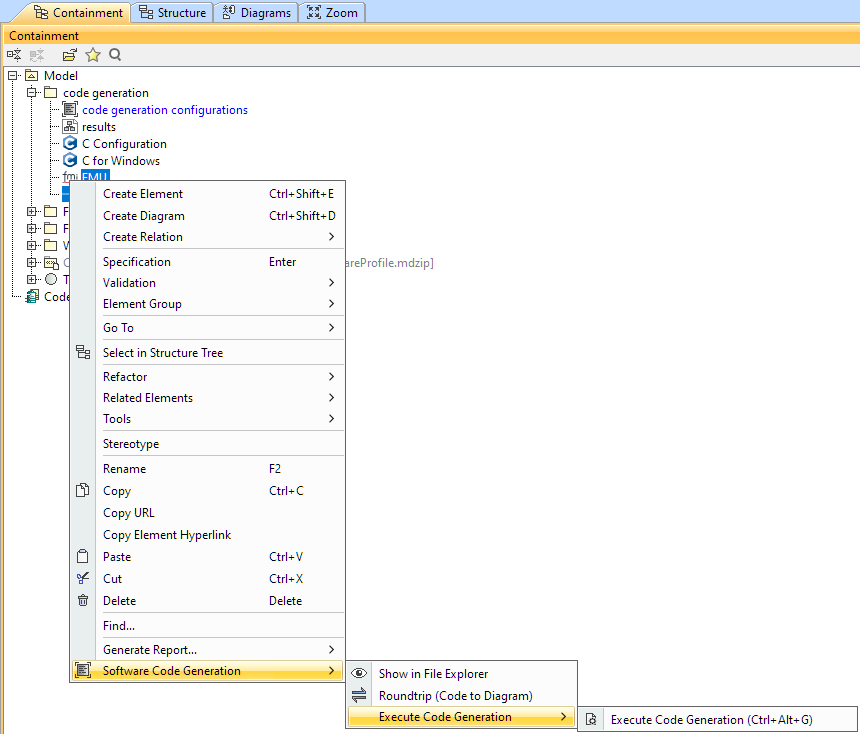
- In the Containment tree, right-click an input element, and from the shortcut menu, select Software Code Generation > Execute with...:
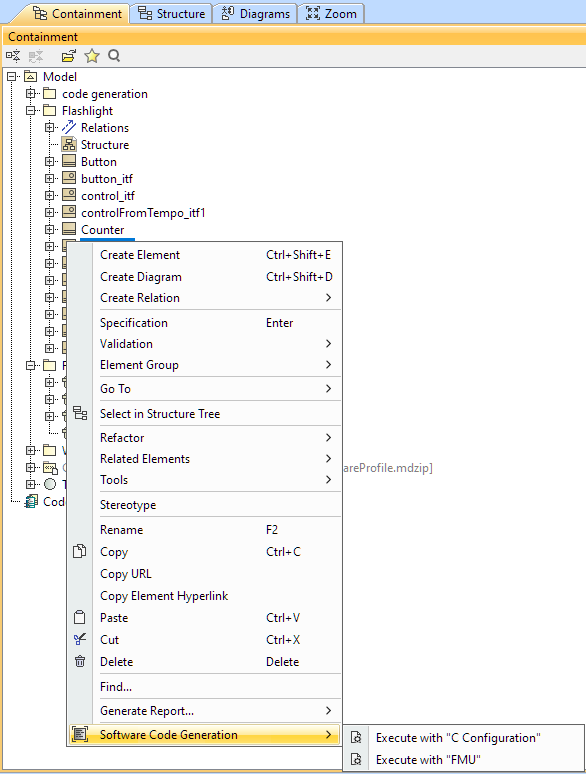
The operation logs are displayed in the Software Producer Logs window.
Software Governance
To commit elements from CATIA Magic, you need to:
- Associate a SCM repository to the model element
- Using Connected Software Connectors
- With a local configuration
- Create an SCM Configuration element
- Configure an SCM branch
- Using Software Logical Items of Connected Software
- With a local configuration
SCM Repository association
Associating repository using Connected Software Connectors
To associate the SCM repository
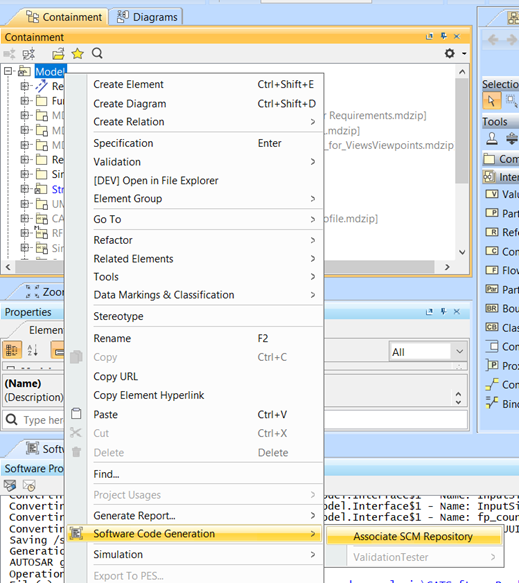
- In the Containment tree, right-click Model.
- In the shortcut menu, click Software Code Generation > Associate SCM Repository.
- In the open Associate SCM Repository dialog, choose the needed repository,
- Click OK.
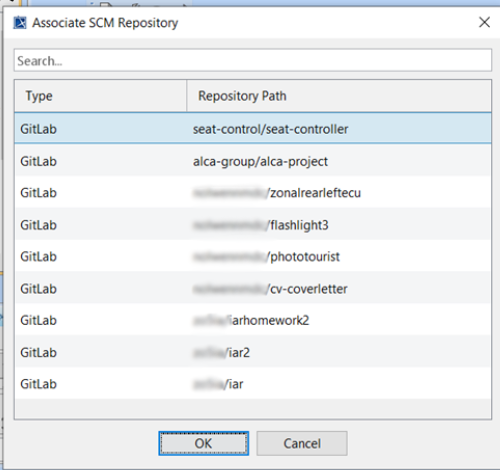
After you click OK in the Associate SCM Repository dialog, the repository information will be associated to the model via the «Connector» stereotype from the Embedded Software Profile:
- repositoryHost: root url of the targeted Git server (ex: : https://gitlab.com)
- repositoryPath: relative path of the repository (ex: SJA/cubesat-control)
- repositoryToken: associate the access token to the repository (example: glpat-6_y_4y8hMDNDxWyaATi4)
To remove the association of the SCM repository
- In the Containment tree, right-click Model.
- In the shortcut menu, click Software Code Generation > Associate SCM Repository.
- In the open Associate SCM Repository dialog, click the selected repository for which you want to remove the association.
- Click OK.
When you click OK, the association will be removed and the branches will be detached from elements if there were any.
Local Configuration
If Connected Software is not used, it is still possible to attach a repository to the model element.
To do so, associate the «Connector» stereotype from Embedded Software Profile to the model element and configure it as following:
- repositoryHost: root url of the targeted Git server (ex: : https://gitlab.com)
- repositoryPath: relative path of the repository (ex: SJA/cubesat-control)
- repositoryToken: associate the access token to the repository (example: glpat-6_y_4y8hMDNDxWyaATi4)
SCM Configuration creation
It is necessary to associate a repository before attaching a branch from the configuration dialog.
From the diagram palette, the you can create a SCM Configuration that will contain a reminder of the repository path of the model: you cannot edit the repository here. If you need to change the repository, see SCM Repository association.
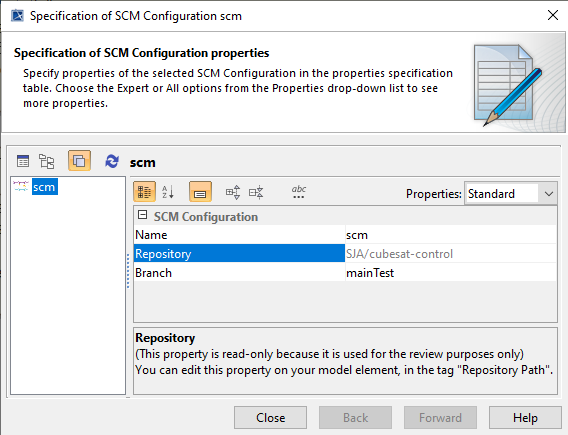
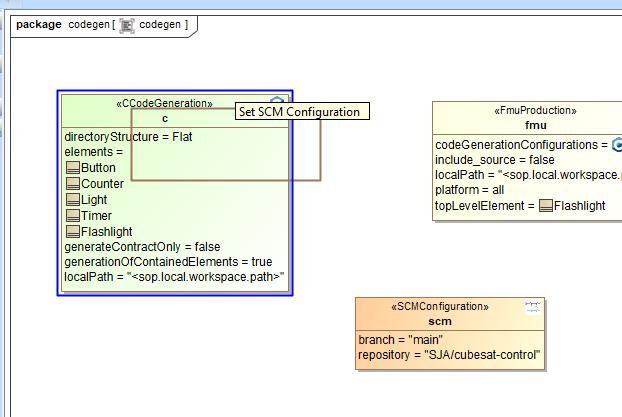
To use the SCM Configuration, you have to drag and drop the SCM configuration on the code configuration or application configuration that you wants to execute and commit:
SCM Branch Configuration
This is the branch to which you are going to commit the code.
It is necessary to associate a repository before attaching a branch from the configuration dialog.
With Software Logical Items of Connected Software
- you can edit the branch in the Specification window by clicking the three dots in the branch value field:
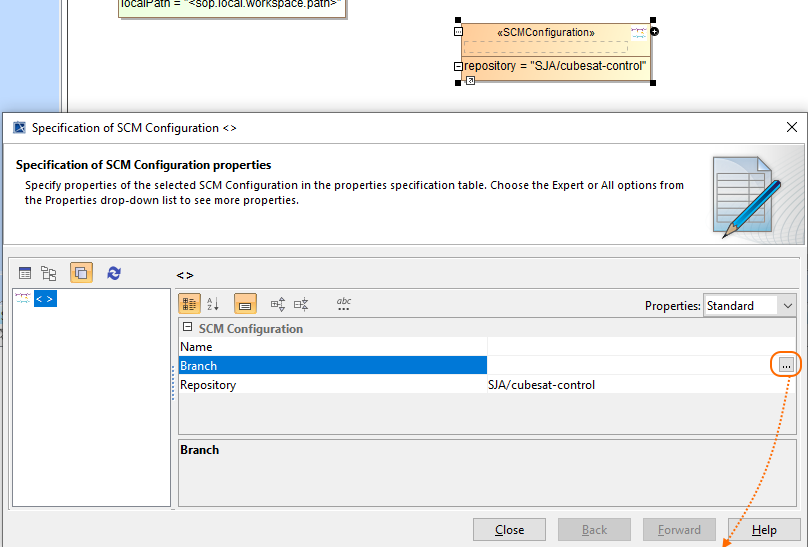
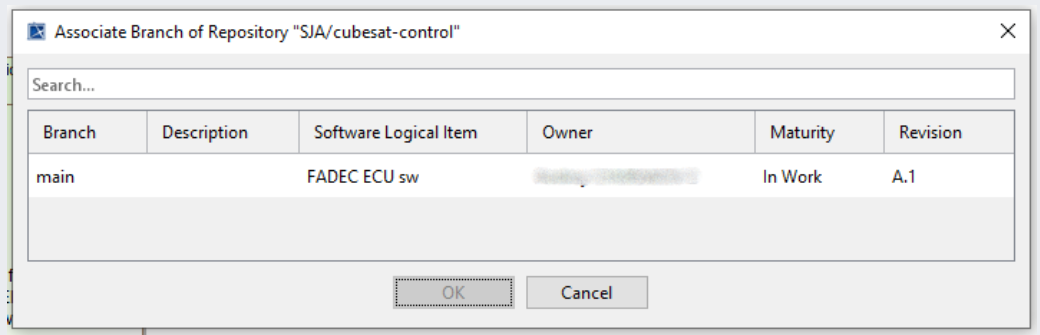
- When you click OK in the Associate Branch of Repository dialog, the branch information will be associated to the configuration via the «SoftwareLogicalItem» stereotype from Embedded Software Profile:
- branchName: the branch name to target (example: “main”)
- SoftwareLogicalItemId: ID of the logical Item linked to the branch (from Connected Software)
If if you remove the repository association, the branches will also be detached from elements if there were any. See SCM Repository association.
Local Configuration
The you can edit it in the branch:
- branchName: the branch name to target (example: “main”)
Code persistency
Code generation is executed via the regular mechanism.
The code will be committed after a successful execution of code generation.
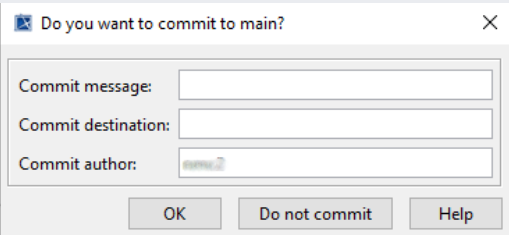
At execution phase, mandatory parameters are checked, if they are not present or are invalid, the operation is canceled and a message is printed (see an example below).

The mandatory parameters are:
- the repository path: must be present
- the repository token: must be present
- the repository host: must be present and must reference a valid URL (syntax check only)
- the commit message: must be present
- the commit author: must be present
- the branch name: must be present
Local workspace of the software producer
Under the local workspace, you can find the generated files, if you have selected the download option and left the default location (as seen above) in the configurations. You can also find some other files under an “etc” folder:
- <Local_workspace_path>
- <configuration1_name>
- <configuration2_name>
- etc
- json3
- log4
- operations
- backup2
- logs
1You can change the root of the local workspace path in the project options.
2By default, a backup of your downloaded files is saved in this folder so that in case something wrong happens with the download of new files, you can still reach your previous files. You can disable this option in the Project Options
3SPO Report files are rotated by size and date so that you might see multiple report files here.
4Log files are rotated by size and date so that you might see multiple log files here.
RoundTrip
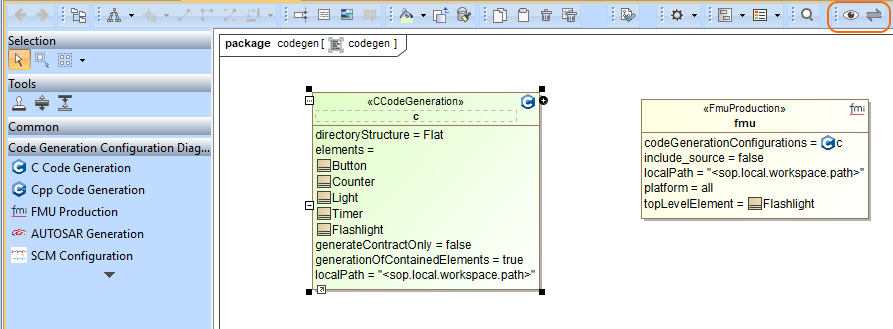
The roundtrip action is a feature available for State Machines and Opaque Behaviors. Using the roundtrip action, you can add the modification you made in the code in between BEG_USER_CODE / END_USER_CODE tags (in files commonly named <ComponentName>_usr.c), back into the model and synchronize the file on the workspace on the cloud.

The roundtrip is available in the configuration diagram toolbar:
Views
Software Producer Logs
In the Software Producer Log panel, you can see the messages of the running SPO.
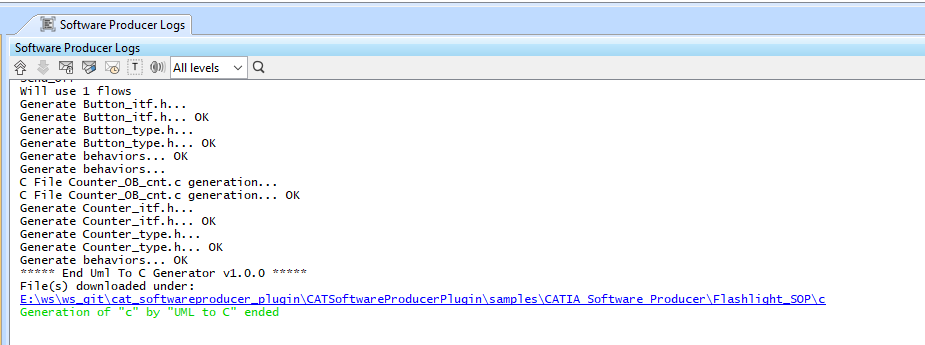
In the following table, the actions to enhance the navigation in this window are explaned:
| Icon | Name | Description |
|---|---|---|
| Scroll to the Start | Scrolls to the tip of the panel. |
| Scroll to the End | Scrolls to the bottom of the panel. |
| Lock Position | By default, when some new logs are printed, the scrollbar goes down. If the user wants to prevent the panel to be scrolled automatically to the bottom, he can click on this button. |
| Clear | Clears the panel. |
| Show Log File | Opens the file where the logs are written (each project has its own log file). |
| Show Timestamp | Adds a timestamp as a prefix to the messages. |
| Show Additional Messages | Shows more messages related to the SOP client. |
| Level combo box | Shows the messages of the selected level, hide the others. By default, All levels is selected to display all types of messages. Other available types are: Info, Error, Warning. | |
| Find | Highlights the search results and navigate to them |


A log file for general Software Producer messages not related to a specific project is stored next to the modeling tool log file.
At the bottom right corner of the modeling tool, in the progress bar, you can see whether the generation is running. After the generation is completed, the notification is displayed in case of failure or always if the verbose mode is activated (Environment Options > CATIA Software Producer Client General Properties > Notifications section).
Validation Results
When an operation produces a report, the plugin reads it and opens it in a Validation Result window if any element has a diagnostic associated.
A diagnostic is associated with a rule consisting of a severity, message, and source.
You can navigate to the source in the Containment tree. If you need to show more details concerning the rule or open the full report, right-click the appropriate lines of the table.
You can turn off the Validation Results window's opening after the operation produces a report.
To turn the validation report off
- In the modeling tool main menu, click Options and select Project.
- Set the Show Validation Report property to false.
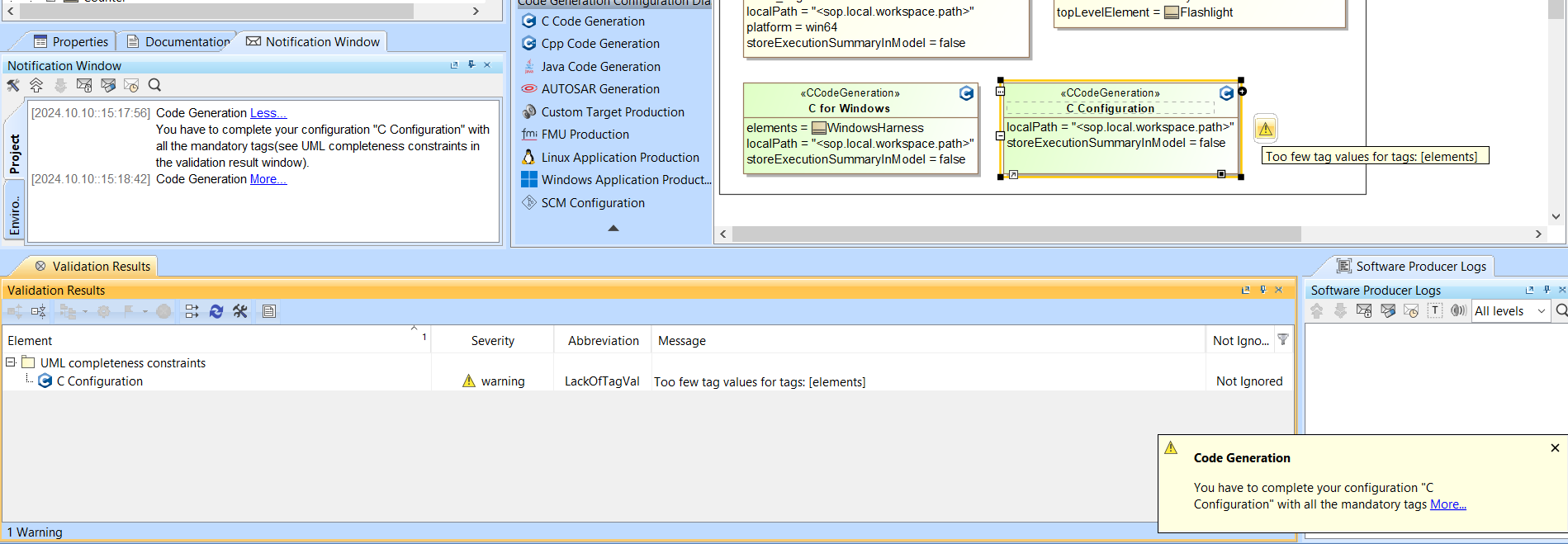
When you execute a configuration, before calling the operation the plugin checks the UML Completeness Constraints. If a mandatory property is missing (“elements” in the example below), a validation warning and a notification will be displayed informing which tag value(s) are missing.
Diagrams and Containment tree
The following commands are available from the diagrams toolbar or from the shortcut menu of the supported elements in the Containment tree:
Button | Description |
|---|---|
| Open a location in your file system wherein the Software Production Operation results file is stored. |
| The changes made in the generated code are applied in the State Machine diagram or Opaque Behavior. |


Code Generation Result Table
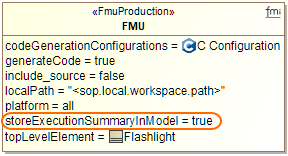
When the option "storeExecutionSummaryInModel" is set to true in the configuration, the results of the execution of the configuration is saved as an object under the configuration inside the model.
You can have an overview of all of these execution objects in the Code Generation Result Table.
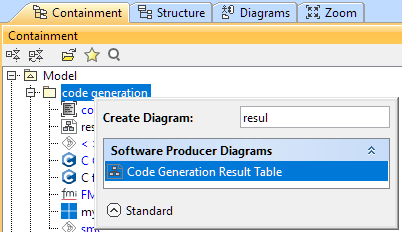
To create a table
- In the Containment tree, right-click a package.
- From the shortcut menu, select Create Diagram.
- Search for Code Generation Result Table and click it.
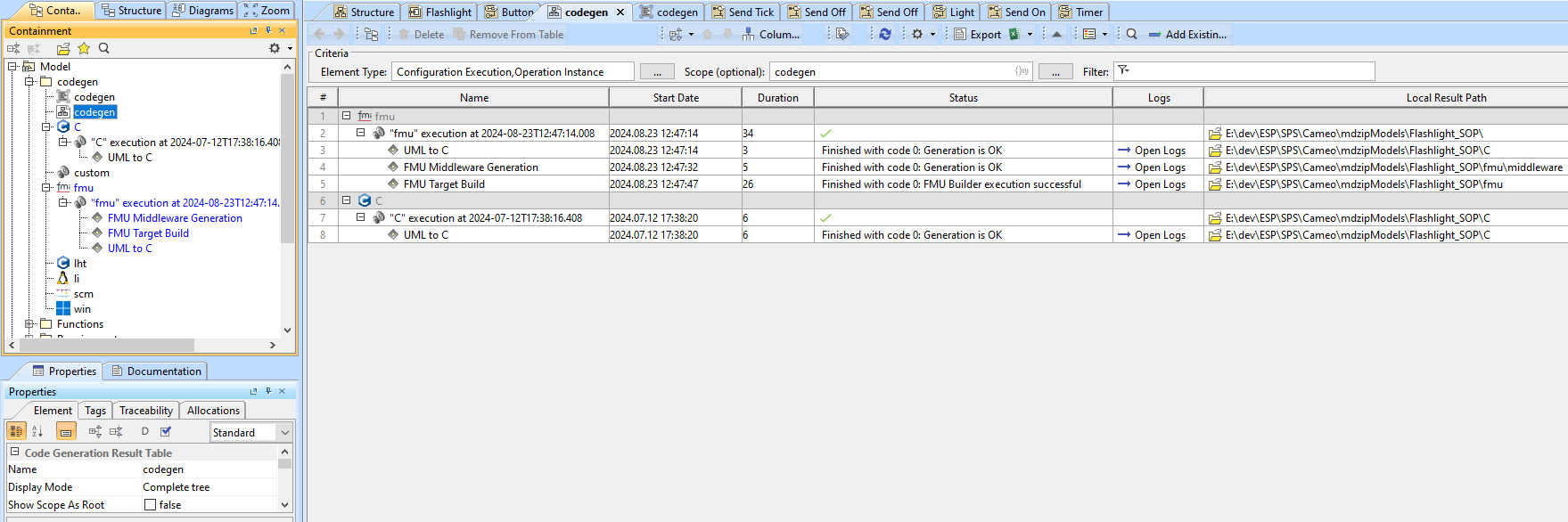
In the Containment tree on the above image, you can see under the configurations that new objects were created:
- Configuration Execution: for example, "fmu" execution at 2024-08-23T12:47:14.008"
- Operation Instance: for example, "FMU Middleware Generation"
Those objects are displayed in the Code Generation Result Table. Among other information you can see the duration of each operation and the total duration on the execution, same as for the status.
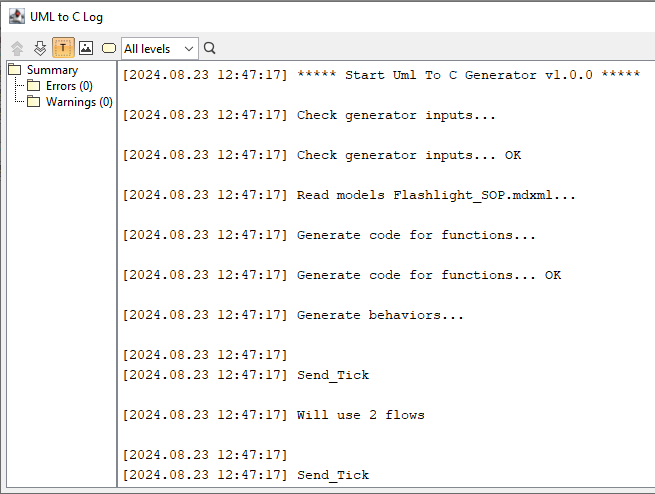
If you click the Open Logs in the Logs column, you will see the logs of the selected operation.
If you click the location in the Local Result Path column, your file explorer is opened at the specified location.
Options
You can switch projects (or even shut down your computer, saving your work first) while waiting for the generation result as it is running on the cloud and as the widget keeps the IDs of the cloud assets in the record files located in <local workspace path>\etc\operations\spoRecordFile.json (you will have access to it if you need it, for example, for the debugging purpose). When you come back, another dialog will tell you that operations were running while you were away and will propose you inspect the result and download it.
Additional Information
A workspace is automatically created on our cloud servers for each of your projects using the widget. This workspace gathers the assets needed for the generation. A cloud workspace is automatically deleted after 30 days of inactivity. You can also delete it manually in the Environment Options dialog. If you delete the workspace, all the components will have to be regenerated on the cloud on your next session because you will not be able to push any files to a workspace through the plugin.
New environment options: Show next time section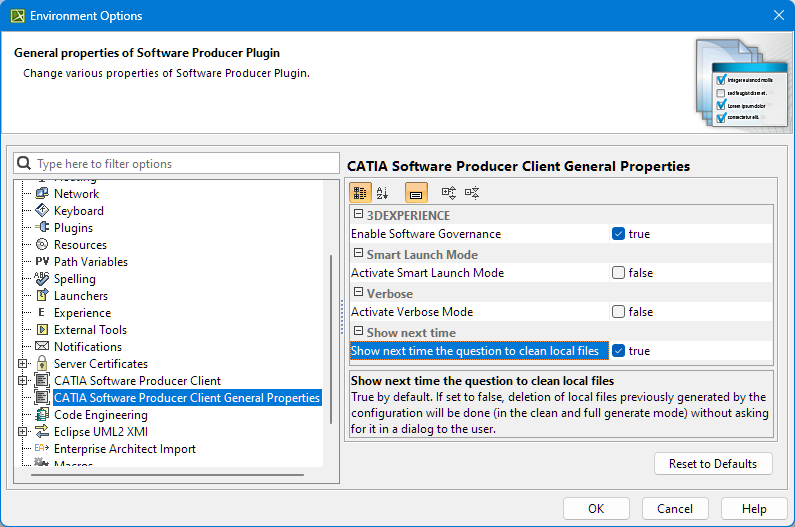
Troubleshooting
Issue 1
If you get the following error (see screenshot attached), it means you are using a model that was made for previous 3DEXPERIENCE versions, method signatures in the OB have evolved in SOP 1.19.1 (25xFD03)
/usr/bin/x86_64-w64-mingw32-ld: MyOutput_fmu/obj/win64/Cse_Flashlight.o:Cse_Flashlight.c:(.text+0xb7e): undefined reference to `Counter_OB_cnt_init'
/usr/bin/x86_64-w64-mingw32-ld: MyOutput_fmu/obj/win64/Cse_Flashlight.o:Cse_Flashlight.c:(.rdata$.refptr.Counter_OB_cnt[.refptr.Counter_OB_cnt]+0x0): undefined reference to `Counter_OB_cnt'
collect2: error: ld returned 1 exit status
make: *** [compilation.mk:40: MyOutput_fmu/fmu/binaries/win64/Flashlight.dll] Error 1
End of FMU Target Build Operation v1.0.0 *****
Operation "FMU Target Build" finished
File(s) downloaded under: E:\Program Files\CATIAMagic\from3DSSoftware\2024xR2\samples\CATIA Software Producer\Flashlight_SOP\fmu
[2025.05.30::17:57:34] Generation of "fmu" by "FMU Target Build" ended with code 1 (FMU Builder execution failed 2)
Solution
In your opaque behavior, add as a prefix the name of the parent of your OB (for example, OB_cnt by "Counter_"). Clean and execute your operation again to get the new files.
Issue 2
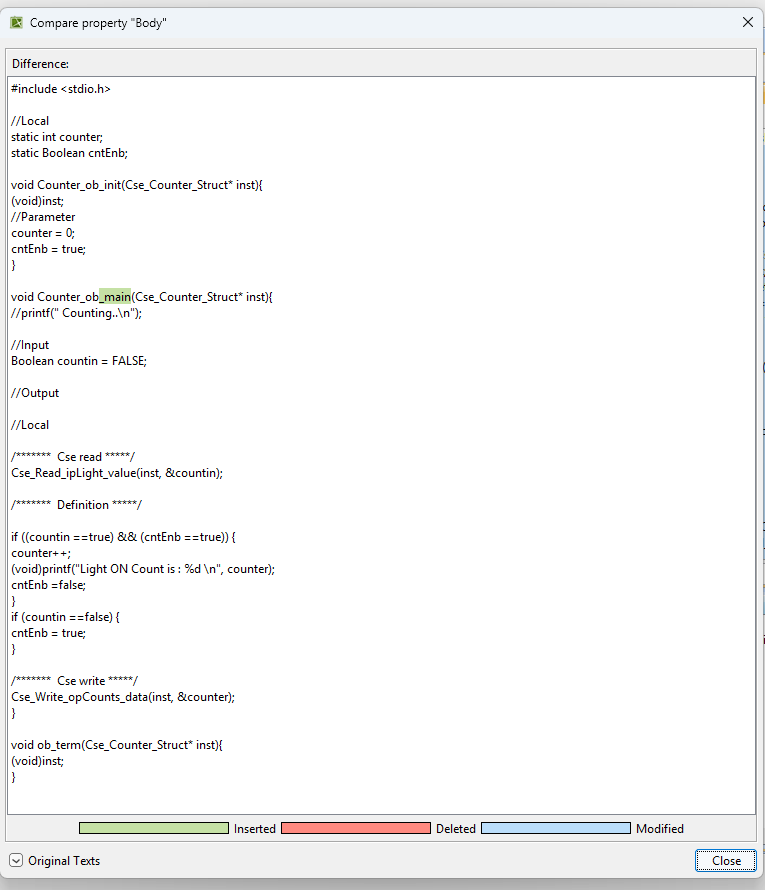
There is an evolution in the signature of the opaque behaviors in SOP 2.0.1 (3DEXP 2026xBeta2), the main one is now suffixed by "_main".'
Solution
FlashlightModel::Counter::ob element (sample SysML Flashlight Tempo.mdzip) ** has to be updated as follows (same for the two other behaviors
WindowsApplication::Windows_IO::ob, and LinuxApplication::Linux_IO::ob):