

Publishing Cameo Collaborator documents is the simplest way to present models to stakeholders, sponsors, customers, and engineering teams. This chapter explains how to publish documents from the command line, which is useful if you want to publish them periodically, e.g., once a day or during non-business hours to save time.
Prerequisites
- The Cameo Collaborator Publisher plugin must be installed in your modeling tool.
- Cameo Collaborator works only with projects stored on a cloud-hosted 3DEXPERIENCE platform. If you want to publish a local model, first add it to the 3DEXPERIENCE platform.
Recommendations
- If you intend to publish a large model, increase the default JVM heap size of the Cameo Collaborator Publisher plugin as follows:
Go to the <modeling tool installation directory>/plugins/com.nomagic.collaborator.publisher directory and open the publish.properties file.
Increase the -Xmx value, e.g., -Xmx4000M. It is recommended to set a larger heap size value than the one defined for your modeling tool.
Save and close the file.
- Depending on the size of the model you intend to publish, allocate a sufficient amount of memory to your modeling tool:
2 million element model - 24 GB of RAM
1 million element model - 15 GB of RAM
500k element model - 7 GB of RAM
Publishing tips
- To change the number of decimals displayed in Cameo Collaborator documents, in the main menu, go to Options > Project Options and specify the Decimal Places option. The setting is remembered and used for other documents published from the project.
- You can specify the diagram export options, such as dimensions and building time (the latter applies only to tables and matrices). To learn more, refer to Diagram image export.
To publish a Cameo Collaborator document from the command line interface
- Open the <modeling tool installation directory>/plugins/com.nomagic.collaborator.publisher/PowerBy_template.properties file.
Read the comments in the file and specify the publishing options.
- Open the command line interface.
Go to the <modeling tool installation directory>/plugins/com.nomagic.collaborator.publisher directory containing the executive file for model publishing.
Execute the following command:
On Windows
publish.exe properties=<modeling_tool_installation_directory>\plugins\com.nomagic.collaborator.publisher\PowerBy_template.properties
On OS X or Linux
./publish properties=<modeling_tool_installation_directory>/plugins/com.nomagic.collaborator.publisher/PowerBy_template.properties
After completing the steps above, your model is published to Cameo Collaborator. If you want to publish the same model frequently, you do not need to do it manually every time. Instead, schedule publishing as a background task to save time.
Scheduling to publish a document
If you need to publish your models periodically and/or during non-business hours, you can schedule them to be published automatically. The following procedures describe the scheduling process on Windows and Linux operating systems.
To schedule a publishing task on Windows
- Open the Task Scheduler from the Start menu of your Windows computer and select the option to create a basic task.
- Type the task name, an optional description, and click Next.
- Select how often you want the task to reoccur and click Next.
- Specify when you want the task to start and click Next.
To schedule the publishing to start automatically, select the Start a program radio button and click Next.
Click the Browse button, go to the <modeling tool installation directory>/plugins/com.nomagic.collaborator.publisher directory, and open the publish.exe file.
In the Add Arguments (optional) box, type properties=<modeling_tool_installation_directory>\plugins\com.nomagic.collaborator.publisher\template.properties and click Next.
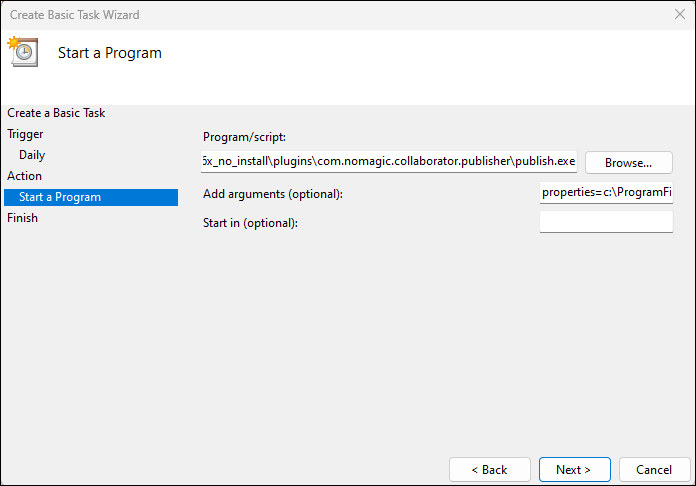
- Click Finish.
To schedule a publishing task on Linux
- Connect to the remote server using SSH, or open the terminal directly.
Type the following command to open the crontab file with the default text editor:
# crontab -e
- Using the Cron syntax create a cronjob to run the model publishing task once a day at midnight:
0 0 * * * <modeling tool installation directory>/plugins/com.nomagic.collaborator.publisher/publish.sh -properties PowerBy_template.properties
- Save the crontab file.
After completing the steps described above, your model is published automatically on a regular basis at a specified time.