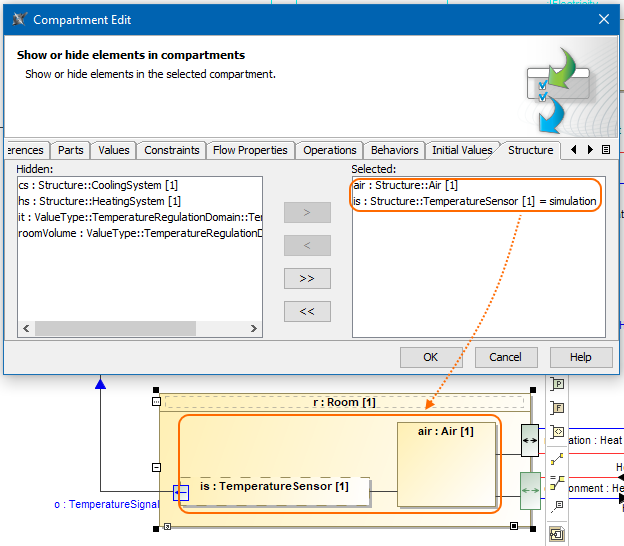
The compartment is an area on or next to the shape used to display component properties. As an example, please see the figure below.
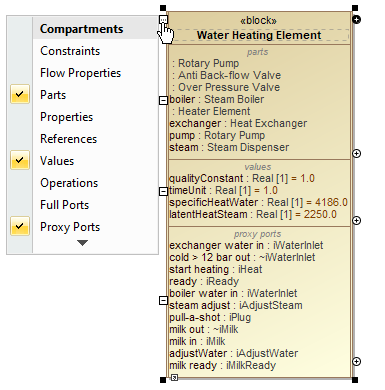
The parts, values, and proxy ports compartments are shown on the Water Heating Element Block shape.
The Compartment Editor allows you to display compartments and their properties on the Block:
- constraints
- flow properties
- parts
- properties (formerly :UML properties)
- references
- values
- full ports
- proxy ports
- parameters
The following table explains which elements are displayed on a selected shape to show the additional information.
SysML specific compartments | Displayed Elements |
|---|---|
| constraints | Constraints and Constraint Properties. Constraint Properties: properties typed by Constraint Blocks, or subtypes of Constraint Blocks, always having the ‘composite’ aggregation kind. |
| flow properties | Flow Properties: properties that apply the «FlowProperty» stereotype. |
| parts | Part Properties: properties typed by Blocks or subtypes of Blocks. |
| properties | All other properties that cannot be classified into the previous compartments. |
| references | Shared Properties and Reference Properties: properties typed by Blocks or subtypes of Blocks (except Constraint Block) having ‘shared’ and ‘none’ aggregation kind, respectively. There is no distinction between Shared Property and Reference Property. |
| values | Value Properties: properties typed by Value Types or subtypes of Value Types, always having the ‘composite’ aggregation kind. |
| full ports | The port is stereotyped by FullPort. |
| proxy ports | The port stereotyped by ProxyPort. |
| parameters | Constraint Parameters. |
The following sections outline the main procedures for working with the compartment area:
Creating elements in compartments
Displaying and suppressing compartments
Customizing compartments
For example, the following procedure shows how to customize the compartments of a part.
To customize a compartment of a Part Property
- Right-click a Part Property shape and from the shortcut menu, select the Edit Compartment button.
- In the Compartment Edit dialog, select a compartment tab which you want to customize.
- Double-click an element or use the arrow buttons to move an element from the Hidden to the Selected area to display the element.
- Click OK when done.