SysML Plugin TWRT Documentation


Make sure the selected Use Case has included or extending use cases.
To add a basic flow step from other use cases
- Open the Use Case Specification window and click the Use Case Scenario Sketch property group.
- Select the basic flow step where you want to add steps from another Use Case.
- Click the Add steps from other use cases button
 . The shortcut menu opens.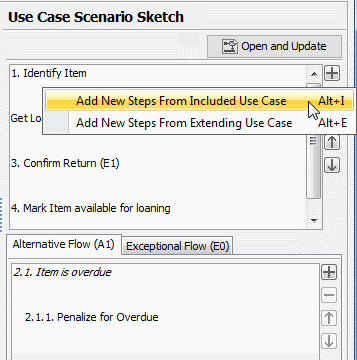
- Do one of the following:
- Click Add New Steps From Included Use Case or press ALT+I to add steps from the included Use Case.
- Click Add New Steps From Extending Use Case or press ALT+E to add steps from the extending Use Case.
Depending on your choice, the Select Included Use Case or Select Extending Use Case dialog opens.
5. In the opened dialog, select the use case(s) from which you want to add steps to the selected step of the basic flow. Click OK after you have selected a Use Case.
- Steps from included use cases are added to the basic flow as substeps of the newly created basic flow step.
- Steps from extending use cases with no extension points use cases are added to the basic flow as substeps of the selected basic flow step.
- Steps from extending use cases with extension points are added as steps of an alternative flow to the selected basic flow step. The extension point is considered the alternative condition.
See the examples in the following figures.
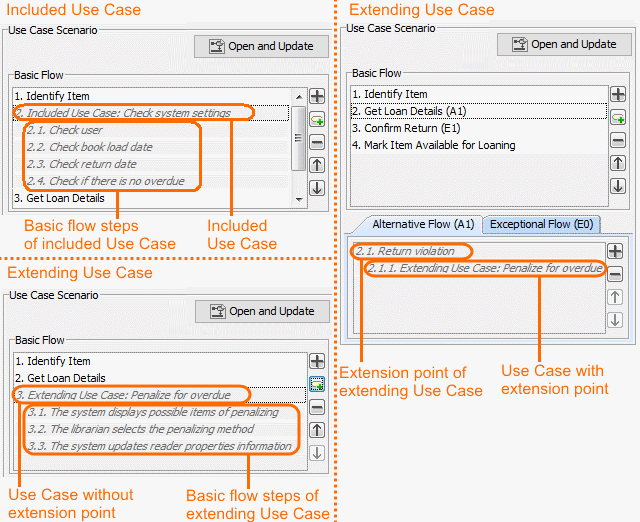
Steps added from included or extending use cases are read-only. You are not allowed to modify them in the current scenario.
You can modify added steps only in use cases from which these steps are added.
Overview
Content Tools