SysML Plugin TWRT Documentation


On this page
In this page you can read about each step of the Extract Structure Wizard in details, understand option boxes and buttons.
Opening the Extract Structure Wizard
To open the Extract Structure Wizard
- In the SysML Internal Block Diagram or a structure compartment, right-click a Part Properties that you want to extract.
- From the shortcut menu, select Refactor > Extract.
The Extract Structure Wizard opens.
The Extract Structure Wizard steps
The Extract Structure Wizard consists of three steps:
Step #1. Specification of a new element
In this step, you can specify a diagram into which the extracted part will be moved and an owner wherein this new diagram will be created. You can also define the type of the newly created classifier element that will own the diagram. The Block and the SysML Internal Block Diagram type are selected by default. The name of the SysML Internal Block Diagram will be the same as the specified name of the classifier element.
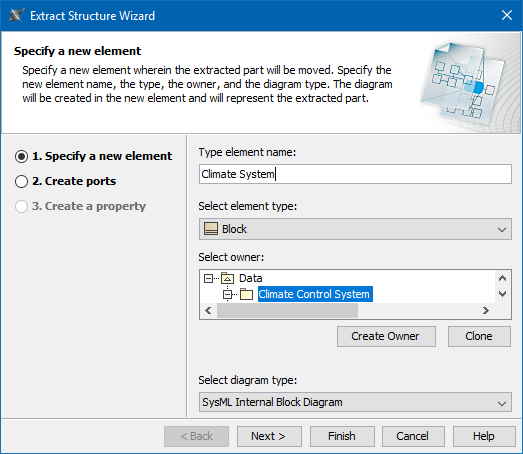
Step 1 in the Extract Structure Wizard: Specify a new element.
| Dialog boxes | Description |
|---|---|
| Type element name | Type the name of the new element, that is, classifier, wherein the extracted part will be stored. |
| Select element type | Open the list and select the element type. The default element type is a class. By using the customized plugins, you can add custom elements to the element type list. |
| Select owner | In the model tree, select a package, profile, or model as an owner of the newly created element. You may also:
|
| Select diagram type | Open the list and select the diagram type for the extracted part. The default diagram type is a composite structure diagram. By using the customized plugins, you can add custom diagrams to the diagram type list. |
After you have specified the new element name, type, owner of the diagram, and the type of the new diagram, do one of the following:
- Click Next , if you want to specify ports and to define a referencing element. The next wizard step opens.
- Click Finish. The selected part of a composite structure diagram is extracted to a new diagram that is specified in this step. Instead of the extracted part, the selected element type is created in the SysML Internal Block Diagram referencing to the newly created diagram. The second and the third wizard steps are skipped, that is, the default options are taken.
Step #2. Creation of ports
In this step, there are listed the port(s) that will be created for the:
- intersected connector(s)
- incoming connector(s)
- outgoing connector(s)
The Create ports list is empty unless there are intersected, incoming and/or outgoing connector(s) selected in the source SysML Internal Block Diagram.

Step 2 in the Extract Structure Wizard: Create ports.
After you have selected the ports, do one of the following:
- Click Back to return to the first step.
- Click Next, if you want to define a property (that is, referencing element). The next wizard step opens.
- Click Finish. The selected part of the SysML Internal Block Diagram is extracted to a new diagram. The third wizard step is skipped, that is, the default options are taken.
Step #3. Creation of a property
A property is created as the result of the extraction. The property is created under the classifier that was specified in the first wizard step. The symbol of the property is created in the source SysML Internal Block Diagram and represents the elements moved to the target diagram during the extraction.
 Step 3 in the Extract Structure Wizard: Create a property.
After you have selected the parameters, do one of the following:
- Click Back to return to the previous step.
- Click Finish. The selected part of a SysML Internal Block Diagram is extracted to a new diagram.
Example
As example, how to extract structure and what results to expect, read Extract Structure Wizard
Sample model
The model used in the figures of this page is the climate control system sample model. To open this sample do one of the following:
- Download climate control system.mdzip.
- Find in modeling tool <modeling tool installation directory>\samples\SysML\climate control system.mdzip.
Overview
Content Tools