SysML Plugin TWRT Documentation


On this page
You can display Constraint Properties with Constraint Parameters , Part Properties with ports (including deep nested ports), Value Properties, and other properties that have already been created in the model. This functionality is driven by stereotypes, which allow you to display properties on which stereotypes have been applied. If you have applied your own stereotypes for the elements (e.g., electrical, mechanical, optical), you can use those stereotypes when selecting the properties you want to display on the diagram pane.
Note
For more information about how to creating and applying custom stereotypes, see UML Profiling and DSL Guide.
This page contains the following information:
Ways to display parameters and properties
You can display ports and properties in the following ways:
Using the Display Parameters/Properties dialog
You can use the Display Parameters/Properties dialog to control how much of a structure should be displayed. The Display Parameters/Properties dialog opens automatically when creating a new SysML Parametric Diagram for a Block or Constraint Block element that owns parameters and properties. It can also be accessed and opened in the structure diagrams that have already been created. The Display Parameters/Properties dialog allows you to:
- Preview all Constraint Parameters, Constraint Properties, and other properties in one place.
- Manually or automatically select required parameters and properties you want to display.
- Manually or automatically choose deeply nested ports or/and properties you want to display.
- Define layout options for properties.
- Specify layout options for parameters.
The Display Parts/Ports dialog consists of the following:
- The Dialog toolbar allows you to show or hide additional information about listed elements.
- The Element tree displays all owned internal structure of the context Block or Constraint Block.
- The Panel is a context-sensitive area that depends on the selected property from the Element tree. It allows you to batch select parameters/properties in the Element tree. You can select all, clear all, or choose properties by type, stereotype, or aspect.
- The Options area allows you to choose the layout of the selected properties and parameters when they appear in the diagram.
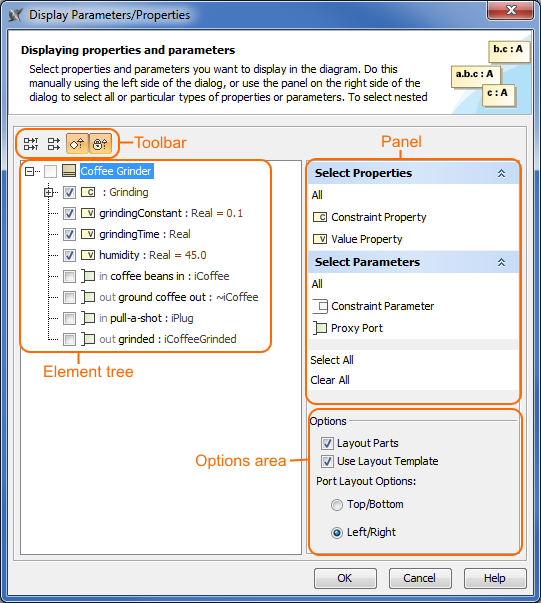
The following procedure outlines working with the Display Parameters/Properties dialog when you want to display required parameters and properties on the diagram pane.
To display parameters and properties using the Display Parameters/Properties dialog
Open the Display Parameters/Properties dialog:
- When creating a new SysML Parametric Diagram, the dialog opens automatically.
- When editing an already created SysML Parametric Diagram, the dialog can be opened in the following ways:
- Select either a diagram frame or single/multiple element shapes, and, on the diagram toolbar, click and choose Display Parameters/Properties .
- Right-click either a diagram frame or single/multiple element shapes, and select Display > Display Parameters/Properties .
- (Optional) Enable buttons from the Display Parameters/Properties dialog toolbar if you want to show or hide additional information about listed elements:
- Click
 to show the full path of elements.
 - Click
 to show the full types of elements.
 - Click
 to show the inherited elements.
 - Click
 to show the inherited properties.
- Click
Choose the properties you want to display by using one or more of the following methods:
Warning
If some check boxes are inactive in the element list, those elements are already displayed in the diagram.
Use the element tree located on the left side of the dialog:
- Manually select individual check boxes one by one.
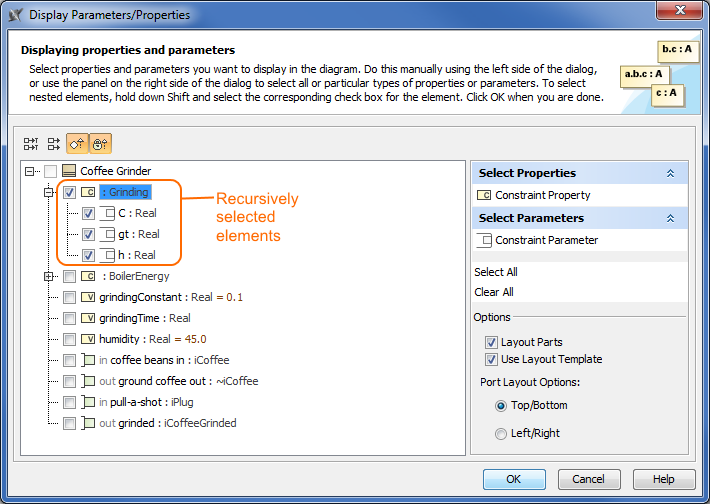
- Select recursively nested elements by holding down the Shift key while selecting the corresponding check box for the element.All Constraint Parameters C, gt, h of the Constraint Property typed by Grinding Constraint Block are selected recursively by holding down the Shift key while selecting the corresponding check box from the element tree in the Display Parameters/Properties dialog.
Use the context-sensitive panel located on the right side of the dialog:
- Select Properties group - displays all property types (including your own stereotypes) that are owned by the selected element from the element tree located on the left side of the dialog.
- Select Parameters group - displays all parameter types (including your own stereotypes) that are owned by selected element from the element tree located on the left side of the dialog.
- Select All - selects all check boxes that are expanded from the element tree located on the left side of the dialog.
- Clear All - clears all check boxes, including those that are collapsed (deep nested), from the element tree located on the left side of the dialog.All Constraint Parameters C, gt, and h of the Constraint Property typed by Grinding Constraint Block are selected in the element tree by using the Select parameters group in the context-sensitive panel of the Display Parameters/Properties dialog.

- Specify the layout options in the Options area:
- Properties layout: make sure the Layout Parts check box is selected; otherwise, the property shapes will not be arranged in the automatic layout.
- Usage of layout template: make sure the Use Layout Template check box is selected; otherwise, the layout template will not be applied. To apply the layout template, check the User Layout Template box.If you leave this check box selected, the selection in the dialog works in this way: when selecting the Constraint Property, which is included in the layout template, all it's from the layout template are selected automatically.
- Port/parameters layout on Part/Constraint Property shape:
- Top/Bottom - displays ports/parameters on the Part/Constraint Property shape from top to bottom.
- Left/Right - displays ports/parameters on the Part/Constraint Property shape from left to right.
- Click OK.
After applying the steps outlined above, all parameters and properties that were selected in the Display Parameters/Properties dialog are displayed on the diagram pane.
Using the diagram toolbar and the shortcut menu
In the SysML Parametric Diagram that have already been created, you can display Constraint Parameters, Constraint Properties, or other properties and hide all Constraint Parameters by using the commands from:
- The Display button on the diagram toolbar.
- The Display command group under the shortcut menu.
You can also use the Display button and Display command group from the shortcut menu as their functions are identical. All those commands are interactive and depend upon the selection on the diagram pane. For example, if the Constraint Property shape is selected on the diagram pane, the menu contains only the commands that can be applied to the selected Constraint Property shape. If you select nothing in the diagram pane, the menu shows commands that can be applied to the whole diagram.
These commands under the Display button and shortcut menu are comprised of elements that are still not displayed on the diagram according to their:
- Metatypes.
- Stereotypes.
- Types stereotypes.
The following procedures show:
- How to display Constraint Parameters, Constraint Properties using the Display button.
- How to display Constraint Parameters, Constraint Properties using the shortcut menu.
- How to hide Constraint Parameters.
To display Constraint Parameters, Constraint Properties using the Display button
- Select either a diagram frame or single/multiple element shapes.
- On the diagram toolbar, click .

From the opened command menu, select the required properties or parameters:
- All Parameters that are available to display are listed under the Display Parameters command group.Important
If nothing is selected on the diagram pane, the Display Parameters command group will contain commands that allow you to display two levels of structure: Constraint Parameters are displayed on the diagram frame and on the first level Constraint Properties.
- All properties that are available to display are listed under the Display Properties command group.
After selecting the required command from the Display button, the appropriate properties and parameters are displayed on the diagram pane.
To display parameters, properties using the shortcut menu
- Right-click either the diagram pane or single/multiple element shapes.
- From the shortcut menu, select the Display command group.
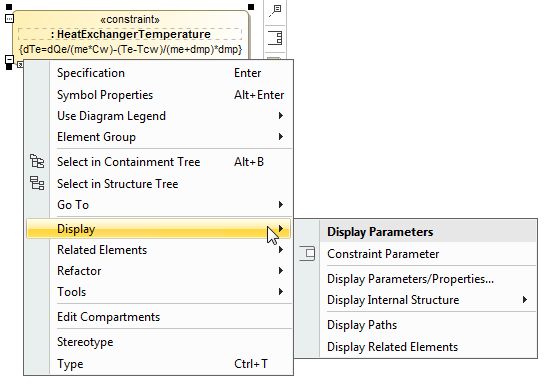
From the opened command menu, select the required parameters:
- All parameters that are available to display are listed under the Display Parameters command group.Important
If nothing is selected on the diagram pane, the Display Parameters command group allows you to display two levels of structure: ports are displayed on the diagram frame and on the first level parts.
- All properties that are available to display are listed under the Display Properties command group.
After selecting the required command from the Display command menu, the appropriate properties and parameters are displayed on the diagram pane.
To hide Constraint Parameters
- Select either a diagram pane or any number of Constraint Property shapes. On the diagram toolbar, click and choose Hide All Parameters.
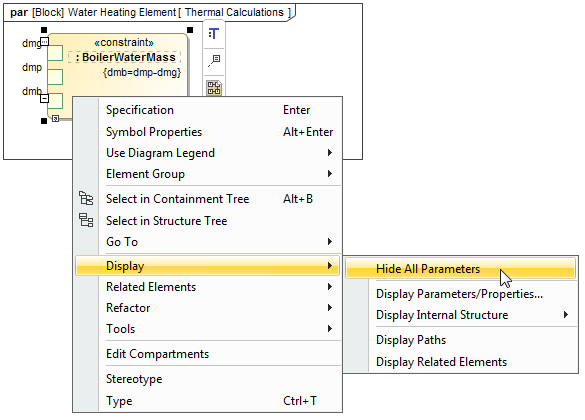
Right-click either a diagram pane or any number of Constraint Property shapes. Select Display > Hide All Parameters.
After selecting the command, the parameters of the selected shape will be hidden from the diagram pane. However, they will not be removed from the model.Warning
If the Hide All Parameters command does not appear, the selection or diagram does not contain any parameters that can be hidden.
Using the smart manipulator toolbar
When the Constraint Properties are already displayed on the SysML Parametric Diagram, you can display their Constraint Parameters using the Display All Parameters button from the smart manipulator toolbar. Follow the steps below to learn how to display Constraint Parameters of a selected Constraint Property shape.
To display Constraint Parameters on Constraint Property shape
- Select the Constraint Property shape or a diagram frame.
From the smart manipulator toolbar, click
 .
.
All first level Constraint Parameters are displayed on the selected Constraint Property shape.Warning
If the Display All Parameters button is not available, the selected element or diagram does not own any Constraint Parameters.

After completing the steps outlined above, the Constraint Property with all its Constraint Parameters, and/or Part Properties with ports (including deep nested ports), Value Properties can be displayed on the SysML Parametric diagram.
Displaying properties of a Constraint Parameter
If you display properties of a Constraint Parameter, all properties of its type will be displayed inside the Constraint Parameter shape and Part Property compartments will be enabled for that parameter.
To enable Part Property compartments on the Constraint Parameter shape
- Select a Constraint Parameter shape whose type has properties.
- Do one of the following:
- On the diagram toolbar, click .
- From the shortcut menu, point to the Display command group.
- On the diagram toolbar, click
- Select the required properties to display.
The properties are displayed inside the Constraint Parameter shape. Part Property compartments are enabled for the Constraint Parameter.
Sample model
The model used in the figures of this page is the Coffee Machine sample model that comes with Cameo Simulation Toolkit. To open this sample do one of the following:
- Download CoffeeMachine.mdzip.
- Find in modeling tool <modeling tool installation directory>\samples\simulation\CoffeeMachine.mdzip.
Overview
Content Tools