

On this page
The Containment tab displays model data grouped in logical sets. Using the Containment tab, you can quickly access each model element, change the model element's specification, or create a new model element.
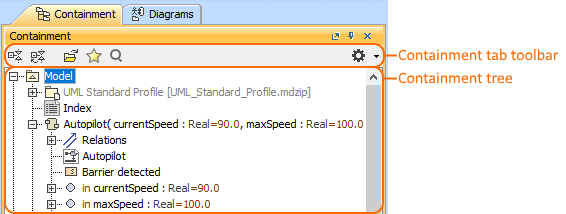
To open the Containment tab, do one of the following
- At the top of the Model Browser, click the Containment tab.
If the Containment tab is hidden, from the Window menu, select Containment.
You can change some Containment tab properties in the Environment Options dialog in the Browser options group.
The Containment tab consists of the following two components:
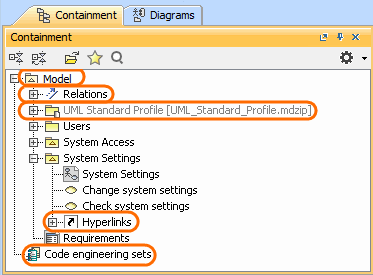
The Containment tree includes
The Relations branch
The UML Standard Profile
The Hyperlinks branch
The root package Model
The root package Model in the Containment tree is the top model element wherein the entire model structure is created. The root package Model represents the model element that is named Model. All model elements are stored in the root package Model. You can create the structure of your project by creating packages in the root package Model. This helps to distribute model elements into logical groups.
Along with model elements that are created by the user, the root package Model may contain the following default items:
- The Relations branch. This branch appears when at least one relationship is created in the project. The Relations branch collects all relationships from the particular owner. For example, if the Relations branch is in the root package Model, that means, all relationships from the root package Model are listed in the Relations branch owned by the root package Model. The Relations branch can exist in other elements which may have inner elements and relations among these elements. For example, in packages, classes, and others.
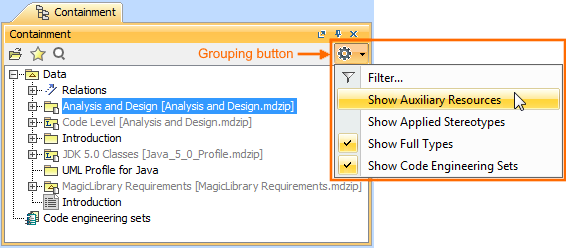
The UML Standard Profile package. This is a profile that is included in every project. It contains a list of stereotypes, data types, and other elements from the UML 2 metamodel. By default, the UML Standard Profile is hidden. To display the UML Standard Profile, click the Options button, and in the shortcut menu, choose Show Auxiliary Resources.
 .
.
There can be more standard profiles (such as SysML, UPDM, Java, and others).We highly recommend not to modify our provided standard profiles and libraries as it could cause problems with version updates, plugins, core modeling tool malfunctions, and model corruptions.
- The File View package. This package appears when at least one code engineering set is created. The File View package contains components that are created on code reverse and represents source files.
- The Hyperlinks branch. This branch appears when at least one hyperlink is added to a particular element. The Hyperlinks branch contains the list of hyperlinks to the file, element/ symbol, or web page.
Code engineering sets
Code engineering is available in Professional, Architect, and Enterprise editions.
Code engineering sets can be considered a gateway between your source code and model data. Using these sets, you can perform Java, C++, IDL, CORBA IDL, and EJB 2.0 round-trip code engineering, that is, code generation and reverse engineering.
To display Code engineering sets
- In the Containment tab toolbar, click the Options
 button, then click to select the Show Code Engineering Sets check box.
In the Code engineering Set branch, you can create a new code engineering set, generate code, and perform other actions.
Containment tab toolbar
The Containment tab toolbar contains the following buttons:
Button | Tooltip text | Description |
| Collapse All | Collapses all of the currently expanded elements in the Containment tree. |
| Collapse Selected Recursively | Collapses only selected node and all subnodes in that node. |
| Open in New Tree | Opens the contents of the selected element in a new tab of the Model Browser. The selected element becomes the root node of the new tree. You can choose to open elements in:
|
| Favorites | Opens the Favorites menu for choosing to do one of the following:
|
| Quick Find | Opens the Quick Find dialog. |
| Options | Click to open the Options menu and then select:
|


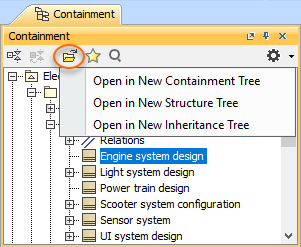


The same actions you may perform using the shortcut menu of the Containment tree.
Working with model elements in the Containment tree
You can work with elements in the Containment tree using the commands available from the selected element's shortcut menu.
Particular actions are available for particular elements.
The shortcut menu contains the following commands:
Command | Function |
Creates a new element inside the selected element. This command is available if the selected element can be edited. | |
Creates a new diagram inside the selected element. This command is available if the selected element can be edited. | |
Creates a new relation to or from the selected element. | |
Opens the element Specification window wherein you can specify various element properties. | |
| Validation | Open the validation commands for checking the accuracy, completeness, and correctness of a model. |
Opens or selects the item associated with the selected element. The item may be a diagram, model element, or hyperlink. | |
Converts the selected element to the element indicated by a user. | |
Opens a list of functions available for the selected element. | |
Tools | Opens a list of tools that are available for the selected element. Depends on the selected element. |
Opens the drop-down list, wherein you can apply an existing stereotype, or create a new one. | |
Opens the Find dialog. | |
| Apply Profiles | Opens the list of the available to apply profiles.
|
| Project Usages | Opens share packages and export packages to new project commands. This command is available in the package and model shortcut menu. |
Generate Code | Generates code for the selected item. Opens the Notification Window with the information. |
| Check Syntax | Checks syntax in the model according to the default code engineering language. Opens the Notification Window with the information. |
| Generate Report | Opens the list of the available report templates. |
| Reverse from Classpath | This command is available in the Class shortcut menu. |
Overview
Content Tools