

On this page
Before changing the plugin
Before changing from one plugin to another, please do the following:
backup your projects.
We recommend that you back up your projects in case you need to return to your previously used plugin version (UPDM2 or UAF).
- backup all Configuration files in your configuration directory. We recommend making a backup if you intend to switch back.
- You will need both UPDM 2 and UAF licenses to change between plugins. You will get both licenses during the purchase process.
- If the UAF plugin is installed, the UPDM 2 projects need to be migrated to UAF . We recommend that you make a backup of the project before the migration. Do not forget to migrate used projects before migrating the main project.
- You will not be able to migrate a UAF project back to UPDM 2.
- You will not be able to open UAF projects if the UPDM 2 plugin is installed.
Changing between the UAF and UPDM 2 plugins for MagicDraw + plugins users
If you are using MagicDraw with plugins, you will need to install the new plugin via the Resource/Plugin Manager.
- For information about how to install the plugin, see UAF Plugin installation.
- Please note that only one plugin (UAF or UPDM 2) can be installed.
Switching between the UAF and UPDM 2 plugins for Cameo Enterprise Architecture users
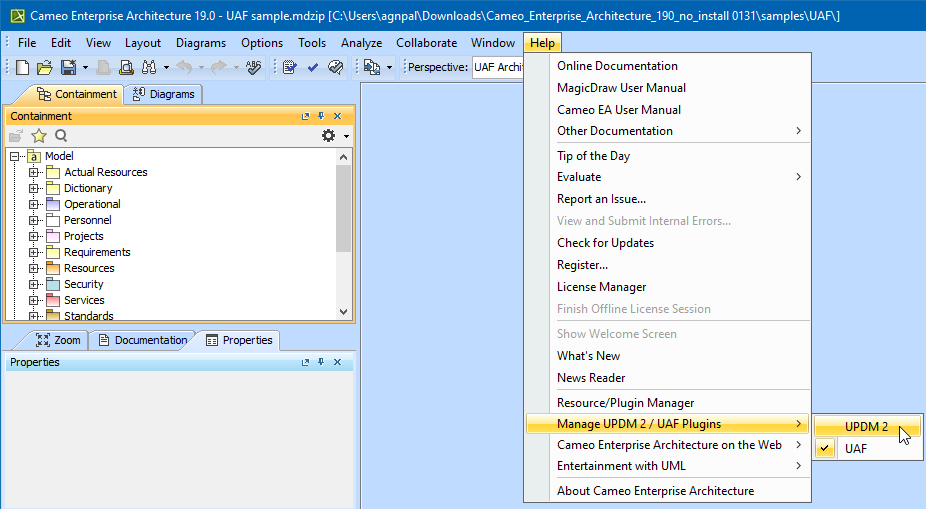
If you are working with Cameo Enterprise Architecture, the UAF plugin is already installed and the UPDM 2 installation file comes together with the Cameo Enterprise Architecture installation files. You will be able to switch between the UAF and UPDM 2 plugins.
To switch between plugins
- In the modeling tool's main menu, select Help > Manage UAF / UPDM 2 Plugins.
- Select the plugin you need.
- Restart the modeling tool.
What happens after changing between plugins
When you change the plugin:
- The projects are not migrated automatically.
- The configuration files are overwritten. If you have customized the diagram descriptors, perspectives, etc., we recommend making a backup if you intend to switch back.
The plugin is overwritten (with profiles, templates and etc.) in case of installation.
We recommend that you back up your projects in case you need to return to your previously used plugin version (UPDM2 or UAF).
How to back up your configuration files and projects
To back up the configuration files
- In the modeling tool's main menu, click Help > About
- In the About dialog, click Environment.
- In the Environment tab, click a link near the Configuration Files. The window with your configuration files opens.
- Select the folder of your current version and make a copy of it (add to archive, for example .zip).
- Place the copied files in a safe location.
To back up the local projects
- Gather all the projects you want to back up in one folder.
- Make a copy of that folder or add it to an archive (for example, .zip).
- Place the copied files in a safe location.
How to restore from the backup
If you need to switch back to working with your previously used plugin (UAF or UPDM2), you can do so by restoring the backups you made before switching. You will need to restore configuration files as well as projects.
To restore the configuration files from backup
- Close the modeling tool.
- Extract the archived configuration files.
- Replace the current configuration files with the extracted ones.
Installing two modeling tools on one machine
In case you need to work with UPDM 2 and UAF projects on the same machine, you will need to have two modeling tool installations. One of them should have UPDM 2 Plugin and the second - UAF Plugin installed.
When working with two or more installations of the same modeling tool version, you must have individual configuration files directory for each installation (by default, all the installations of the same modeling tool version use a single directory, for example, <...>\.cameoea\19.0).
In such case, the initial installation of a certain modeling tool version can keep on using the default configuration files directory, that is, <...>\.cameoea\<version number>, but you must choose a different configuration files location for each subsequent installation (see the following section).
Storing configuration files in a custom location
Note
If you have defined to store files in the modeling tool installation directory, files will not be stored in the defined location.
To store modeling tool configuration files in a custom location
Do either:
- Open the <modeling tool name>.properties file, which is located in <modeling tool installation directory>\bin.
- In the JAVA_ARGS line, ad the following property:
-Dlocalconfig.location=<absolute path to a custom location>
Sample property value
-Dlocalconfig.location\=E\:\\temp\\innerPack
Or:
- Go to the folder, where Configuration files#Getting the path to configuration files.
Create a new file named <modeling tool properties file name> redirect. File names for each modeling tool are listed in the following table:
Modeling tool File name MagicDraw magicdrawredirect Cameo Enterprise Architecture cameoearedirect Cameo Systems Modeler csmredirect - In the file, type the absolute path to the folder, wherein modeling configuration files will be saved, e.g., C:/<directory name>.
Important!
Each installation requires a Modeling tools and plugins licensing.
The installation workflow
To install two modeling tools with different plugin versions
- Installing modeling tools the first modeling tool.
- custom for the modeling tool configuration files (create a new folder for that).
- Installing modeling toolsthe second modeling tool to a different location.
- custom for the modeling tool configuration files (create another folder for that).