

On this page
Here you can learn how to run Web Application Platform with its plugins by using the no-installer package.
Prerequisites
To run the Web Application Platform with plugins:
- You must have a working instance of Teamwork Cloud Documentation.
- Make sure that FlexNet license server installation and licensing beforehand because Cameo Collaborator for Teamwork Cloud uses a floating license. You will need to specify license server details when installing Web Application Platform.
- You have to download the Web_App_Platform_<version number>_noinstall.zip file.
To run Web Application Platform by using the no-install package
- Extract the Web_App_Platform_<version number>_noinstall.zip file
- Go to the <Web_App_Platform_no-installer_directory>/shared/conf directory.
Open the webappplatform.properties file. The content of the file is shown below.
Read the comments with property descriptions inside the file and specify the following:
- Web Application Platform properties
- Teamwork Cloud server properties
- Authentication server properties
- FlexNet server properties
Specifying property values
- Make sure you replace the placeholders in the angle brackets (<>) with actual values (e.g., Teamwork Cloud and Authentication server addresses)
- Some properties are specified for you. You can leave their values unchanged.
- Platform mailing engine properties are optional. You can specify them later if needed.
- Go to the <Web App Platform no-install directory>/conf directory.
Open the catalina.properties file and edit the following property value as shown below:
In your computer settings, specify the JRE_HOME and CATALINA_HOME_WEBAPP variables as shown below:
- Changing SSL certificates#Creating an SSL certificate file.
- Go to the <Web_App_Platform_no-installer_directory>\conf directory and open to edit the server.xml file.
- In the server.xml file, change the default values of the following properties to the actual path to certificate file and password:
certificateKeystoreFile="<path_to_certificate_file>"
certificateKeystorePassword="<password>"
Important
The certificateKeystorePassword property value must be the same as the -storepass and -keypass property values that you specified when creating the SSL certificate. - Go to the <Web App Platform no-install directory>/bin directory.
- Run the startup.bat file as administrator to start the Web Application platform.
- Licensing information#Applying a license.
Now you can access Web Application Platform by opening a web browser and going to http(s)://<domain_name>:<port>/webapp/resources. By default, Web Application Platform uses the port 8443. Click Starting and stopping Web Application Platform, to learn how to start and stop Web Application Platform.
Specifying JRE_HOME and CATALINA_HOME_WEBAPP variables
In this section, you can learn how to specify the JRE_HOME and CATALINA_HOME_WEBAPP variables in different operating systems.
To specify variables on Windows
- Open Control Panel and go to System and Security > System.
- Select the Advanced system settings option on the left side of the System dialog.
- In the System Properties dialog, click the Environment Variables button.
In the System variables area of the Environment Variables dialog, specify the values for the JRE_HOME and CATALINA_HOME_WEBAPP variables as shown below:
- Click OK.
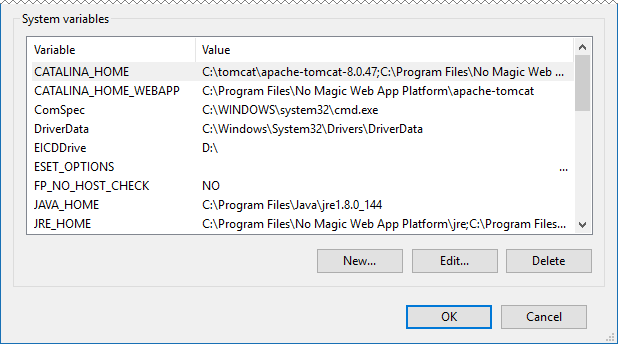
System variables in the Environment Variables dialog on Windows
To specify variables on Linux
- Go to the /etc directory and open the profile file.
Copy the following lines to the profile file and replace the placeholders between angle brackets (<>) with actual paths:
Variable examples
export CATALINA_HOME_WEBAPP=/Users/admin/Desktop/Web_App_Platform_190_noinstall
export JRE_HOME=/usr/java/jdk1.8.0_172-amd64/
Open the Terminal application and execute the following command: