Failure Mode & Effect Analysis
Basic Concepts
An FMEA Table allows you to analyze the reliability aspect of your model and provides you with a convenient way to fill in FMEA Item information using a spreadsheet-like tabular format. Each row in a table represents an FMEA Item. Table columns represent the properties of FMEA Items. The RAAML-based FMEA Table diagram is derived from an activity object and represents each FMEA Item—defined as the unique pairing of a failure mode with its corresponding cause—through a dedicated row associated with the activity.
In an FMEA Table, you can:
- Create a new FMEA Item directly in a table or add an existing one.
- Directly edit the properties of FMEA Items in a table.
The following table describes each column name, its purpose, and relevant details:
Column Name | Description |
Name | Displays an auto-generated counter for the FMEA item (this prefix counter is a preset customization) and a name. If the name is generated automatically (e.g., from the creation of an FMEA Item in the Robustness Checklist), it is composed of the Failure Cause and its associated Failure Mode. |
Inputs | List of input pins of the activity element selected as the Scope of the FMEA study. This is a non-editable field. |
Function | Activity selected as the scope of the FMEA study. This is a non-editable field. |
Output | Lists one or more of the output pins that are declared on the activity element selected as the Scope of the FMEA study and that are being affected by a dedicated failure mode. Your selection is limited to the declared output pins on the activity referenced on the Function cell. |
Failure Mode | Specifies the Failure Mode specific to the FMEA Item Line. Failure Mode definition is as introduced in the Parameter Diagram section, referring to the description of the specific manner in which a component, subsystem, or system could potentially fail to meet the design intent. |
Classification | Corresponds to the categorization of FMEA items, derived from the evaluation of Severity and Occurrence values using a customizable function (preset out-of-the-box as: CC in case severity >= 9, SC in case 9 > severity >= 7, and AC in case 7 > severity >= 5). |
Final Effect | Describes the effect of a Failure Mode on the end user or the environment (i.e., at the system-of-interest level). Multiple Final Effects can be specified for a single FMEA item. Each Final Effect can have a default Severity value assigned as its property. To assign a Severity value, open the Specification window of the Final Effect and set the desired value. |
Computed Effect | An element describing the effect that a Failure Mode has on the system element under consideration. An FMEA Item (e.g., a single row of an FMEA Table) can have multiple Local Effects of Failure. |
Severity | The Severity of effects is a rating number associated with the most serious effect for a given failure mode for the operation being evaluated. It is a relative rating within the scope of the individual FMEA item and is determined without regard for occurrence or detection. Valid values range from 1 to 10 (lowest to highest severity). |
Cause | An element (either a lower-level Failure Mode or a dedicated Cause element) indicating the design weakness that leads to a Failure Mode. An FMEA item (e.g., a single row of an FMEA table) can have one Cause of Failure. A Cause can have default Occurrence and Detectability values assigned as properties. To assign these values, either open the Specification window of the Cause and set the desired Occurrence or Detectability, or edit them directly in the corresponding columns of the FMEA table. |
Prevention Controls | A Prevention Control element describes the measures for preventing the occurrence of a possible Failure Mode. You can specify multiple Prevention controls for a single FMEA Item. The type of object that can be elected as a Prevention Control is by default preset as a Requirement. The type can be customized. |
Occurrence | A rating number is associated with each cause for a given failure mode being evaluated. The occurrence rating considers the likelihood of occurrence during production. Valid values range from 1 to 10 (lowest to highest probability). A Cause must be identified in the dedicated cell before setting this value. Enter the value directly in the corresponding FMEA table cell or set it on the Failure Mode or Cause object via the containment tree. |
Criticality | The product of Severity and Occurrence ratings. |
Detection Controls | An element describing the measures implemented to detect a Failure Mode. Multiple Detection Control entries can be specified for a single FMEA item. The type of object that can be elected as a Detection Control is by default preset as a Block. The type can be customized. |
Detection | Detection is the rating associated with the likelihood of detecting the failure mode and/or associated cause, according to defined criteria. Ability to detect is the rating number associated with the combined capabilities of all the current process controls for a given cause and/or failure mode. You should not automatically presume the detection rating is low because the occurrence rating is low. Instead, the User assumes the failure has occurred, then assesses the capabilities of all the detection-type design controls to detect low-frequency failure modes and/or causes. The detection rating is identified without regard for severity or occurrence. Valid Values range from 1 to 10 (highest to lowest detectability). |
Risk Priority Number | The risk priority number (RPN) is the product of the severity (S), occurrence (O), and detection (D) ratings. Within the scope of the individual FMEA, this value is between “1” and “1000”. A benefit of RPN is that it provides an indicator of improvement (before and after actions taken) that reduces any one factor of severity, occurrence, or detection. It shows the distribution of RPN values for a project (Pareto), giving a high-level overview of the risk assessment. You should be aware that the final RPN ratings are subjective and relative to a particular analysis. |
Action Priority | Assessment of the internal priority affecting the recommended actions, as per the SAEJ 1739 rating scale. |
Recommended Action | The description of an action intended to reduce the Risk Priority Number. All critical or significant FMEA items should have associated recommended actions. These actions should focus on design improvements and be directed at mitigating the Cause of Failure or eliminating the Failure Mode. The type of object that can be elected as a Recommended Action element creation is by default preset as a Block. The type can be customized. |
Action Taken | A property describing what actions have been taken and the results of these actions (free text capture). |
Responsible Person | Indicates the person responsible for completing a Recommended Action. No specific object type is being preset to represent a Person. |
Target Date | A property defining the targeted completion date of a Recommended Action. |
Completion Date | A property assessing the completion date of a Recommended Action. |
Revised Severity | A property assessing the seriousness of the effect(s) of a potential Failure Mode on a component, subsystem, end user, or environment after mitigation. Valid values range from 1 to 10 (lowest to highest severity). A prerequisite is that an action has been taken |
Revised Occurrence | A property indicating the likelihood that a specific Cause of Failure will occur after mitigation. Valid values range from 1 to 10 (lowest to highest probability of occurrence). |
Revised Criticality | The product of Revised Severity and Revised Occurrence ratings. |
Revised Detection | A property measuring the likelihood of detecting a potential failure after mitigation. Valid values range from 1 to 10 (highest to lowest detectability). |
Revised Risk Priority Number | The product of Revised Criticality by Revised Detection. |
Revised Action Priority | Assessment of the internal priority affected by the recommended actions after mitigation. |

Tips
- While selecting an FMEA Item element (line in the table):
- You can remove the line from the table using the dedicated Remove From Table command.
- You can delete it from the containment tree (and the table) using the dedicated Delete command.
- If a Robustness Check List (RCL) and/or Parameter Diagram exists for the activity, the user can navigate from the FMEA Table to one of those diagrams through a dedicated panel above the diagram. To learn more, refer to the Robustness Checklist page.
Creating a Failure Mode and Effect Analysis (FMEA) Table
To create a Failure Mode and Effect Analysis (FMEA) Table
- In the Containment tree, right-click the FMEA package and select Create Diagram.
- Do one of the following:
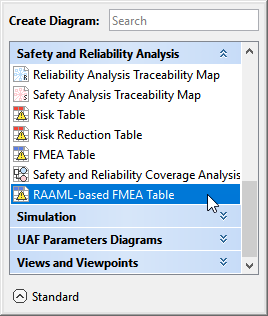
- In the dialog, expand Safety and Reliability Analysis and select RAAML-based FMEA Table.
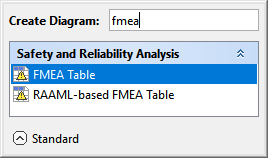
- In the search tab, type the keyword FMEA and then select RAAML-based FMEA Table.
- In the dialog, expand Safety and Reliability Analysis and select RAAML-based FMEA Table.
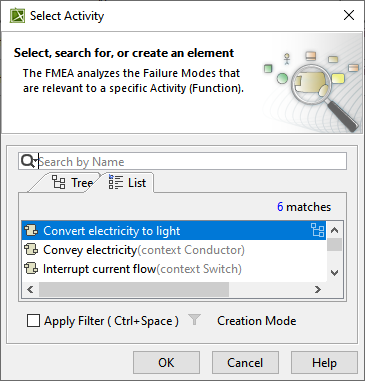
- In the Select Activity dialog, select the required Activity and click OK.
The FMEA Table is now displayed in the diagram pane of the modeling tool.
Adding an FMEA Item to the FMEA Table
Each Failure mode linked to a Failure Effect (end user effect of a Failure Mode) or to a Failure Cause (element indicating a Design Weakness resulting in a Failure Mode) should result in a new FMEA Item. Generating FMEA Items from the design elements of your model identified earlier in the Robustness Check list diagram saves time and helps avoid mistakes.
You can add existing FMEA Items to an FMEA Table by dragging them from the Containment tree to the FMEA table. New rows are created automatically. You can modify the added items and update the property in the table.
To add a new FMEA Item to the FMEA Table
- In the FMEA Table, click Add New. A row is added in the FMEA Table, which shows the new FMEA Item.
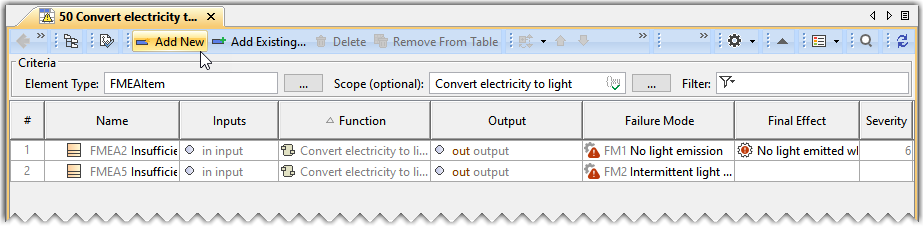
- In the newly created FMEA Item's row and the Name column, double-click the designated cell to name the FMEA Item.
To add an existing FMEA Item to the FMEA Table
- In the FMEA Table, click Add Existing.
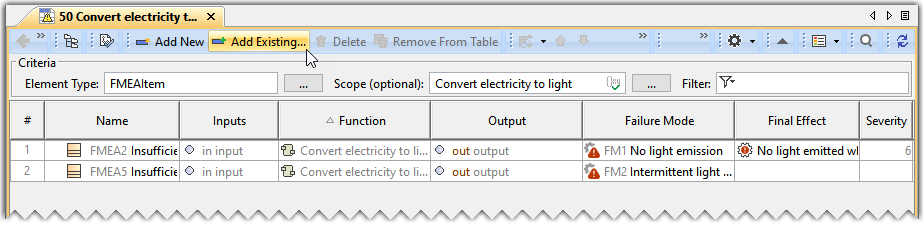
- From the Select FMEA Item dialog, select the required FMEA Item and click OK. A row is added to the FMEA Table, which shows the existing FMEA Item.
- In the newly created FMEA Item's row and the Name column, double-click the designated cell to name the FMEA Item.
Updating a Failure Mode
To update a Failure Mode to the FMEA Table
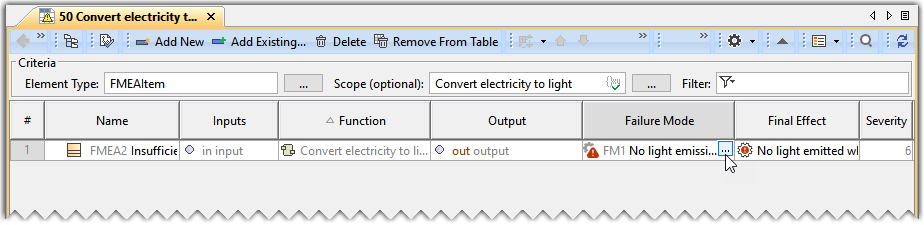
- Double-click the designated cell in the Failure Mode column and the required FMEA Item's row and click
 .
.
- From the Select Class dialog, select the required Failure Mode and click OK.
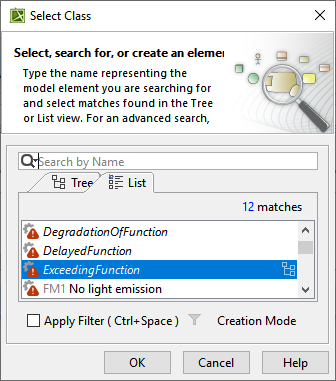
Similarly, you can update the Cause in the FMEA Table.
Adding a Final Effect
To add a Final Effect to the FMEA Table
- Double-click the designated cell in the Final Effect column and the required FMEA Item's row and click .
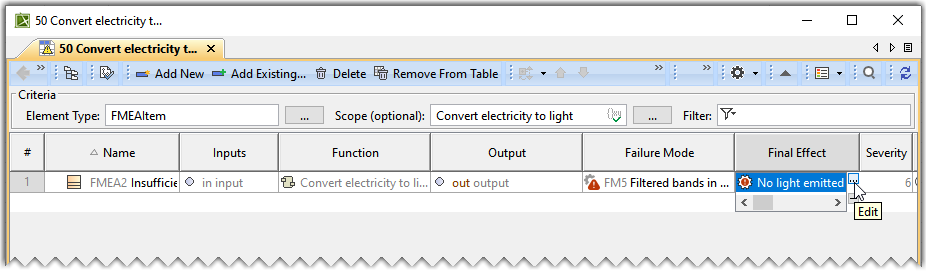
- From the Select Elements dialog, select the required Failure Mode and click OK. To learn more about selecting elements, refer to the Selecting Elements page.
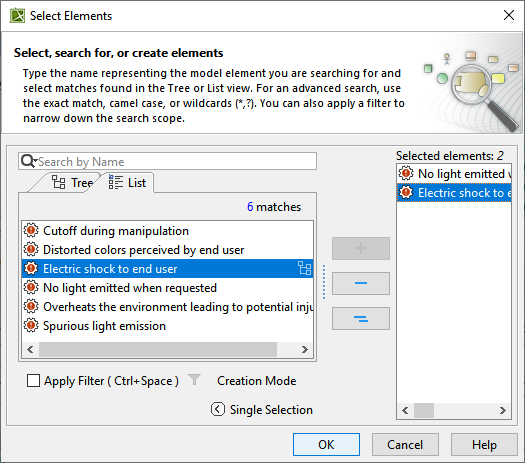
Similarly, you can add Computed Effects, Prevention Controls, Detection Controls, and Recommended Actions in the FMEA Table.
Adding an Action Priority
To add an Action Priority to the FMEA Table
- Double-click the designated cell in the Action Priority column and the required FMEA Item's row and click .
- In the Action Priority dialog, type in the required content.
Similarly, you can add Revised Action Priority in the FMEA Table.