In a view displaying elements with applied metadata, you can automatically extract a style sheet based on the applied metadata, applied metadata feature value, specialized library element, or library element feature value. The extracted style sheet is automatically applied to the view and the displayed symbols. If you prefer to apply it to the entire project, see the Applying style sheets page.
To extract style sheets via the Style Sheet symbol compartment
- Open a view displaying elements with applied metadata.
- Click the Style Sheets
 button in the view toolbar. In the dropdown menu, click the Extract and Apply Style Sheet command. The Extract
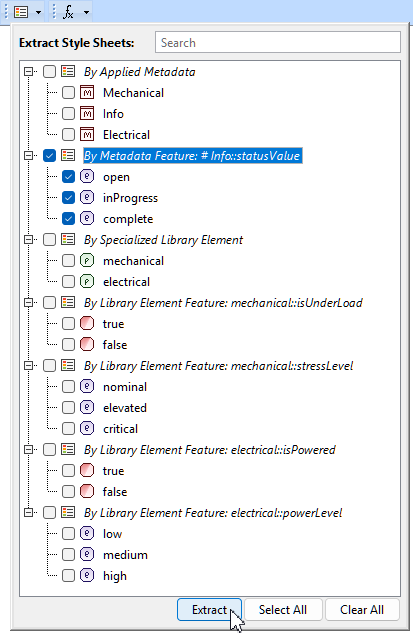
- In the dialog, select the needed check box to extract a style sheet.
- Click Extract.
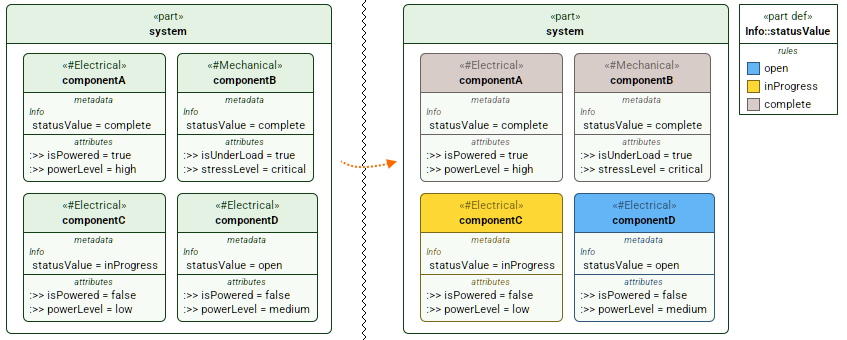
A part definition element for the new style sheet is created, and its symbol is displayed in the view. The new styles are applied to the displayed symbols based
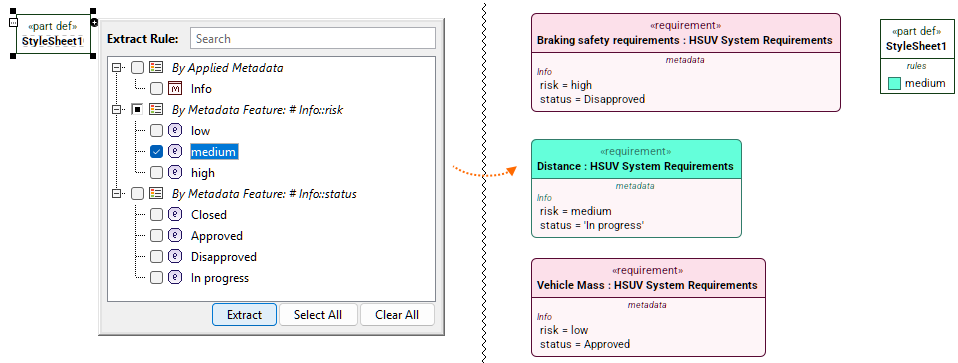
If you have already created a style sheet, you can supplement its existing rules by extracting metadata-based rules.
To extract a style sheet rule via the Style Sheet symbol compartment
- Open a view displaying elements with applied metadata.
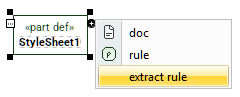
- In a view, select the style sheet's part definition element symbol and click the Create Element button on it.
- In the dropdown menu, click on the extract rule. The Extract Rule dialog opens.
- In the dialog, select the needed check box to extract a style sheet rule.
- Click Extract.
A rule is extracted in the selected style sheet and applied to element symbols