See the procedures on this page for creating style sheet rules, then specify the condition and styles for the created rule.

A rule is created with the Explicit Elements condition and Shape Style style definition, which includes redefinitions for fillColor (with a randomly assigned color value) and penColor (with a comparatively darker color value) attributes. For modifying them as needed, see the (2026x Refresh1) Specifying a condition for a rule and (2026x Refresh1) Specifying styles for a rule pages.

Creating custom rules for a style sheet

Creating custom rules via the Style Sheet symbol compartment

To create a custom rule via the Style Sheet symbol compartment


  1. Create a style sheet.
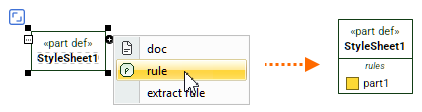
  2. In a view, select the style sheet's part definition element symbol and click the Create Element button on it.
  3. In the dropdown menu, click on the rule.
  4. You can now:
    1. Specify a condition for a rule.
    2. Specify styles for a rule.

The element is created in the rule compartment.

Creating custom rules via the Specification panel

To create a custom rule via the Specification panel


  1. Create a style sheet.
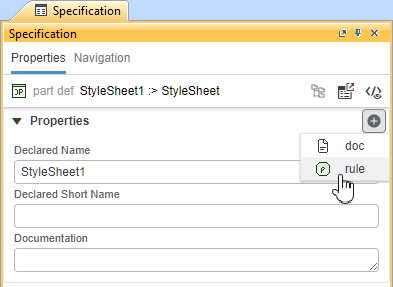
  2. Open the Specification panel for the style sheet's part definition element.
  3. In the Specification panel's Properties section bar, click the Create Element  button.
  4. In the shortcut menu, click on the rule.
  5. You can now:
    1. Specify a condition for a rule.
    2. Specify styles for a rule.

The element is created in the rule compartment.