Modeling actions with swimlanes
The swimlane grid symbol allows you to model and organize actions based on the elements that are responsible for performing those actions. For more information on swimlanes, see the Swimlane grid page.
Within the context of a part that owns or inherits a perform action, the perform action contains actions that are performed by the subparts owned or inherited by the same owner as the perform action. Thus, the swimlane grid symbol is displayed for the perform action, where each individual swimlane in the swimlane pool represents each subpart. You can use swimlanes to model actions and their sequencing based on the performers, i.e., subparts that perform each action. The subparts names are indicated in the swimlane headers.
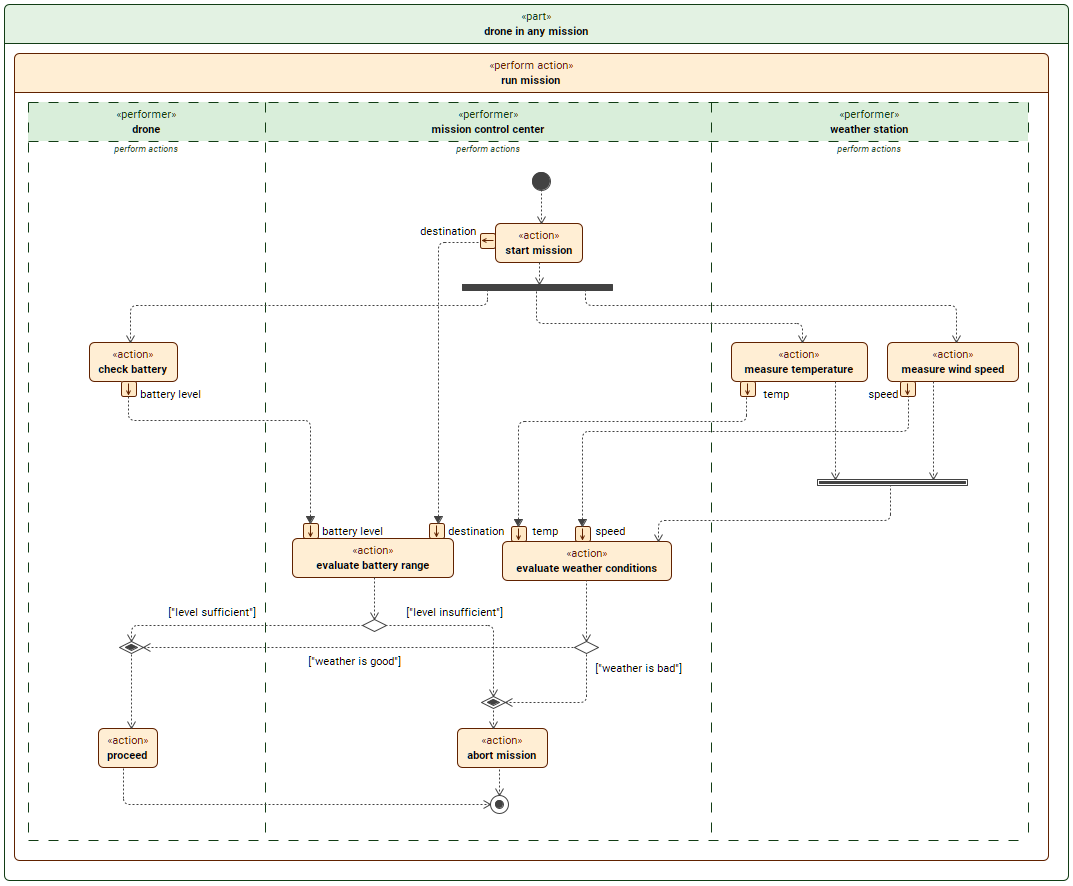
The part drone in any mission performs the action run mission. The subparts of drone in mission then perform appropriate subactions of run mission. This is illustrated showing subparts as swimlane performers. The subactions of run mission are connected using succession connection used to control the action sequence. The output of subactions are connected by a succession flow connection to the input of another subactions meaning that the inputs continue to be consumed and the outputs continue to be produced as the action executes as opposed to streaming flow (flow connection). The sequencing of action usages is controlled using control nodes such as join, fork, merge, and decide.
Managing swimlanes
Prerequisites:
- The perform action whose swimlanes represent the subparts is displayed in the view.
Displaying swimlane grid and creating additional swimlanes
To display swimlane grid or create additional swimlanes
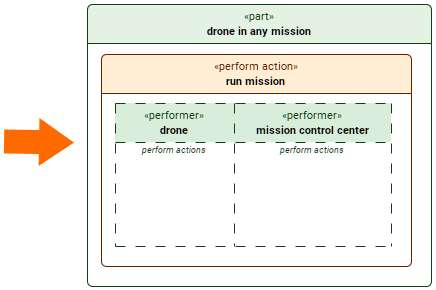
- To display the swimlane grid:
- Right-click the perform action symbol and in the shortcut menu, click Display, then Display Swimlanes.
The swimlane grid is displayed with swimlanes (along with any actions and connectors that may already be defined in the model), representing subparts owned or inherited by the part that owns or inherits the perform action.
- Right-click the perform action symbol and in the shortcut menu, click Display, then Display Swimlanes.
part 'drone in any mission' {
part drone;
part 'mission control center';
perform action 'run mission';
}
- To create additional swimlanes:
- Select the header of an existing swimlane and click the + button on the left or the right side of the swimlane, to create a swimlane to the left or the right of the existing one.
Creating a new swimlane creates a subpart for the part that owns or inherits the perform action, represented by the new swimlane.
- Select the header of an existing swimlane and click the + button on the left or the right side of the swimlane, to create a swimlane to the left or the right of the existing one.
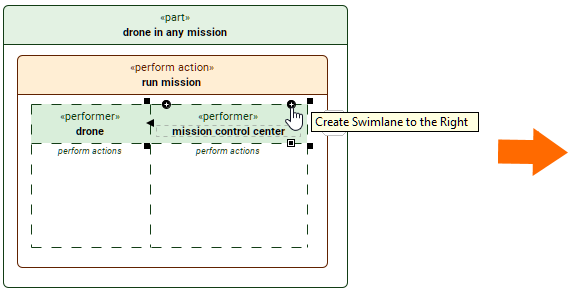
part 'drone in any mission' {
part drone;
part 'mission control center';
perform action 'run mission';
}
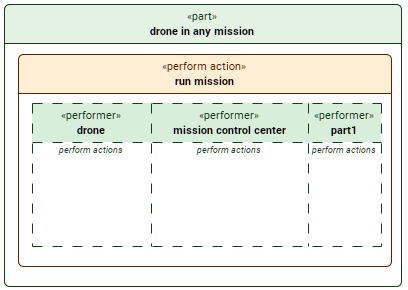
part 'drone in any mission' {
part drone;
part 'mission control center';
part part1; // new subpart represented by the newly created swimlane
perform action 'run mission';
}

If the part that owns or inherits the perform action owns or inherits parts that are not yet displayed as swimlanes, clicking the + button displays a dropdown menu with the following categories:
- Display that has the following options:
- part <the name of the part that does not yet have the corresponding swimlane displayed in the view>. Click to create the corresponding swimlane.
- All. Click to create the corresponding swimlanes for all parts that are not represented in the swimlane symbol.
- Create that has the following option:
- part. Click to create a part, represented by a new swimlane.
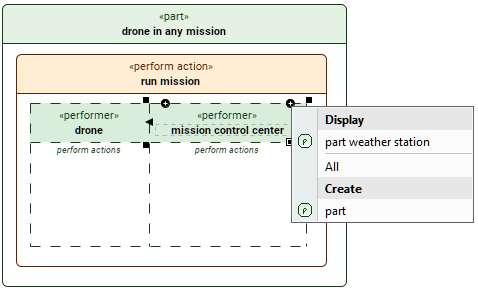
part 'drone in any mission' {
part drone;
part 'mission control center';
part 'weather station'; // subpart whose representative swimlane is not displayed yet, thus it is available in the Display dropdown menu
perform action 'run mission';
}
Displaying actions in swimlanes
To display actions in swimlanes
- Select one swimlane by right-clicking its header or all swimlanes by right-clicking the swimlane pool. In the shortcut menu, click Displaying elements in symbolic views, then Display Actions in the dropdown menu.
The specific swimlane's shortcut menu contains the same commands as the part element symbol it represents.
Displaying parameters, connectors, or other features for element symbols in swimlanes
To display parameters, connectors, or other features for element symbols in swimlanes
- Right-click element symbol(s) in the swimlane(s). In the shortcut menu, click Displaying elements in symbolic views, then click the appropriate command in its dropdown menu.
Modeling actions with swimlanes
Creating actions in swimlanes
You may create actions and the appropriate subparts' perform actions via the Textual Editor and then display the actions in swimlanes via the Displaying actions in swimlanes procedure. However, you can create actions in swimlanes using the view palette. This way, the appropriate perform actions are automatically created for the subparts in whose representative swimlanes the actions are created.
To create actions in swimlanes
- Display or create swimlanes for the perform action in a view.
- In the view palette, under the Actions group, click the button for the needed action.
- Click on the swimlane representing the part that you want to perform the action.
- Indicate the start and end of an action sequence using start and done actions. See the Start and done actions page.
- Connect and sequence actions using successions, flows, and succession flows. See the Action succession and flow page.
- Control the sequencing of actions using control nodes. See the Control nodes page.
Start and done actions, as well as control nodes, are not performed, thus parts in whose representative swimlanes they are displayed, do not have perform actions for performing them. These actions and nodes are owned by the perform action that owns the swimlane grid symbol, while their symbols are owned by the swimlane grid symbol.
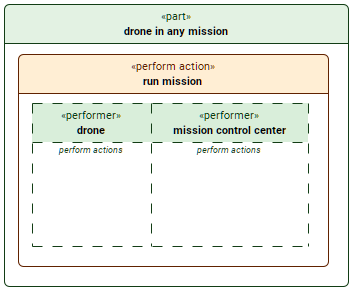
part 'drone in any mission' {
part drone;
part 'mission control center';
perform action 'run mission';
}
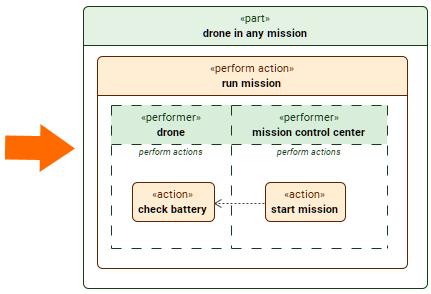
part 'drone in any mission' {
part drone {
perform 'run mission'.'check battery'; // perform action with applicable feature chain automatically created for the part once the action 'check battery' was created in the swimlane that represents the part 'drone'
}
part 'mission control center' {
perform 'run mission'.'start mission'; // perform action with applicable feature chain automatically created for the part once the action 'start mission' was created in the swimlane that represents the part 'mission control center'
}
perform action 'run mission' {
action 'start mission'; // action created via view
action 'check battery'; // action created via view
first 'start mission' then 'check battery'; // succession created via view
}
}
Deleting actions in swimlanes
To delete actions in swimlanes
- To delete an action element or symbol in swimlane, see the procedure Deleting an element or its symbol via a view on the Managing elements page.
Deleting an action element via swimlane deletes the appropriate perform action from the part responsible for performing the deleted action. Any associated connectors are deleted as well.
Changing which parts are responsible for performing actions via swimlanes
You can move actions between swimlanes to change which parts are responsible for performing these actions. The responsible parts are indicated in the header of the swimlane with the keyword «performer».
To change which parts are responsible for performing actions via swimlanes
- Click and drag the action symbol itself from its source swimlane to the target swimlane of the needed perform action.
Details regarding the change:
- If the source and target swimlanes are in the same swimlane grid symbol owned by the common perform action, moving an action from one swimlane to another updates which part is the owner of the perform action responsible for performing the moved action.
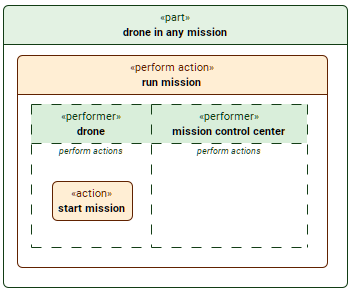
part 'drone in any mission' {
part drone {
perform 'run mission'.'start mission'; // perform action is owned by the part 'drone'
}
part 'mission control center';
perform action 'run mission' {
action 'start mission';
}
}
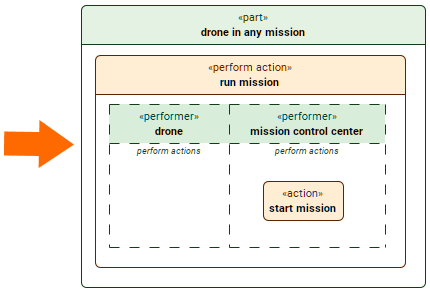
part 'drone in any mission' {
part drone;
part 'mission control center' {
perform 'run mission'.'start mission'; // perform action's owner is updated to the part 'mission control center'
}
perform action 'run mission' {
action 'start mission';
}
}
- If the source and target swimlanes are in different swimlane grid symbols owned by different perform actions (see example below), moving an action updates:
- the moved action's owner to the new perform action;
- which part is the owner of the perform action responsible for performing the moved action;
- the feature chain for the referenced feature of the appropriate perform action.
- The same applies if the moved action is not inherited or owned by the perform action that owns the target swimlane.

part 'drone mission' {
part 'drone in any mission' {
part drone;
part 'mission control center' {
perform 'run mission'.'start mission'; // the part 'mission control center' is the owner of the perform action responsible for performing the action 'start mission'; the feature chain for the referenced action is 'run mission'.'start mission'
}
perform action 'run mission' {
action 'start mission'; // the owner of the action 'start mission' is the perform action 'run mission'
}
}
part 'drone in delivery mission' {
part drone;
part 'distribution center';
perform action 'run mission';
}
}
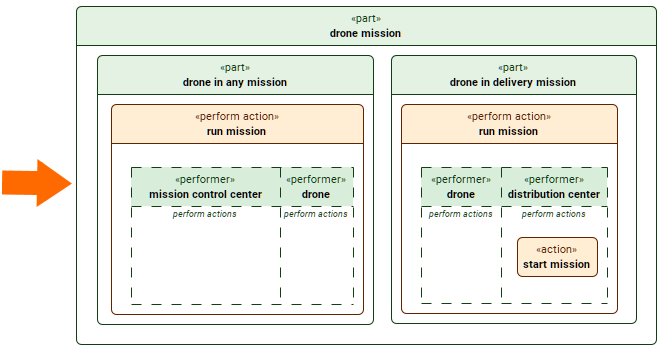
part 'drone mission' {
part 'drone in any mission' {
part drone;
part 'mission control center'; // the previously owned perform action is moved out
perform action 'run mission'; // the previously owned action 'start mission' is moved out
}
part 'drone in delivery mission' {
part drone;
part 'distribution center' {
perform 'run delivery mission'.'start mission'; // the part 'distribution center' is updated as the owner of the perform action responsible for performing the action 'start mission'; the feature chain for the referenced action is updated to 'run delivery mission'.'start mission'
}
perform action 'run delivery mission' {
action 'start mission'; // the owner of the action 'start mission' is updated to the perform action 'run delivery mission'
}
}
}
Deleting parts responsible for performing actions via swimlanes
To delete parts responsible for performing actions via swimlanes
- Select the header of the swimlane representing the part you want to delete.
- Follow the procedure Deleting an element or its symbol via a view on the Managing elements page.
Deleting parts responsible for performing actions via swimlanes also deletes perform actions contained by the deleted part.
Adapting actions to specific context using swimlanes
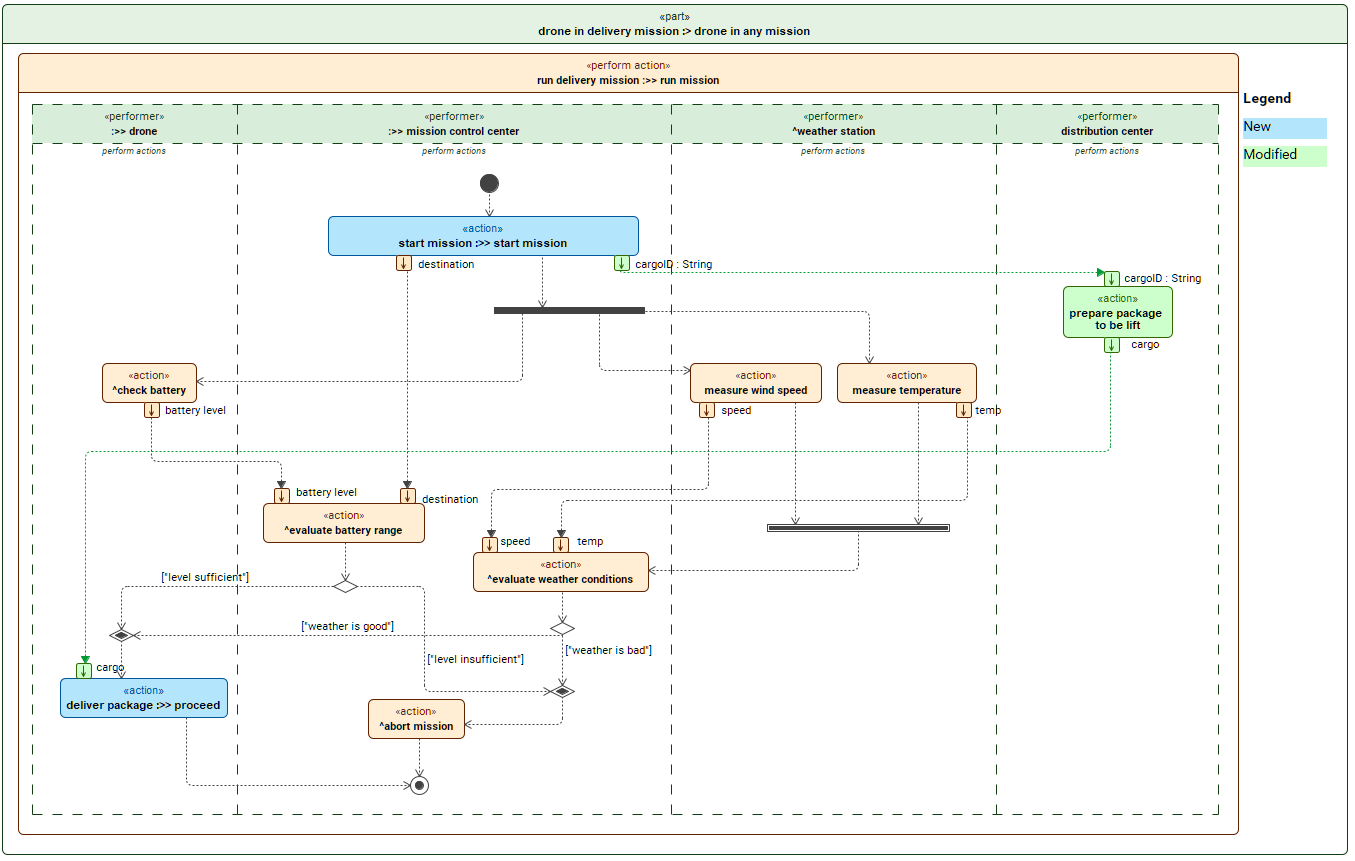
You can adapt the existing actions to specific contexts without affecting the already modeled elements. You can do this by:
- First, subsetting the part that owns the perform action, which in turn owns the actions performed by the subparts. The subsetting part inherits the features of the subsetted part, including the subparts and the perform action.
- You can then redefine the inherited perform action to adapt the subsetting part and its inherited features to the new context.
Then you can:
- Display the swimlane grid and create new swimlanes relevant to this context, which creates subparts for the subsetting part. You can then create actions in these swimlanes.
- Redefine the inherited subparts. You can then manage actions in these swimlanes:

To easily redefine the inherited subparts via the swimlane headers, right-click the header of the swimlane that represents the subpart you want to redefine. In the shortcut menu, click Refactor, then Redefine.
If an action is not owned but simply referenced by the perform action that is an inherited feature of the part represented by the swimlane, the action is displayed with the ^ prefix. See example below.
- Redefine the actions in these swimlanes via the Textual Editor.
- Remove from the view action symbols that are unnecessary in this context.
- Create actions that would then be owned by the redefining perform action of the subsetting part.