Succession flow
A succession flow is a transfer that only occurs after the source action ends and before the target action starts. A succession flow connection is specified in the same way as a flow, but it adds the further constraint that the transfer source must complete before the transfer starts, and the transfer must complete before the target can start.
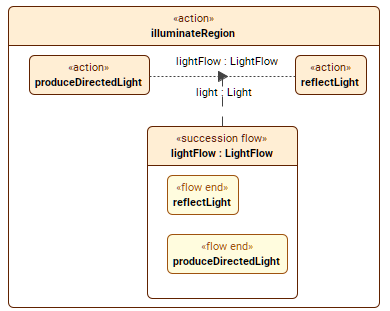 The image displays the lightFlow succession flow connector defined by LightFlow from produceDirectedLight.light to reflectLight.light with the payload light typed by Light.
Additionally, the connector is also elaborated.
Creating succession flow usage elements
Creating succession flow usage elements via the Textual Editor
To create succession flow usage elements via the Textual Editor
- In the Textual Editor, place the cursor where you want to create the element and declare the succession flow keyword.
- Specify the element name (optional), specialization (optional), payload (optional), then the from keyword and the name of the source element, followed by the keyword to and the name of the target element.

If the succession flow has no name and no specialization, the keyword from can be omitted.
- Click the Synchronize button.
succession flow lightFlow : LightFlow from produceDirectedLight.light to reflectLight.light; // named and specialized succession flow
succession flow : LightFlow from produceDirectedLight.light to reflectLight.light; // unnamed specialized succession flow
succession flow lightFlow from produceDirectedLight.light to reflectLight.light; // named unspecialized succession flow
succession flow produceDirectedLight.light to reflectLight.light; // unnamed unspecialized flow can omit the keyword from
Creating succession flow usage elements via the smart manipulator in a view
To create succession flow usage elements via the smart manipulator in a view
- In a view, select an element symbol, and in its smart manipulator, click the succession flow command.
- Click on the element you want to connect via a succession flow. A succession flow path is created between the elements.
Creating succession flow usage elements via the view palette
To create succession flow usage elements via the view palette
- In the view palette, under the Connectors group, click the succession flow button to create a succession flow usage.
- In a view, click on the source element. A dropdown menu appears. Select the output element in the menu.
- Then click on the target element. A dropdown menu appears. Select the compatible input element in the menu. A flow usage is created between the elements.
Setting the payload for the flow

While the payload name and sign are displayed on the flow in a view by default, you can hide them using the Show Payload symbol style.
Setting the payload for the succession flow via the Textual Editor
To set the payload for the succession flow via the Textual Editor
In the Textual Editor, place the cursor before the keyword from within the succession flow for which you want to set a payload.
- Declare the keyword of followed by either of the following:
- The name of the payload specialized by a definition element.
- The name of the definition element you want to set as payload for the flow.
- Click the Synchronize button.
succession flow : LightFlow of Light from produceDirectedLight.light to reflectLight.light; // specialized (feature typing) succession flow with payload set as a definition element
succession flow lightFlow : LightFlow of light : Light from produceDirectedLight.light to reflectLight.light; // specialized (feature typing) succession flow with a named and specialized (feature typed) payload
Setting the payload for the succession flow via the Drag and Drop handler in a view
To set the payload for the succession flow via the Drag and Drop handler in a view
- Drag and drop a definition element from the Containment tree or use its symbol's Drag and Drop handler on a succession flow element symbol executing the Set Payload command.