Modifying styles of individual symbols
You can customize the styles of individual symbols. Using the Symbol Style dialog, you can specify style attributes for specific symbols, determining their appearance.

Changing the styles for an individual symbol via the Symbol Style dialog overwrites both predefined and custom model-based symbol styles; the modifications persist even after updating active style sheets. To reset, see the Resetting changes made in the Symbol Style dialog procedure.
Opening the Symbol Style dialog
To open the Symbol Style dialog
Do one of the following:
Right-click the selected element symbol(s). In the shortcut menu, click Symbol Style.

To invoke the Symbol Style dialog for a docked symbol, you must right-click the symbol's header.
- Select the element symbol(s) and press Alt+Enter.
Modifying individual symbol styles
To modify individual symbol styles
- Select the symbol(s) whose styles you want to modify and open the Symbol Style dialog.
- Locate the attribute you want to modify and change its value to the needed one in the Value column.
- Click Close.
Resetting changes made in the Symbol Style dialog
While changing the styles for an individual symbol via the Symbol Style dialog overwrites both predefined and custom model-based symbol styles, you can easily undo them following the procedure below.
To reset changes made in the Symbol Style dialog
- Open the Symbol Style dialog.
- Locate the attribute you want to reset to the style of the currently activated style sheet. Its check box in the Default column is deselected.
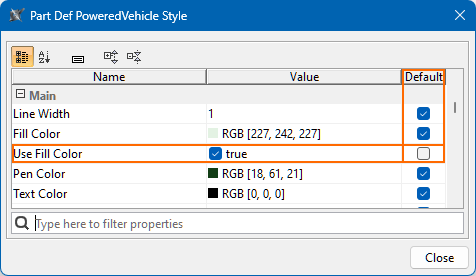
- Select the check box in the Default column for the needed attribute.
- Click Close.
The Symbol Style dialog
The table below lists the style attributes available for modification and their descriptions.
- Modifying a symbol style changes its Default value to false.
- You can hide unwanted symbol styles from the Symbol Style dialog for specific element kinds. See the Hiding style attributes from the Symbol Style dialog for specific element kinds procedure on the Creating style sheet components page.
In the Symbol Style dialog, symbol styles are ordered into the following groups:
- Main: this attribute group displays symbol styles available to the majority of element kinds.
- Compartment-based attributes: the availability of specific symbol style groups depends on the element kind, as each compartment is only available to specific element kinds. Some of the symbol styles available to individual compartment-based symbol style groups may be the same as in the Main group, while others are compartment-specific.
- Compartment-based style groups can be: Documentation, Objective, Subject, Actors, Stakeholders, Include Use Cases, Parts, Ports, Parameters, Attributes, Ends, Satisfy Requirements, Items, Constraints, Require Constraints, Assume Constraints, Assert Constraints, Actions, Perform Actions, Exhibit States, Frames, Enumerations, and Metadata.
| Name | Value options | Description |
|---|---|---|
| Main | ||
| Line Width | Positive number | Specify the width of the symbol's outline. |
| Fill Color | Swatches HSV HSL RGB CMYK | Specify the color of the symbol's header. To enable a gradient for this attribute, enable the Use Gradient Fill view style attribute. |
| Use Fill Color | true/false | Specify whether to use a specific color for the symbol's header. |
| Pen Color | Swatches | Specify the color of the symbol's outline. |
| Text Color | Swatches HSV HSL RGB CMYK | Specify the color of the symbol's text. |
Font | Multiple font options | Specify the font style of the symbol's text. |
Wrap | true/false | Specify whether the text should wrap to fit the width of the element symbol. |
Compartment Fill Color | Swatches | Specify the color of the symbol's compartments. |
Compartment Text Color | Swatches | Specify the color for the text in the symbol's compartments. |
Show Short Name | true/false | Specify whether the element's declared short name should be displayed on the element symbol. |
Show Name | true/false | Specify whether the element's declared name should be displayed on the element symbol. |
Show Modifiers | true/false | Specify whether the element's modifiers (e.g., in, ref, abstract, etc.) should be displayed on the element symbol. The attribute does not control the individual and portion kind (timeslice, snapshot) modifiers. |
Show Full Text | true/false | Specify whether element values should be displayed in full or abbreviated. Modifying this attribute affects the values displayed in both the selected symbol's name and its compartments.
|
| Content Fill Color | Swatches HSV HSL RGB CMYK | Specify the color of the symbol's body. To enable a gradient for this attribute, enable the Use Gradient Fill view style attribute.
The attribute is available for specific symbols based on the element kind. |
| Text Vertical Position | Top Center Bottom | Specify the element name position for the symbol.
|
| Show Specialization | true/false | Specify whether the specialization textual symbols should be displayed in the element name (e.g., the textual symbol :> or the keyword specializes, in the case of subclassification).
The attribute is available for specific symbols based on the element kind. |
| Show Qualified Name for Specialization | true/false | Specify whether the specialization's full qualified name should be displayed in the element name.
|
| Orientation | Horizontal | Specify the orientation for the symbol.
The attribute is available for specific symbols based on the element kind. |
| Path Style | Rectilinear | Specify the style of the path.
The attribute is available for specific symbols based on the element kind. |
| Show Value | true/false | Specify whether the element's defined value should be displayed.
The attribute is available for specific symbols based on the element kind. |
| Show Inherited Sign | true/false | Specify whether the inherited sign should be displayed on the symbol.
The attribute is available for specific symbols based on the element kind. |
| Show Payload | true/false | Specify whether the payload name and sign should be displayed on the connector path.
The attribute is available for specific symbols based on the element kind. |
| Text Horizontal Position | Left Center Right | Specify the text position for the vertical and horizontal separator symbols. |
| Line Style | Solid | Specify the line style for the vertical and horizontal separator symbols. |
| Is Rounded | true/false | Specify whether the rectangular shape symbol's corners should be rounded. |
Compartment-based symbol styles (in compartment-based symbol style groups, e.g., Documentation, Objective, Subject, Actors, etc.) | ||
| Show Compartment | true/false | Specify whether the compartment should be displayed or suppressed. |
| Show Inherited | true/false | Specify whether the inherited elements should be displayed on the symbol. |
| Show Only Owned | true/false | Specify whether only the owned elements or imported ones, too, should be displayed in the symbol compartment.
The attribute is only available for the package symbol and applies to its Members compartment. |