Synchronizing custom style sheet modifications
Once you have created a style sheet and either customized the DefaultStyleSheet components or created custom ones, you need to synchronize the modifications in the Textual Editor and update all views for the modifications to be reflected in model views. Make sure to check whether you also need to assess layout-sensitive changes, as otherwise the updated styles will not be implemented.
Synchronizing modifications

Synchronization and assessment do not affect customizations made to individual symbols via the Symbol Style dialog. See the Resetting changes made in the Symbol Style dialog procedure on the Modifying styles of individual symbols page.
To synchronize modifications
Do one of the following:
In the Textual Editor's toolbar, click the Synchronize button
 .
.- Use the Alt+S shortcut keys.
- Ensure the new style sheet is activated.
- Press the F5 key on the keyboard to update all affected views.
- (Conditional) Assess layout-sensitive changes.
You need to assess layout-sensitive changes if you already have views in your project and the style sheet contains updated values of the following attributes:
- General style attributes: font, wrap, textVerticalPosition, textHorizontalPosition, lineStyle, orientation, isRounded, pathStyle, showPayload.
- Compartment style attributes: showCompartment, showShortName, showName, showFullText, showSpecialization, showQualifiedNameForSpecialization, showModifiers, showValue, showInheritedSign, showInherited, showOnlyOwned.
Assessing layout-sensitive changes
Certain style attributes are layout-sensitive as changing their values can affect already-created views' layout. Whether you have modified an existing style sheet or created and activated a new one if the updated style sheet contains styles with attribute values that are different from those that were used prior, you need to follow the procedure below to assess and either confirm or deny the changes.

Omitting this procedure means the modeling tool will not implement the updates of the new style and retain the previous attribute values representing symbols in the old style.
Follow the procedure below if you already have views in your project and the style sheet contains updated values of the following attributes:
- General style attributes: font, wrap, textVerticalPosition, textHorizontalPosition, lineStyle, orientation, isRounded, pathStyle, showPayload.
- Compartment style attributes: showCompartment, showShortName, showName, showFullText, showSpecialization, showQualifiedNameForSpecialization, showModifiers, showValue, showInheritedSign, showInherited, showOnlyOwned.
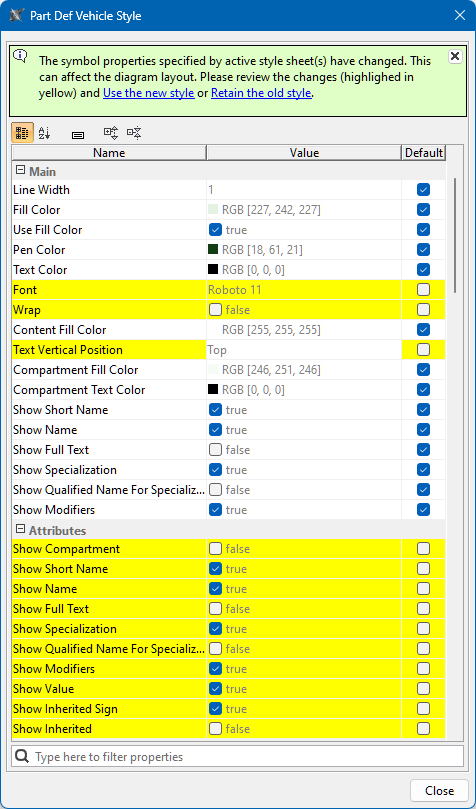 The Symbol Style dialog displays the highlighted rows of the updated attributes after activating a new style sheet within which the values of layout-sensitive attributes are updated.
At the top of the dialog, a notification provides commands for either using the new style or retaining the old one.
Assessing layout-sensitive changes
To assess layout-sensitive changes
- In a view, right-click an affected symbol.
The procedure must be performed for each affected symbol individually.
- In the shortcut menu, click Symbol Style. The Symbol Style dialog opens.
- Review the affected attributes in the highlighted rows. The rows display the old attribute values.
- In the notification at the top of the dialog, click one of the following commands:
- Use the new style - implements the updated attribute values and displays the symbol in the new style.
- Retain the old style - does not implement the updated attribute values and displays the symbol in the old style.
Undoing the command
- To undo the Retain the old style command for a selected attribute:
If you retain the old style, the check boxes in the Default column are deselected because the affected attributes are not inherited from the current style sheet and are considered individually modified.- You can undo the retained style and switch to the new one for the specific attribute by selecting the check box in the Default column for the appropriate attribute.
- To undo either the Retain the old style or Use the new style command for all attributes, do one of the following:
- Press Ctrl+Z on the keyboard.
- In the main menu, click Edit > Undo.
- To undo the Retain the old style command for a selected attribute:
- Click Close.