Textual Editor features
See the sections on this page for the Textual Editor features that can ease your workflow. See also Command Palette and Find dialog pages.
Autocompletion
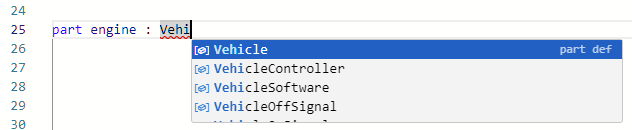
The Textual Editor provides an autocompletion function.
- Invoke the autocompletion dialog by pressing Ctrl+Space shortcut keys. Use the up and down keyboard buttons to navigate the suggestions and click the selection.

Use the Preferred Element Name for Autocompletion environment option to specify which element name should be suggested in context-sensitive autocompletion.
Two types of autocompletion may be suggested in the autocompletion dialog:
- Snippets
- Suggests keywords. Selecting the keyword creates the keyword with its notational structure.
- Snippets are indicated with the square symbol.

- Context-sensitive autocompletion
- Suggests already-created elements' names and library packages.
- Context-sensitive autocompletion is indicated with a box symbol.
Folding the textual notation
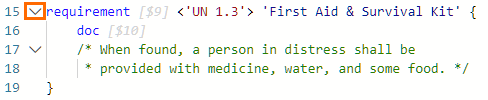
Folding the element's body allows you to easily hide it in the textual notation if its visibility is not needed. It can be useful when the textual notation is extensive. The folding is only persistent while the Textual Editor is open; the element is unfolded upon the reopening of the Textual Editor.
To fold/unfold the textual notation
- Locate the element whose body you want to fold.
- Move the cursor to the left margin of the element keyword, next to the line number.
- Do one of the following:
Folding.
Click the down-facing arrow to fold the body of an element.
Unfolding.
Click the right-facing arrow to unfold it.

Click the three dots next to the opening braces of the folded body.

You can also hold Shift and click the arrow. If the selected element contains elements with bodies, the latter are folded upon the first click of the arrow (this applies only to the first level of elements with bodies). The second click folds the entire body of the selected element. Unfolding works the same way: the first click unfolds the selected element, and the second unfolds the contained elements with folded bodies.
Textual Editor shortcut menu
Right-clicking anywhere in the Textual Editor pane opens the Textual Editor shortcut menu. The table below outlines the commands available in the shortcut menu.
| Command | Shortcut keys | Description |
|---|---|---|
| Go to Definition | Ctrl+F12 | Displays the definition of the selected keyword. |
| Go to Symbol... | Ctrl+Shift+O | Opens the Command Palette for element search by name. Type the element name you want to search for after the '@' symbol to navigate to the searched element in the textual notation. |
| Select in Containment Tree | Alt+B | Selects the element Containment tree. |
| Specification | Opens the Specification panel for the element. | |
| Open View | Opens the view tab for the element. Available only for a view usage with a specified renderer. | |
| Peek | Alt+F12 | Displays the Peek submenu: |
| Change All Occurrences | Ctrl+F2 | Selects all occurrences of the same selection. |
| Format Document | Shift+Alt+F | Formats the textual notation, such as alignment, spacing, etc. The command is disabled if the notation contains any errors. |
| Cut | Delete | Deletes the selection from the notation. |
| Copy | Ctrl+C | Copies the selection in the notation. |
| Paste | Ctrl+V | Pastes the copied selection in the notation. |
| Command Palette | F1 | Opens the Command Palette containing various Textual Editor navigation and editing commands. |
Textual Editor shortcut keys
The table below lists additional shortcut keys that can be used in the Textual Editor in addition to the shortcut keys indicated for the commands in the Textual Editor toolbar, the shortcut menu, and the Command Palette.
| Shortcut key | Description |
|---|---|
| Shift+Right | Selects characters one by one from the cursor to the right. |
| Ctrl+Shift+Right | Selects words one by one from the cursor to the right. |
| Ctrl+Shift+Left | Selects words one by one from the cursor to the left. |
| Alt+Up | Moves the line of text where the cursor is positioned up a line. |
| Alt+Down | Moves the line of text where the cursor is positioned down a line. |
Shift+Alt+Up Shift+Alt+Down | Copies the line of text where the cursor is positioned above or below the copied line. |
Ctrl+Left | Jumps the cursor to the next word on the left. |
Ctrl+Right | Jumps the cursor to the next word on the right. |
Ctrl+F | Invokes the Find dialog. |
Ctrl+Space | Invokes the autocompletion dialog. |