Activating Element Creation dialog
The Active Create Element Dialog allows you to manage all Element Creation dialogs, determining which one should be activated for the project. The predefined SysMLElementCreationDialog configuration is activated by default for all SysML v2 projects. If you prefer using your custom-created Element Creation dialog, you must activate it via the Active Create Element dialog.
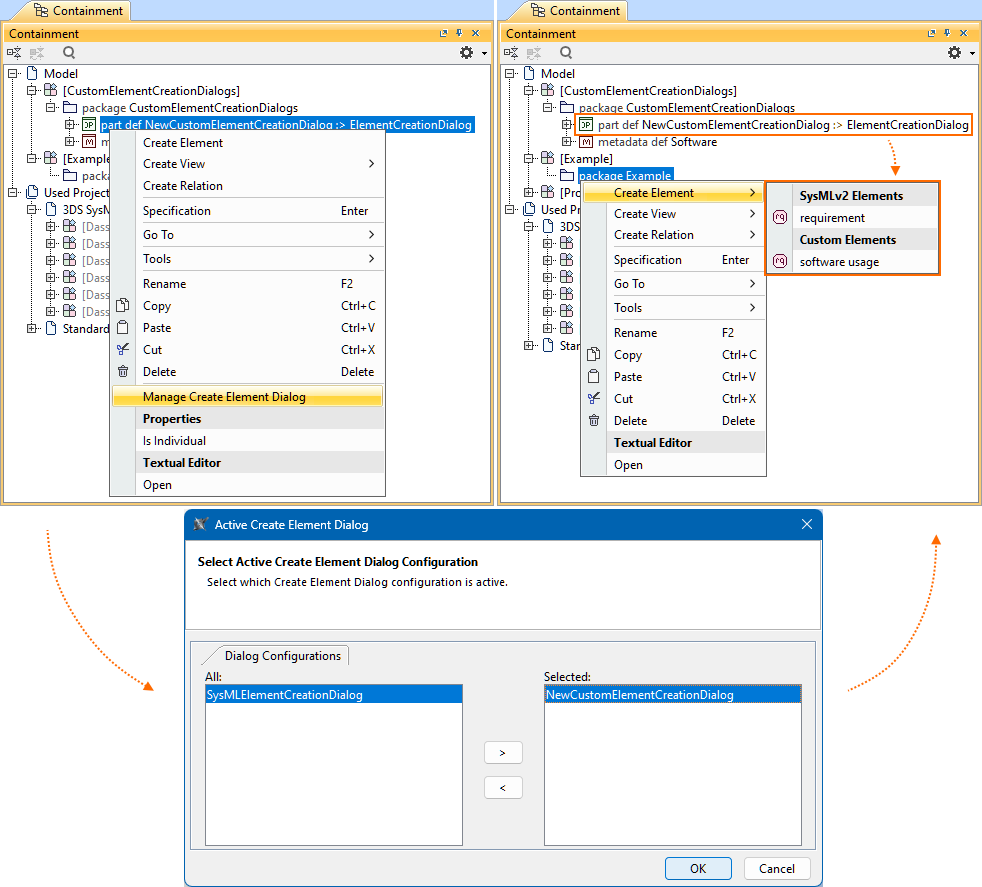
The Manage Create Element Dialog command invokes the Active Create Element Dialog, where the custom Element Creation dialog's NewCustomElementCreationDialog configuration is activated for the project.
Activating the Element Creation dialog

Activating an Element Creation dialog for the project via the Active Create Element Dialog automatically creates a new package ProjectElementCreationConfig with the active Element Creation dialog configuration. The package is created in a root namespace dedicated to configurations that activate style sheets, creation dialogs, and validation suites. If no such namespace exists in the model, it is automatically created with the ProjectElementCreationConfig package. The root namespace's name depends on the name of the package first created in the namespace.
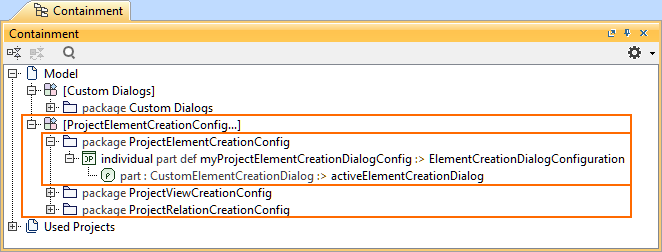

- Only one Element Creation dialog can be activated for a project. If you specify multiple, only the first will be activated.
- If a newly created Element Creation dialog is not visible in the Active Element Creation Dialog, refresh the project by pressing F5 or clicking View > Refresh.
Activating the Element Creation dialog via the element shortcut menu
To activate the Element Creation dialog via the element shortcut menu
- In the Containment tree, right-click the part definition element of an Element Creation dialog configuration.
- In the shortcut menu, click the Manage Create Element Dialog command. The Active Create Element Dialog opens.
- On the left side panel of the dialog, double-click the dialog configuration you want to use.
- Click the OK button. The selected dialog configuration is activated.
Activating the Element Creation dialog via Project Options
To activate the Element Creation dialog via Project Options
- Open the Project Options dialog and in the General group, click SysML v2.
- In the value column for the Active Element Creation Dialog option, click the Browse button. The Active Create Element Dialog opens.
- On the left side panel of the dialog, double-click the dialog configuration you want to use.
- Click the OK button.
- Click the OK button in the Project Options dialog. The selected dialog configuration is activated.