
...
| id | 1318605945 |
|---|
...
| id | 1318605957 |
|---|
...
| id | 1327611214 |
|---|
...
On this page
...
| id | 1318605947 |
|---|
| Table of Contents | |
|---|---|
|
...
|
To enable a secure connection between the client and the Teamwork Cloud server using TLS, perform the following actions:
- Generate a pair of keys by using the Java Keytool.
- Enable a secure connection using the TLS protocol in the Teamwork Cloud Settings application.
- Enable a secure connection using the TLS protocol on the client side.
Configure Web Application Platform to work with Teamwork Cloud via TLS.
Note title Important To learn how to configure Web Application Platform, see Configuring Web Application Platform to work with Teamwork Cloud via TLS.
Generating a key pair using Java Keytool
To enable a secure connection between the client and the server, you need to generate two keystore files, each in their own keystores:
- KeyStore.jks (contains key and certificate) – server-side – upload it using Teamwork Cloud Admin console.
- cert.jks (contains public certificate) – client-side – place it in the <Application folder>\certs directory.
To generate a key pair
- Go to your Java directory and open the folder named bin.
Enter keytool -genkey -alias MyDomain -keyalg RSA -keystore KeyStore.jks -keysize 2048 and press Enter.
Info You can give any name to MyDomain and KeyStore.jks.
Enter a password for your keystore and answer the questions asked. A certificate with a key is generated and placed into the keystore.
To extract a certificate without a key, type keytool -export -alias MyDomain -file certificate.cer -keystore KeyStore.jks and press Enter.
To place a certificate into another keystore, e.g. cert.jks, type keytool -import -alias MyDomain -file certificate.cer -keystore cert.jks and press Enter.
Info You can give any name to cert.jks. However, by default, the tool searches for this exact name.
Two keystore files are generated: one for the server (KeyStore.jks) and one for the client (cert.jks). You can now proceed to enable a secure connection between the client (modeling tool) and the server (Teamwork Cloud).
Enabling a secure connection using TLS
To enable a secure connection to Teamwork Cloud, you must enable TLS (Transport Layer Security) on the Teamwork Cloud Admin's Server Settings page. This page also allows you to disable the option if you do not need to use a secure connection (see the following figure). You can always enable it whenever necessary.
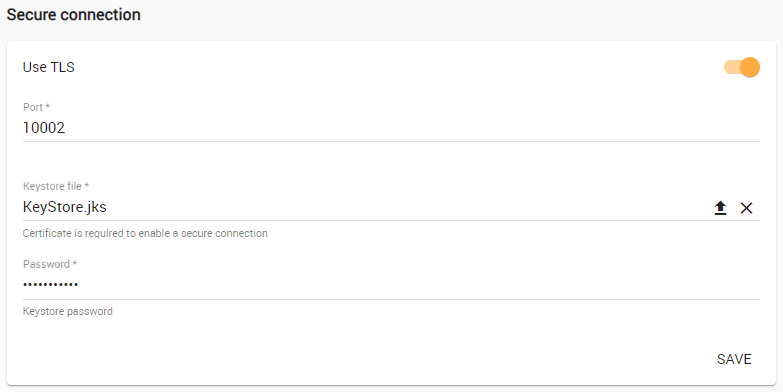
Enabling TLS protocol in Teamwork Cloud (when the option is turned on, the color changes to orange
...
| title | Self-signed TLS certificate warning |
|---|
...
)
...
By default, your server generates a TLS certificate and signs it as being valid (self-signed certificate). Unlike a TLS certificate issued by a valid Certificate Authority (CA), the self-signed TLS certificate allows a secure connection to be established but does not verify the authenticity of the server.
...
.
...
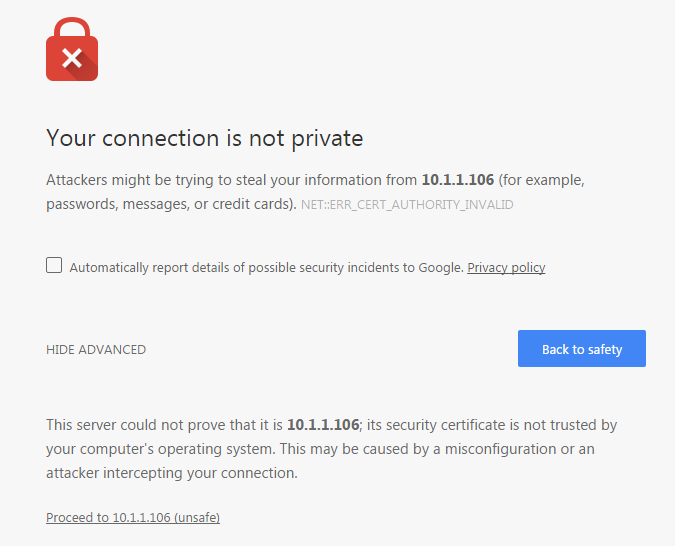
A self-signed TLS certificate error in Google Chrome.
This warning tells you the TLS certificate installed on your server was self-signed and cannot be verified by the browser. You may simply let your browser accept it and continue using the server. If you are using Firefox, you can accept it and the error or warning will no longer appear. If you are using Chrome, the error or warning will appear every time you try to access your server.
To
...
- Replace the self-signed TLS certificate with a dedicated one issued by a trusted certificate authority or
- Establish your own root certificate authority and manually import it to each browser on all workstations.
...
enable a secure connection using the TLS protocol in Teamwork Cloud Admin
- Go to the Settings app.
Move the slider to the right to enable the TLS protocol.
- Type in the port, upload a Java Key Store file, and type the password.
- Click Save.
At this point, you will be able to connect to Teamwork Cloud from the modeling tool via the TLS connection.
Setting up client-side TLS
To enable a secure connection using the TLS protocol on the client-side, use the Server Certificates tool.
| Note |
|---|
The default port for a secure connection is 10002. If you are using another port for a secure connection instead of the default, append the port number to the server name in the Login dialog:
|
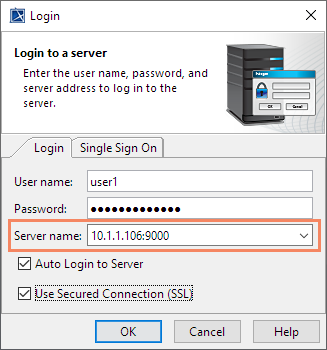
...
| id | 1318605943 |
|---|
Related pages
...