The Creating your First Customization section introduced the step-by-step process of creating a custom element. Following are tips to create custom elements.
Use the Possible Owners property to define the possible owner for a customized element. You can also quickly create a customized element from the possible owner shortcut menu in the Model Browser and in other locations. For example, you can add a package as a possible owner for a customized use case element.
Use the Possible Owners property to quickly create a customized element from the following locations:
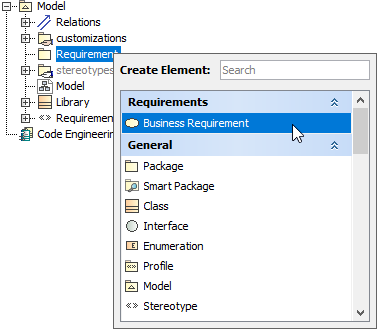
- The possible owner’s shortcut menu, under the Create Element command, in the Model Browser
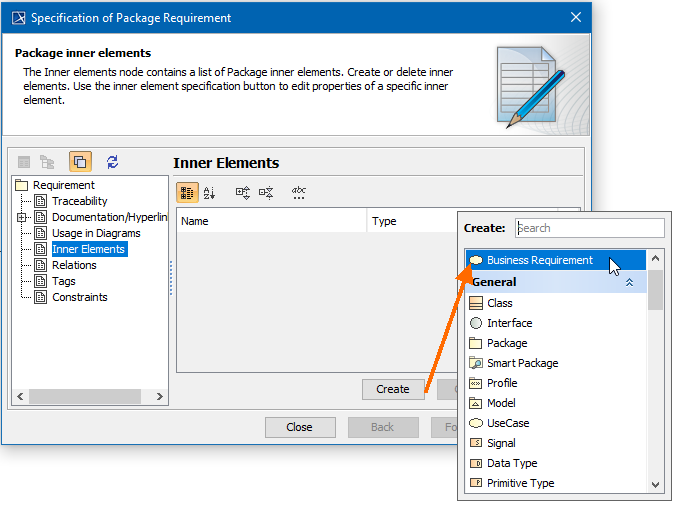
- The Inner Elements property group under the possible owner’s Specification window.
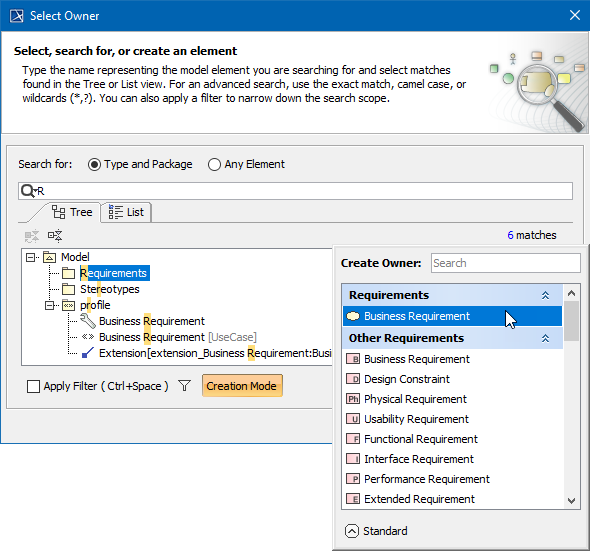
- The Select Element dialog, when the element creation mode is turned on.
Examples of creating the Business Requirement element in Creating a DSL Element from the Customized Category in the Shortcut Menu are shown below:
- In the package shortcut menu (in the Model Browser) under the Create Element command.
- In the possible owner’s Specification window, the Inner Elements property group.
- In the element selection dialog, when creating a new element.