

Before logging in to any server, you must:
- Have a user account on the server.
- Be sure the server is running.
To log in to a server
- In the main menu, select Collaborate > Login.
Single sign-on authentication
To use single sign-on authentication, follow the instructions provided here.
In the Login dialog, fill in the following boxes:
- To login using "username/password" authentication:
- Click the Login tab.
Type your user name and password.
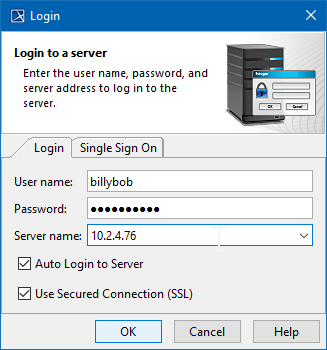
- For users having a single ID and password for multiple software systems (valid only for Teamwork Cloud Server):
- Click the Single Sign On tab.
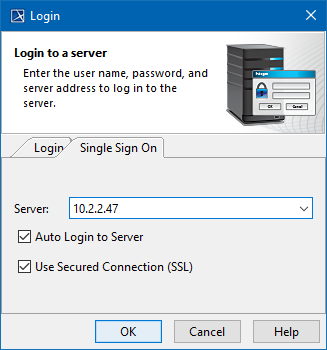
- Click the Single Sign On tab.
Provide the server name (address). If you need to specify a server port, type < server name> : <port number> , for example 10.2.2.47:3579 .
If you prefer to have only a Single Sign On login option, you can enable it by adding an argument to the properties file of the modeling tool:
- Go to <modeling tool installation directory>/bin and open the properties file of your modeling tool.
- In the JAVA_ARGS line, add the -Dhide.login.tab=true argument.
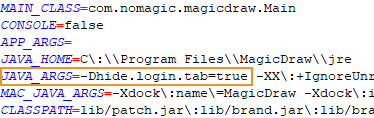
- If you want the client application to remember your credentials and automatically log in to the server next time upon starting the client application, select the Auto Login to Server check box.
If you need to connect to the server using the SSL connection, select the Use Secured Connection (SSL) check box.
The SSL connection must be established on both the server and the client side.
Click OK.
Wait while you are connected to the server, and then you can start performing collaborative tasks.
To log out of the server
- From the Collaborate menu, select Logout.