On this page
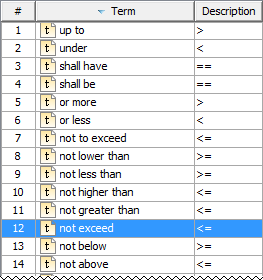
You can use the specific condition terms in Requirement texts if you want to Extracting Constraint from Requirement. For this, follow the procedure below: Before using this feature, make sure the Use Requirement Term Glossary option is enabled. If your project is created using an older modeling tool version than 18.4, the Use Requirement Term Glossary option is disabled by default. To enable/disable Requirement term glossary usage The main rule when using condition terms in requirement text is that the statement must contain condition term+number (e.g. at least 70). Note, that the Unit symbol is not supported. How to insert the condition term in Requirement text read the following procedure. To use terms from glossary in Requirement text Press Ctrl + Backspace while typing to get a list of available terms. Select an appropriate term from the list (e.g. at least). If you can't find an appropriate condition term from predefined glossary table, you can define a custom glossary. define_new If you can't find an appropriate condition term from predefined glossary table, you can define a custom glossary. For this you have to create a new Glossary Table with the <<requirementTerms>> stereotype applied. To create a new glossary table with the Stereotype<<requirementTerms>> You can use condition terms from already created glossary table. If you want to check the most frequently used terms, open the predefined glossary table. To open predefined glossary table a. In the Model Browser, click The glossary table opens where are stored frequently used condition terms (see the following figure). Warning You cannot to extend this list of custom condition term in this Glossary Table.Enabling/disabling the Requirement term glossary usage
Using condition term in Requirements text
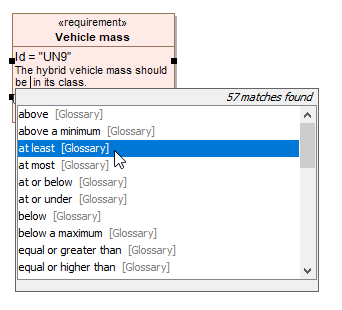
The condition term with its value is used in Requirement text.Defining custom condition phrases
The new glossary table with the stereotype <<requirementTerms>> is created. You are able to define your own condition terms by adding them in the Glossary table.Opening the predefined requirements glossary table
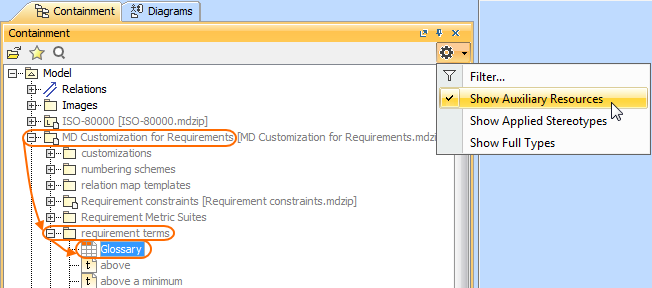
 and select Show Auxiliary Resources button.
b. Expand MD Customization for Requirements Package > requirement terms Package.
c. Double-click the Glossary to open the table (see figure below).