Macro Engine has the capability to record changes in a model. It uses opaque objects to generate macros and record them. This capability is especially useful when you want to redo some of your repetitive tasks.
The following is a list of actions that you can record:
- Creating UML, Stereotype, and DSL elements
- Creating relationships between UML, Stereotype, or DSL elements
You cannot move the element defined as a record scope during recording.
To record a macro
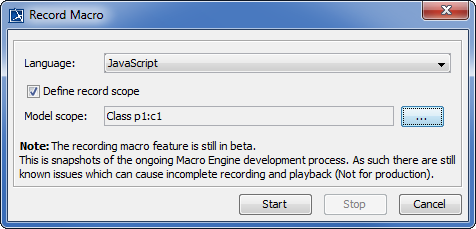
- Click Tools > Macros > Record Macro on the MagicDraw main menu. The Record Macro dialog will open, see figure below.
- Select a macro language in the Language box (you will see the default macro language that you have previously selected in that particular box (see Selecting a Default Macro Language).
- Select the
 check box and click the Model Scope button to locate a scope in the Containment tree. The generated macros will later record the change in the element by using a relative path that refers to the defined scope.
 - Click
 to start recording.
 - Work with the model in the scope you have defined.
- Click
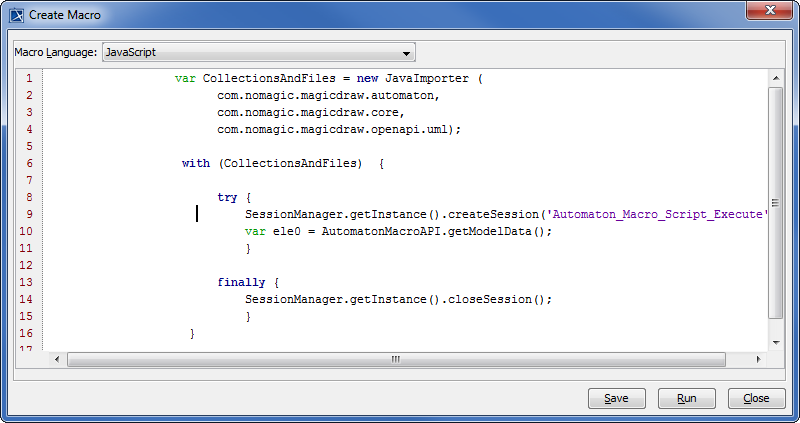
 to stop recording. The Record Macro dialog will close and the Create Macro dialog will open, see figure below, showing the recorded macros.
 - Click either
 or
or  .
.
- If you do not open a project, the menu Tools > Macros > Record Macro will be disabled.
- You can select a record scope only before you start recording
- You cannot change a record scope during recording.
- If you do not define a record scope, the model Data will become the record scope.
- If you click the
 button, the Record Macro dialog will be closed.
 - If you click the button, it will be changed to
 and the button will enabled.
 - You cannot alter the Language, , or Model Scope options after you click the button.
- If you click the button, the recording will pause and the button will be changed to
 .
. - If you click the button, the following things will happen:
- the recording will continue
- the button will be changed to
- The recording mechanism of Macro Engine can generate code for Beanshell, Groovy, Javascript (Nashorn and Rhino), JRuby, and Jython. Unsupported languages will be filtered out of the
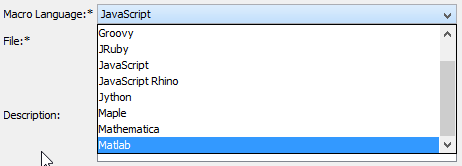 box.
box.