

Ports are points at which external entities can connect to and interact with a Block in different or more limited ways than connecting directly to the Block itself. They are properties with a type that specifies features available to the external entities via Connector to the ports. Proxy Port define the boundary by specifying which features of the owning Block or Part Property are visible through external connectors, while Full Port define the boundary with their own features. Proxy Ports are always typed by Interface Block, a specialized kind of Block that has no behaviors or internal parts. Full Ports cannot be behavioral in the UML sense of standing in for the owning object, because they handle features themselves, rather than exposing features of their owners, or internal parts of their owners.
In the following figure, the chanel2 Proxy Port is typed by GrayCodeIB Interface Block which contains two Flow Properties of Pulse Signal: out a and out b. It means the Proxy Port that is typed by GrayCodeIB Interface Block can send and receive Flow Items of Pulse Signal.
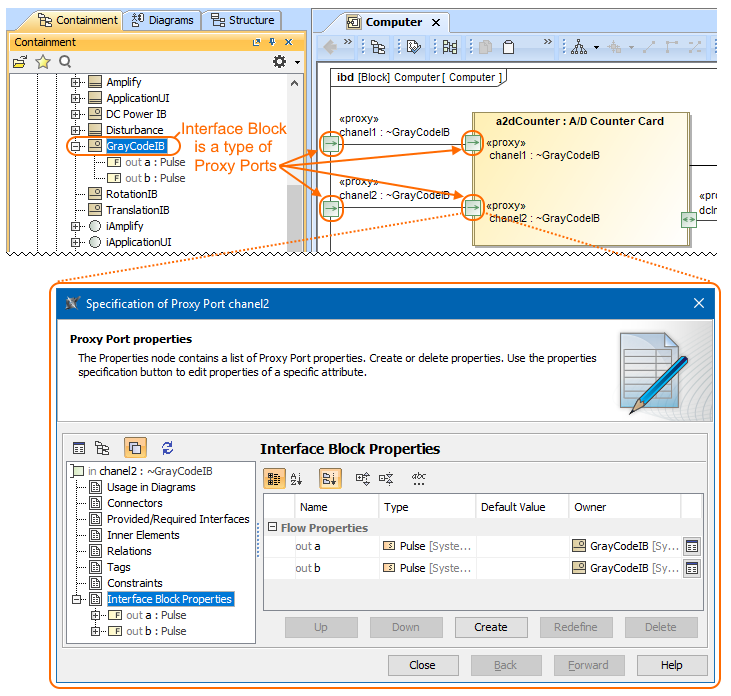
The GrayCodeIB Interface Block is a type of Proxy Ports.
To define interfaces using ports
- Create a Block and decompose it in the SysML Internal Block Diagram.
Defining Blocks in Block Definition Diagram
Decomposing Blocks - In the SysML Internal Block Diagram, create Proxy Port. Creating ports
- Create Interface Block in the model and specify its Flow Property. How to define Interface Block >>
- Select created Interface Block as Proxy Port type. Selecting port type
If ports are connected via Connector, both port types must be compatible.
If the same Interface Block is set as type for a ports on both ends, one of port should be conjugated. The conjugate mechanism reverses the direction of the Flow Property and makes the connection compatible. For this, you can conjugate a port or create Conjugated Interface Block.
To conjugate port, do either
- On the diagram pane, right-click the port shape, and select the Is Conjugated command.
- Open the Specification window of port, and set the Is Conjugated property value to true.
The port is conjugated and the tilde symbol (~) appears before the ports type. See the following figure.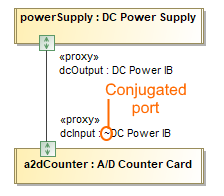
To create Conjugated Interface Block
- Right-click one or several Interface Blocks and select Tools > Create Conjugated Interface Block.
The Conjugated Interface Block is created with the same Directed Feature and Flow Property as original but with opposite directions. It is created under the same owner as original Interface Block.
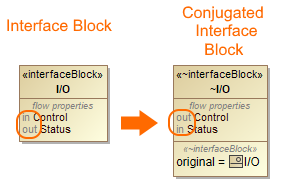
Sample model
The model used in the figure of this page is the InvertedPendulum sample model. To open this sample do one of the following:
- Download InvertedPendulum.mdzip.
- Find in modeling tool <modeling tool installation directory>\samples\SysML\Inverted Pendulum\Inverted Pendulum.mdzip.