Working with Containment tree
The Containment tree provides a visual representation of the hierarchy of your model elements. It is displayed in the Containment tab, which groups model elements into logical sets, displaying their hierarchy as a Containment tree. It allows you to manage your model data, including root namespaces, packages, elements, and other data.
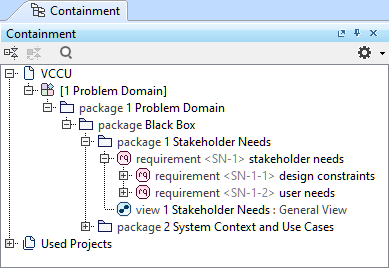
The Containment Tab toolbar
The Containment Tab toolbar contains the following commands.
| Command icon | Command name | Description |
|---|---|---|
| Collapse All | Collapses all expanded elements to display only the global and root namespaces, as well as libraries. |
| Collapse Selected Recursively | Collapses all expanded elements of the selected element. |
| Quick Find | Allows you to search for elements by their name. See the Quick find page. |
| Options | Displays a dropdown menu with available options:

Attempting to display an element hidden by any of the options displays a question dialog in the modeling tool, allowing you to enable/disable the needed option. |


The Essential Elements Only mode
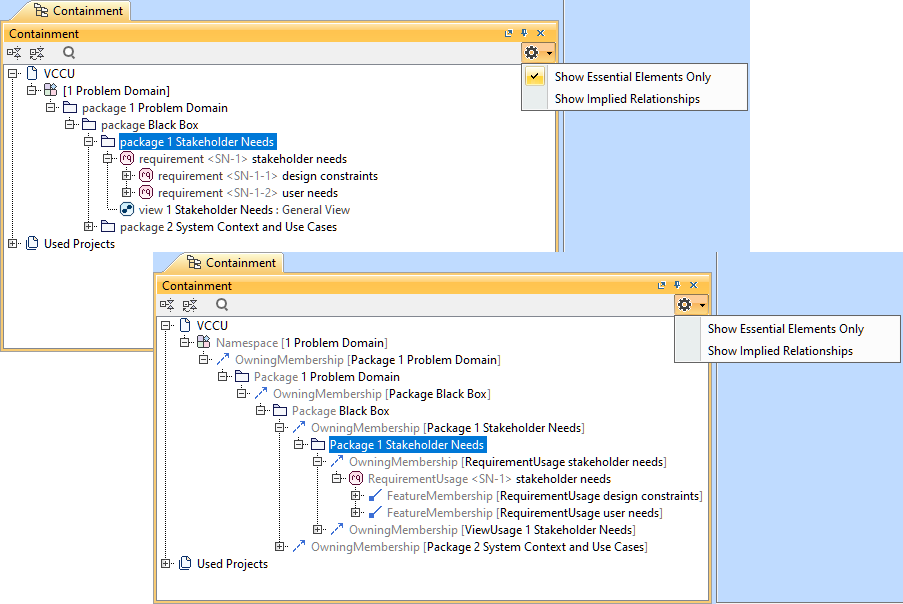
The Essential Elements Only mode allows you to control the level of model detail displayed in the Containment tree of a specific project:
- Enabled (default). Displays the model containing only the model's essential elements that are the most relevant to your modeling process. It also displays elements with their essential representation names instead of full element names.
- Disabled. Displays all model elements, including those that may be less relevant to your modeling process (Memberships (e.g., OwningMembership, FeatureMembership), Specializations (e.g., Subsetting, Redefinition, FeatureTyping), multiplicity, etc.). Elements are displayed with their full element names.
The following UI components use simplified essential representation names, omitting feature modifiers (except direction), specializations, and values, regardless of the Essential Elements Only mode:
- Element shortcut menu
- Select/create input/output submenu
- Go To submenu
- Specification panel
- Specification window
Switching the Essential Elements Only mode
To switch the Essential Elements Only mode
- In the Containment tab, click the Options button in the top right corner.
- In the dropdown menu, click the Show Essential Elements Only option.
Selecting elements in the Containment tree
You can easily select the needed elements in the Contrainment tree from the Textual Editor, symbol in a view, or the Specification Panel.
To select elements in the Containment tree
- In the Textual Editor, do one of the following:
- Place the cursor on the element and press Alt+B.
- Right-click an element and in the shortcut menu, click Select in Containment Tree.
- In a view, do one of the following:
- Select an element and press Alt+B.
- Right-click an element and in the shortcut menu, click Select in Containment Tree.
- Select an element and in the view toolbar, click the Select in Containment Tree button.
- In the Specification Panel, click the Select in Containment Tree button in the Navigation bar.