

On this page
Introduction
Active validation suites enable you to immediately see if a model is correct and complete, instantly displaying any errors in the model and suggesting appropriate solutions. The active validation suites have the «activeValidationSuite» stereotype applied.
Each profile contains its own active validation suites. You can Creating validation suites.
You can see the following active validation suites in the Validation dialog or Validation Suites dialog:
- Numbering Validation contains constraints that check if the element number is unique.
- Parameters Synchronization contains constraints that keep your model valid and synchronized with your changes. sync
- Path Overlapping contains constraints that check to ensure that paths do not overlap.
- Pins Displaying contains constraints that check to ensure that actions do not contain hidden Pins.
- Relations Ownership contains constraints that check if a relationship has the same owner as its end elements.
- Shape Ownership contains constraints that check the element and path owner: if the symbol owner on the diagram correctly reflects the element owner in the model and the element, and If the diagram on which the symbol is drawn belongs to the same owner.
- Text References Validation (Auto) contains constraints that check if the hyperlink text and the referenced element are coherent.
- UML Correctness contains constraints that check the Ports compatibility, Pin types compatibility, Slot and Tags multiplicity correctness, etc.
- Diagram Merge contains constraints that check if the diagrams or symbols are merged correctly.
You can find active validation suites in the Containment tab when the Show Auxiliary Resources option is enabled. Expand the UML Standard Profile Package > Validation Profile Package > Active Validation package.
To show the auxiliary resources
- In the Model Browser, click
 and enable the Show Auxiliary Resources option.
Validating a project with active validation suites
To manually validate a project with active validation suites, you can select the specific validation suite (mentioned above) as the Validation Suite in the Validation dialog.
How to start the validation >> Active validation automatically runs in the background according to the selected active validation mode. To select the active validation mode System - enables validation suites that are critical to the model. For example, all projects have the UML Standard Profile, which has the Composition Integrity system validation suite. This suite contains validation rules allowing for detecting shared project usage, recovered element, or illegal reference related problems. Info You can check these rules under the Auxiliary Resources > UML Standard Profile > Validation Profile > Composition Integrity. To show the auxiliary resources You can control how often, in seconds, a modeling tool will analyze the rules to be executed and how often the modeling tool will execute these rules. After opening a project, all required validation rules will be executed, including system or all (user and system), and next time these rules will be checked only after the specified period. To specify the active validation period Type its value in seconds. Specify a higher time period to ensure better performance of the application. Click OK. You can customize the Active Validation options in the Project Options dialog. To open the Active Validation options Optimizing performance Smart package content (separate elements) will be validated only if Smart package is set directly as a scope of the active validation. If smart package is set indirectly for the validation scope, modeling tool will automatically exclude it from the active validation scope, because elements in the smart package are owned by other elements. To turn off the parameters synchronizationSelecting active validation mode
and enable the Show Auxiliary Resources option.
Selected validation suites are active for all projects, not just the current project.Specifying the active validation period
The specified period is used for all projects, not just the current project.Customizing active validation options
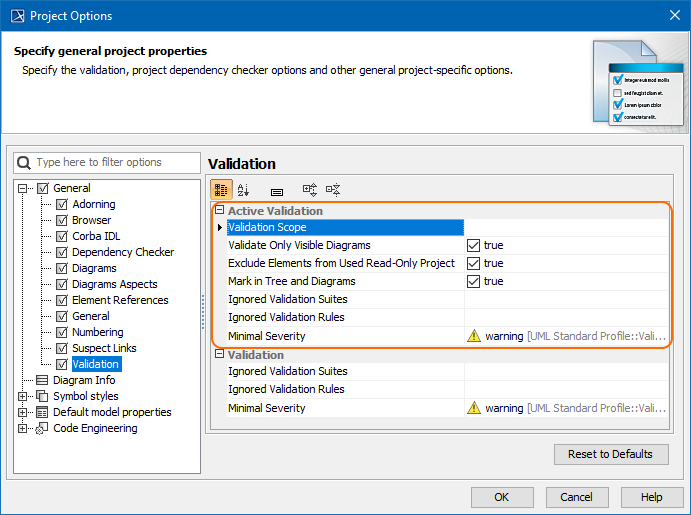
Active Validation options in the Project Options dialog.
Turning off the parameters synchronization
Related pages